

Bespoke IP address service
You order bespoke additional IPv4 addresses through our support team by messenger or email. Support sends you the available addresses, you choose, and the team adds your selection to your VPS after payment. You can add up to 10 additional IPv4 addresses to your VPS. For randomly assigned addresses you can order yourself, use the self-service additional IP guide.
We charge the one-time selection fee in addition to the recurring IP address fee.
Ordering a bespoke IPv4 address
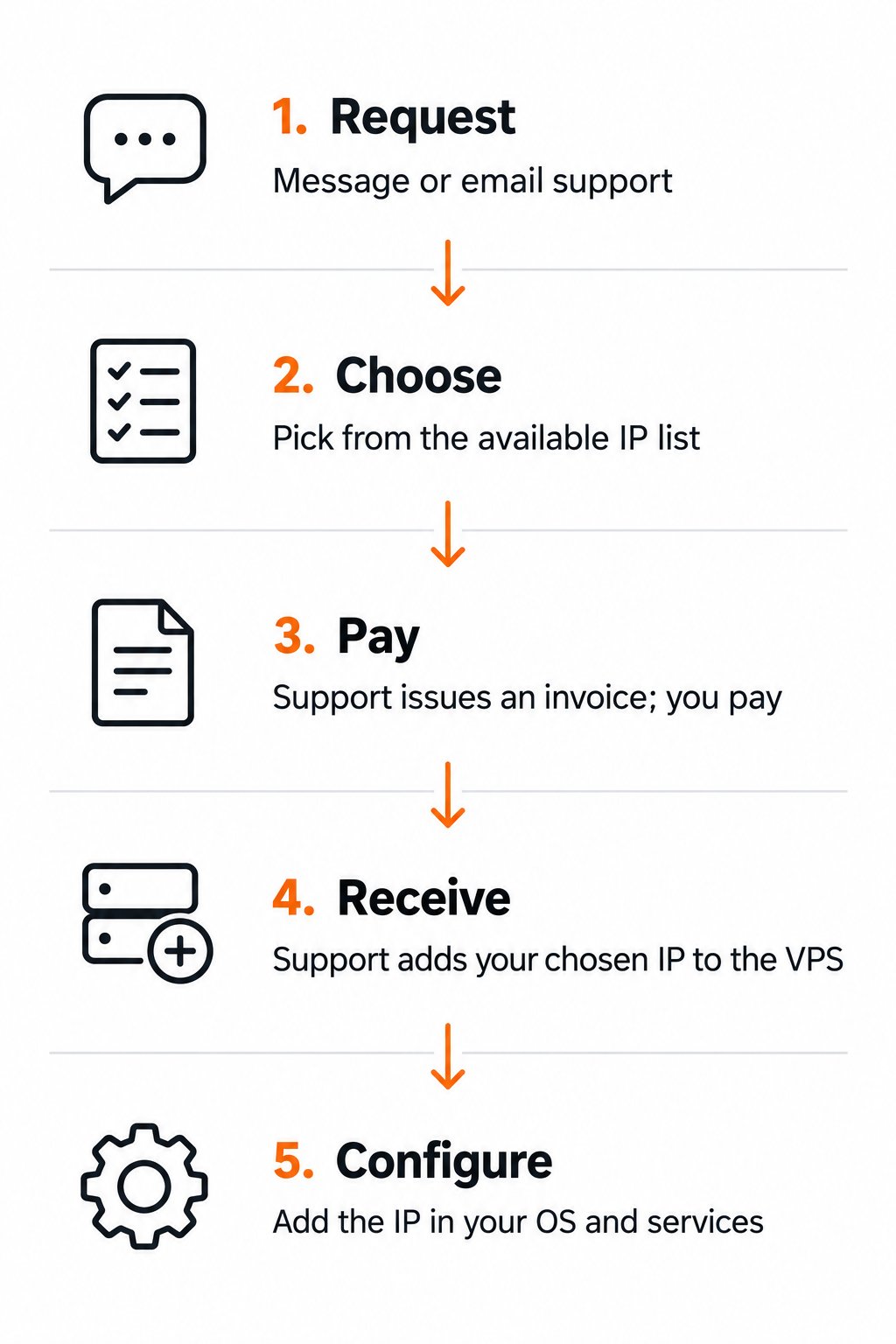
Request → choose → pay → receive → configure.
1
Request bespoke additional IPs
Open the messenger using the chat bubble at the bottom right of the portal, or email our support team.Include your VPS’s primary IP address or KVM_ID, the number of additional addresses you need, and any prefix requirements. State that you want bespoke additional IPv4 addresses.
2
Choose from the available addresses
Support sends you a list of available IP addresses for your VPS location, from multiple /24 prefixes where possible. Reply with the address or addresses you want.The choices depend on current inventory. If you require addresses from distinct /24 prefixes, ask support to confirm availability before proceeding.
3
Receive and pay the invoice
After you and support agree on your selection, support creates the invoice. Review it and pay. The team waits for payment confirmation before delivering the selected addresses.
4
Receive your chosen addresses
After the team confirms your payment, it adds the chosen additional IP address or addresses to your VPS service and confirms delivery.Open the VPS in the VPS Management Portal and open Server Information. Your chosen addresses appear under Assigned IPs alongside the existing Primary IP. Match the primary address to its entry in the list; the other IPv4 entries are your additional addresses.See Identify the primary and additional IPv4 addresses for annotated portal screenshots, then click Network Info for the assigned network settings.
5
Configure your operating system and services
Add the delivered IP addresses inside your VPS operating system, then configure the services that should use them. Keep the existing primary address in place.For Linux, follow Configure additional IPv4 addresses. For the assigned settings, see VPS network information.