

Why the page loads but some buttons do not
The VPS Management Portal loads account information and requests live server information from the EDIS Global management API. Your browser may load the portal itself while requests to the API fail. When the portal cannot confirm the current VPS state, it keeps affected controls unavailable. For example, it needs server status before it can offer a reinstall. This can leave the page partially usable: some buttons appear normally while several management controls remain grey. A visible ACTIVE service label or RUNNING status does not, by itself, confirm that every live request has succeeded.Greyed-out portal controls do not, on their own, mean that your VPS is offline or that you need to reinstall it.
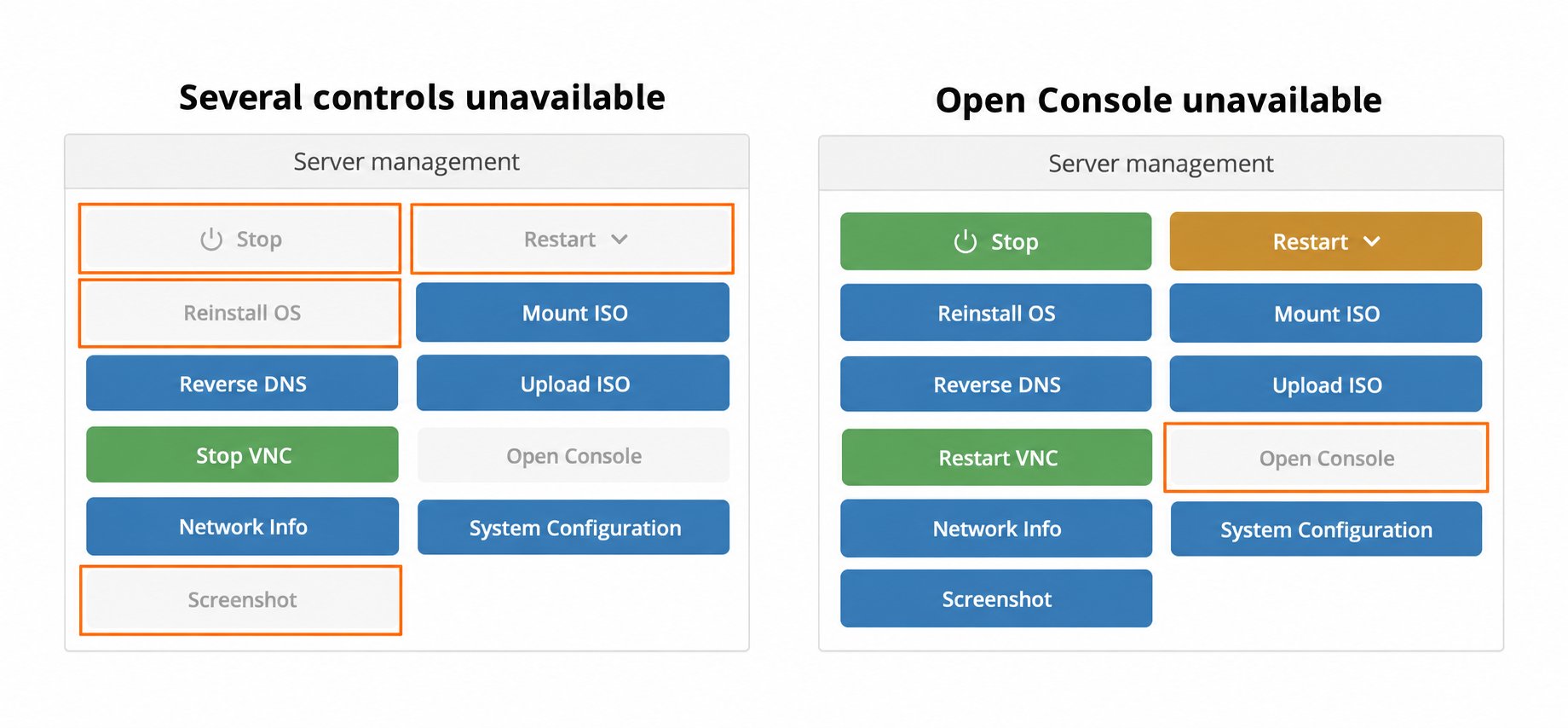
Highlighted examples: several management controls are unavailable on the left; only Open Console is unavailable on the right. Customer details have been removed.
Restore access to the controls
1
Reload the service page
Open the Client Portal, select Services → My Services, open your VPS, and select Server Information.Reload the page once and allow the status information to load. Check whether several controls remain greyed out.
2
Try another connection
Open the same VPS page through a different internet connection, such as a mobile hotspot.If you already use a VPN, try a different VPN server or provider, or test without the VPN if your network permits it. If you do not use a VPN, a trusted VPN provides another connection to test.Reload the portal after changing your VPN or internet connection.If the controls become available, the result points to a connection-dependent problem reaching the management API. It does not identify the exact cause by itself.
3
Check browser and network filtering
Review the firewall on your computer, router, or company network for rules or blocked-connection logs involving EDIS Global servers. A local firewall, proxy, or network filter may allow the portal page while blocking the requests that retrieve VPS status.If government-level internet filtering blocks access to EDIS Global API IP addresses, a VPN may help. Use a VPN server in a location where those addresses are reachable, then reload the portal.Ask your network administrator or internet provider to investigate if another connection works. Support can help identify the affected requests so you can review the relevant rules while keeping your firewall enabled.To check whether the problem is specific to your browser, try another up-to-date browser on the same connection.
4
Check the result
Return to Server Information and confirm that the status loads and the controls needed for your task become available.You do not need to select Stop, Restart, or Reinstall OS just to test a button. Only run an action when you intend to make that change.
Emergency workaround: disable automatic polling
Use&polling=no only as a temporary emergency workaround when you urgently need portal access and cannot yet resolve the connection or firewall issue. Try the VPN, internet connection, and firewall checks above first.
If a firewall on your computer or network limits repeated connections to EDIS Global servers, this parameter may help. It opens the page without automatically refreshing every few seconds, reducing repeated status requests.
Append &polling=no to the VPS page URL in your browser’s address bar.
For example, this URL:
# fragment, then press Enter. The service ID above is only an example.
If your firewall blocks the destination entirely, reducing polling may not help. This workaround does not fix the underlying connection or firewall issue.
Return to normal operation as soon as possible: remove &polling=no and reload the page to restore automatic polling once the connection issue is resolved.
If only Open Console is greyed out
Open Console also depends on VNC availability. A grey console button alone does not establish that the portal has the broader connection problem described above. Follow the VNC access guide to enable VNC and wait for Open Console to become available. If VNC shows as enabled but the console remains unavailable, contact support with a screenshot of the controls and the Information panel.If the problem continues
Contact EDIS Global support if the controls stay unavailable across different connections or browsers. Include:- The affected VPS service ID.
- Which buttons stay greyed out and whether the status information loads.
- Your browser and operating system.
- Whether you use a VPN, proxy, or managed network.
- The approximate time of the problem, including your time zone.
- Whether another connection or browser changes the result.
- A screenshot of the affected controls.