

🆕 UEFI, BIOS & vTPM overview
EDIS Global VPS supports both BIOS (legacy boot) and UEFI (modern boot), as well as vTPM (software-based Trusted Platform Module). These options are primarily relevant for operating system compatibility, especially for modern systems like Windows 11.Find boot mode and TPM settings
Open your VPS under Services → My Services, then select Server Information → System Configuration. The controls are in Boot Settings. After applying a manual change, follow the required power-cycle instructions.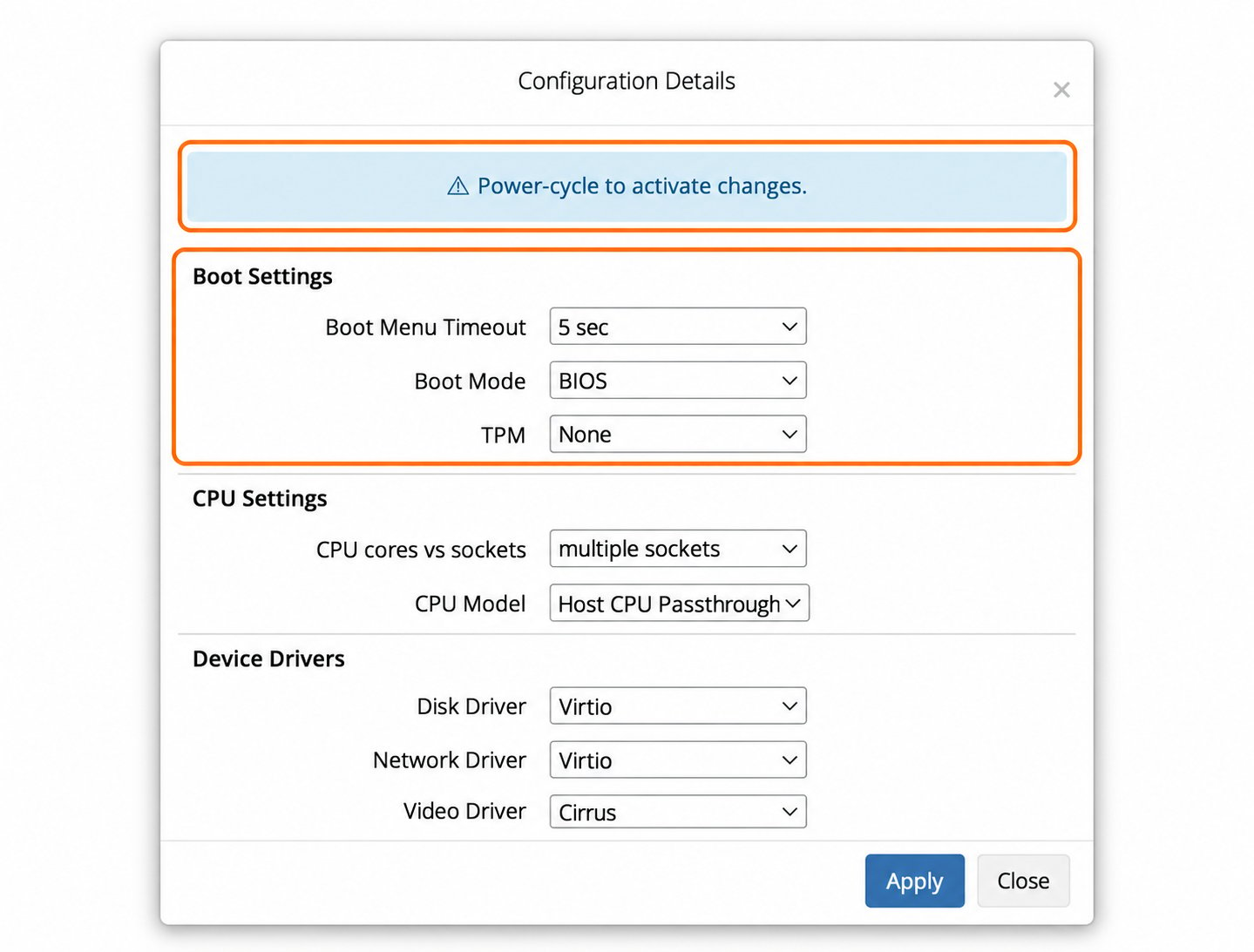
Example selections; select settings appropriate to your installed OS.
🧭 BIOS vs UEFI
🟢 BIOS (default)
- Legacy boot mode
- Maximum compatibility
- Use with operating-system images installed for legacy BIOS boot
- Recommended for most Linux installations
🔵 UEFI
- Modern boot standard
- Required for newer operating systems
- Supports advanced features like Secure Boot
🔐 What is vTPM?
vTPM (Virtual Trusted Platform Module) is a software emulation of a TPM chip. It is required for:- Windows 11 installation
- Certain OS security features (disk encryption, secure boot chains)
Options
- None (Default) → TPM disabled
- Software TPM → TPM enabled
⚙️ Default configuration
To ensure maximum compatibility:- Boot Mode: BIOS
- TPM: Disabled
🤖 Auto-Installer behavior
When you use EDIS Global Auto-Installers, they:- Automatically select BIOS or UEFI
- Enable or disable TPM as required
🧩 When manual configuration matters
Manual BIOS / UEFI / TPM settings are relevant when:✔️ Custom Cloud-Init images
- You can:
- Use current VPS settings, or
- Override boot mode and TPM during deployment
✔️ Custom ISO / uploaded images
- Your VPS uses the System Configuration settings
- If needed:
- Change Boot Mode / TPM
- Power-cycle the VPS
- Boot your image
⚠️ Important considerations
OS compatibility
- An image must include a bootloader compatible with the selected firmware mode
- Switching from BIOS → UEFI on an existing installation will usually result in:
- ❌ Boot failure
Changing boot mode
- Boot mode must match how the OS was installed
- Changing it later requires:
- Reinstallation, or
- Advanced manual recovery
TPM usage
- Not required for Linux in most cases
- Only enable when explicitly needed
- Adds complexity without benefit if unused
🧾 Quick recommendations
- Keep the existing boot mode for an installed system.
- For a new custom image, follow its BIOS/UEFI and TPM requirements. Linux images may support either mode.
- For Windows 11, select UEFI and Software TPM; check the remaining OS requirements as well.
🧭 Summary
If you are unsure which configuration to use, the Auto-Installer will always choose the correct setup automatically.