Connect to VLESS VPN in Android
-
Install v2rayNG
- Open Google Play, search for v2rayNG, then download and install the app.
- Official site link: https://en.v2rayng.org/download/
- Official Github release page: https://github.com/2dust/v2rayNG/releases/
-
Open v2rayNG and create a new connection
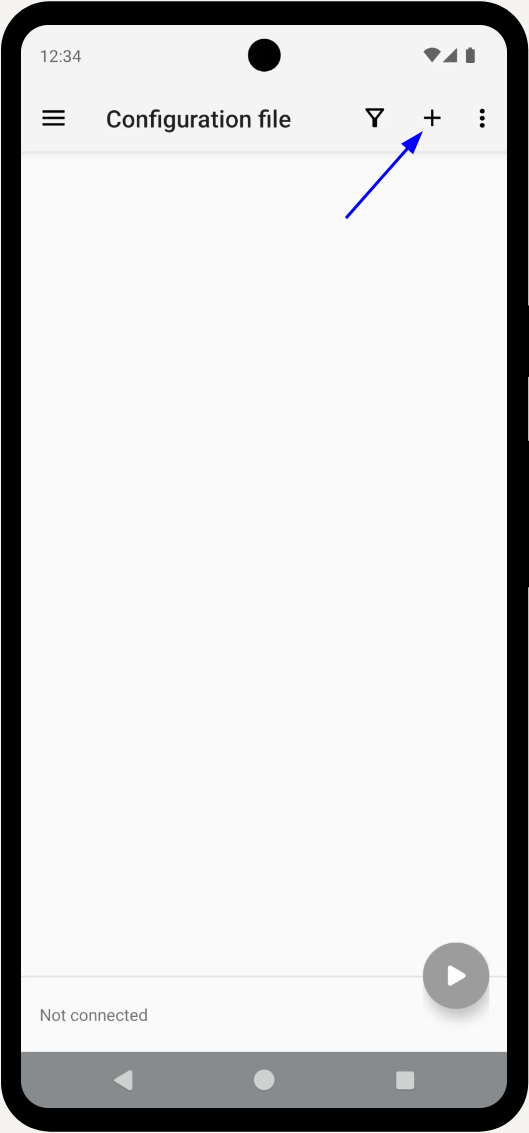
Tap the “➕” icon (usually in the top-right corner) to add a new server.
-
Add the VPN config from 3x-ui
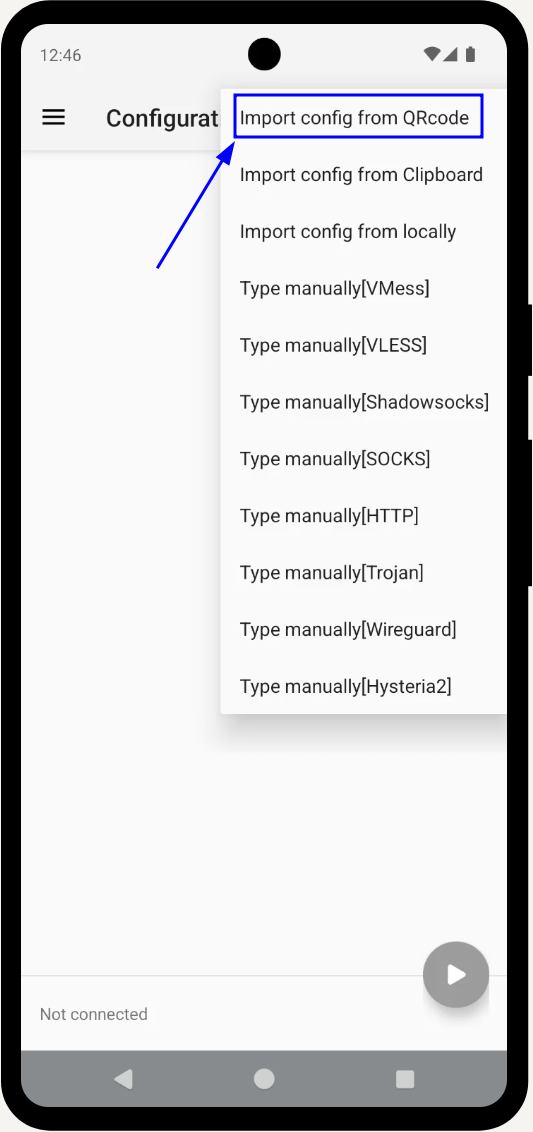
- In v2rayNG, select Scan QR code (and point the camera at the QR from 3x-ui).
- The new VPN profile will appear in the list.
-
Connect and check the status
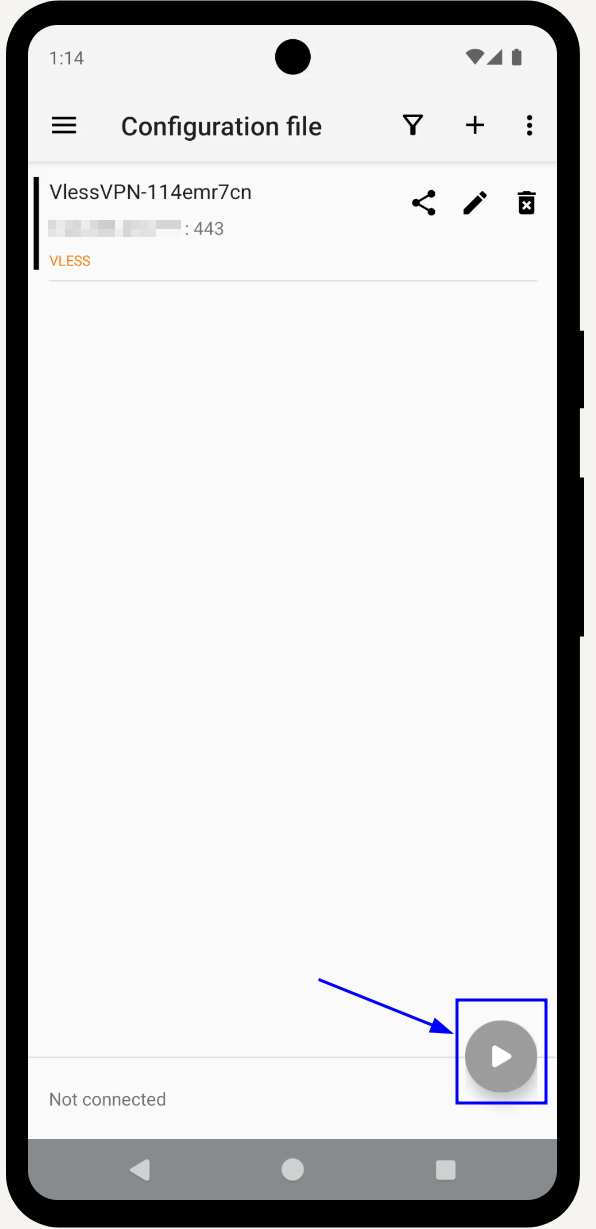
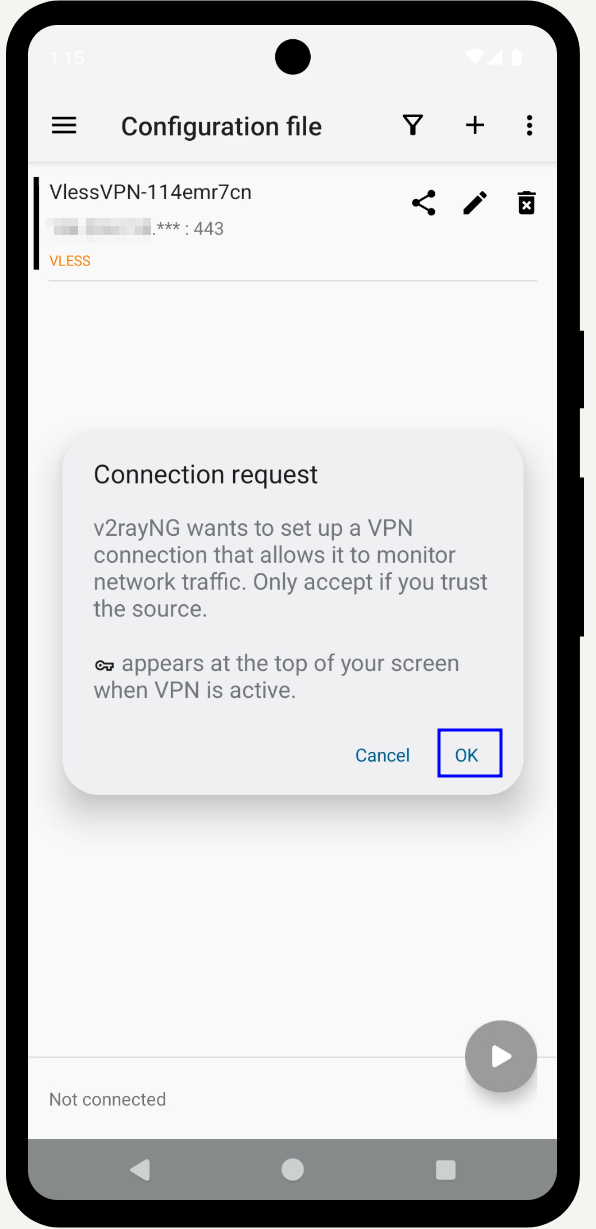
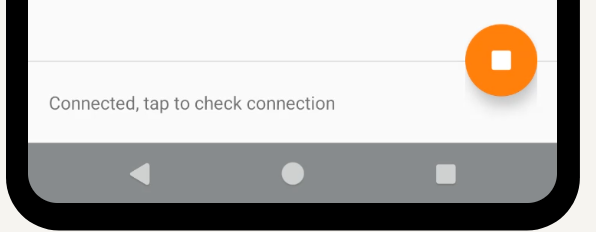
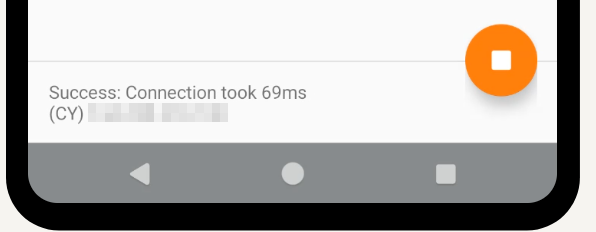
Tap the newly added profile, then tap the paper airplane / connect ▶️ button.\