

What is VLESS?
VLESS is a modern, lightweight protocol used to create fast, flexible VPN-like connections over the internet. It’s an improved version of VMess with a simpler design and no built-in encryption, because it relies on TLS instead. This makes it efficient, good for use with CDNs, and useful for bypassing censorship or network limits when combined with Xray on a VPS.What is 3x-ui?
3x-ui is a web panel (a control dashboard in your browser) for managing Xray-core. It lets you create and manage VLESS VPN accounts without touching complex config files. You can add users, generate VLESS links or QR codes, and see traffic usage in a few clicks. 3x-ui also supports other popular protocols like Trojan, Shadowsocks, and more, so you can choose what works best for your needs. Overall, it turns many “terminal-only” tasks into simple buttons and forms, which is much easier for beginners.Choose a VPS for 3x-ui
For this guide, use a KVM Linux VPS with Ubuntu 22.04, root access and a public IPv4 address. You will install and manage 3x-ui yourself. KVM Starter with 2 GB RAM is a practical starting point for a small personal setup. For several active users or a commercial service, compare vCPU resources and monthly traffic as well as RAM, then test with your expected workload. There is no fixed number of users or guaranteed throughput associated with a RAM size. Choose a location close to your users or with a suitable route to their networks. Test the location’s Looking Glass before ordering. The plan comparison shows the CPU type, storage, traffic allowance, host uplink and current price for each location. Host uplink speed is not a per-VPS throughput guarantee.Compare 2 GB VPS plans
Select your location and compare current KVM Starter plans.
Browse all VPS locations
Find other locations and larger plans for your deployment.
Install 3x-ui on a VPS
1
Install Ubuntu 22.04 on your EDIS Global VPS
Choose a location and plan above, then select Ubuntu 22.04 as your operating system.
2
Connect to the VPS using SSH
3
Update and upgrade packages
4
Install the curl package
5
Disable IPv6 on Ubuntu 22.04
6
Install 3x-ui panel
7
Set the panel port
During the installation, the script asks whether you want to change the port:Type y to set your own port. The port should be in the 41000-65000 range. For example: 46522At the end, you will see something like:
###############################################
Username: ajYbrazcyO
Password: HPty32FVU7
Port: 46522
WebBasePath: ZtvraBUmNK9NQj43ks
Access URL: http://YOUR_SERVER_IP:46522/ZtvraBUmNK9NQj43ks ###############################################
Username: ajYbrazcyO
Password: HPty32FVU7
Port: 46522
WebBasePath: ZtvraBUmNK9NQj43ks
Access URL: http://YOUR_SERVER_IP:46522/ZtvraBUmNK9NQj43ks ###############################################
Save these credentials to notes.
Connect to the 3x-ui panel
Never connect to 3x-ui over plain HTTP. It’s not secure. Always access the panel via HTTPS or through an SSH tunnel. To secure your connection to 3x-ui, make sure at least one of the following is set up:- Generate and assign a self-signed certificate for the panel
- Use SSH port forwarding (access 3x-ui through an SSH tunnel)
- Use a Let’s Encrypt SSL certificate if you have a registered domain
- Self-signed cert
- SSH port forwarding
- Let's Encrypt SSL cert
A self-signed certificate lets the 3x-ui panel use HTTPS, so all data between your browser and the panel is encrypted instead of sent in plain text. Your browser may show a warning because the certificate isn’t from a public certificate authority (CA), but the connection is still secure. This helps prevent man-in-the-middle (MITM) attacks. It is also much safer than using HTTP, especially when entering your password or changing VPN settings.Generate a self-signed certificate and apply it to 3x-ui:Select option 13 to restart the panel. After that, 3x-ui serves the web interface over HTTPS using your self-signed certificate.
- Create a directory for the certificate:
- Generate a self-signed certificate:
- Assign the certificate to the 3x-ui web panel:
- Restart the 3x-ui panel to apply changes:
Great, you’re now securely connected and logged in to the 3x-ui panel. Next, you’ll create a new inbound and connect to your server from your client apps.
Create an inbound in the 3x-ui panel
Log in to the panel: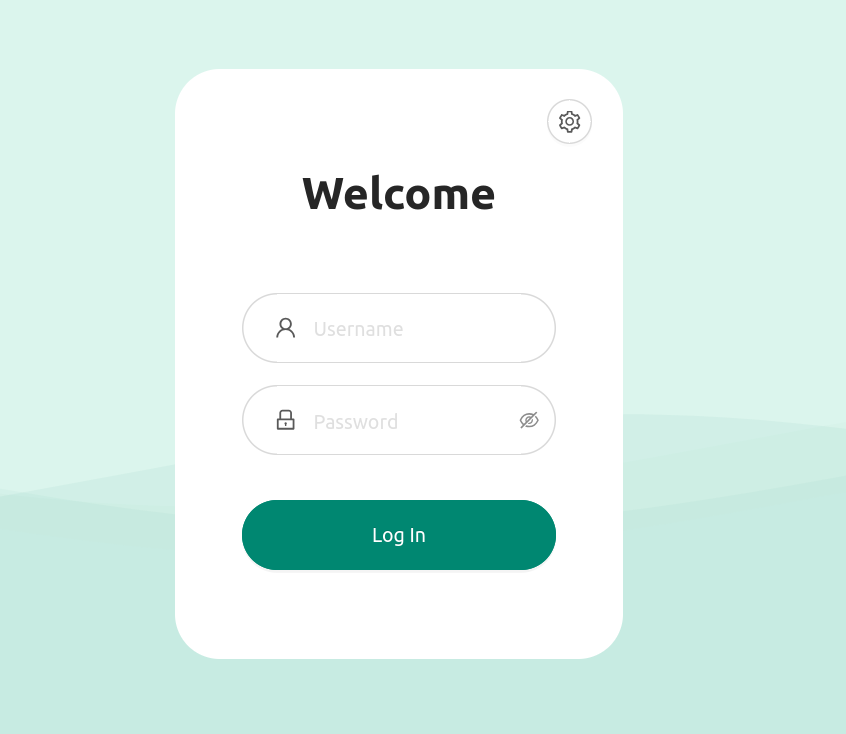
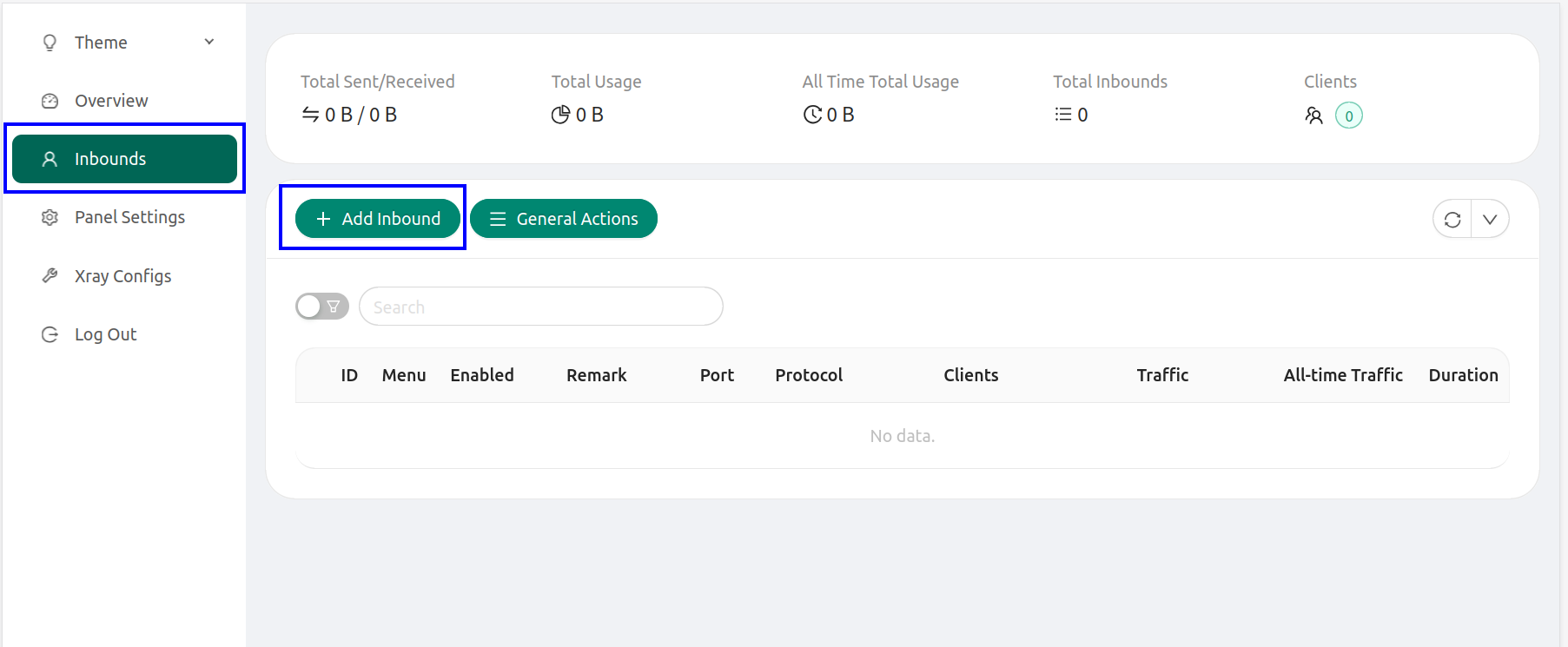
- Remark - name the connection
- Protocol - select vless
- Listen IP - leave the field blank
- Port - specify port 443
- Click the Client drop-down list, then click Email, ID and Subscription one by one to update them.
- For Flow, select xtls-rprx-vision. The Flow field appears after you set Security to Reality.
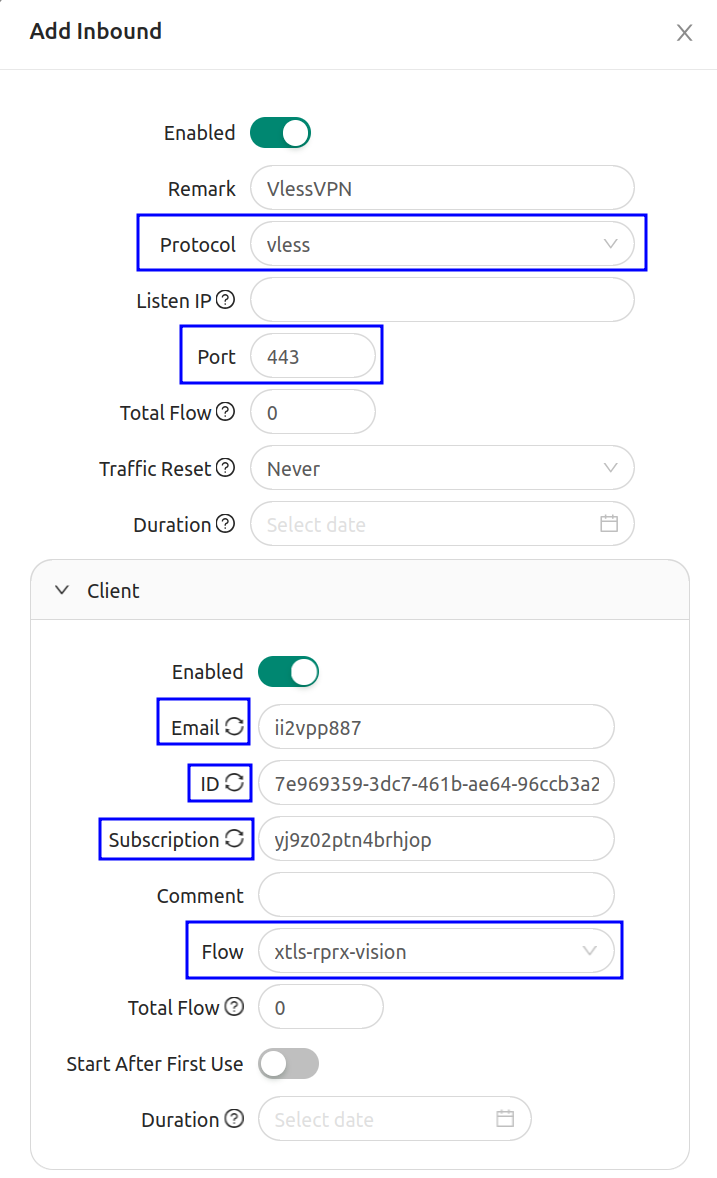
- Transmission - TCP(RAW)
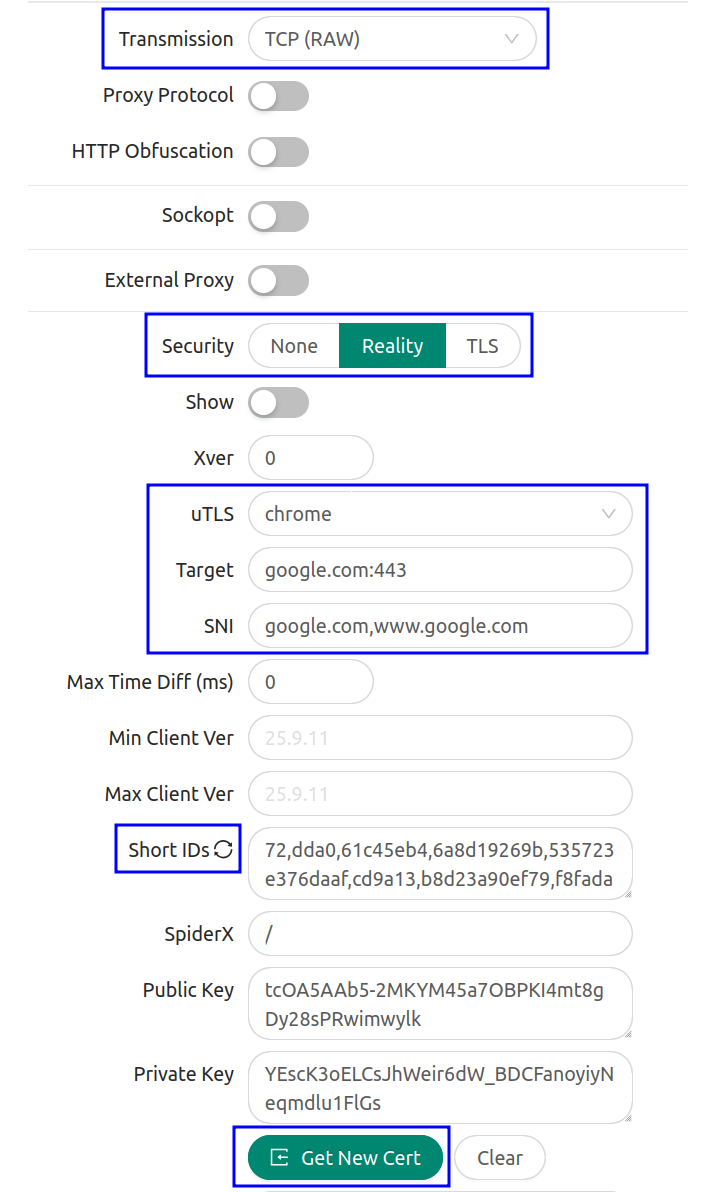
- Security - Reality
- uTLS - chrome or firefox
- Target - google.com:443
- SNI - google.com,www.google.com
- Short IDs - click to update
- Click Generate New Cert
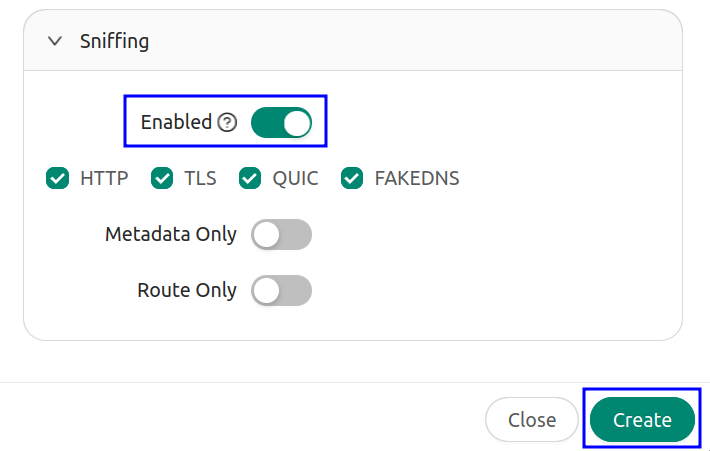
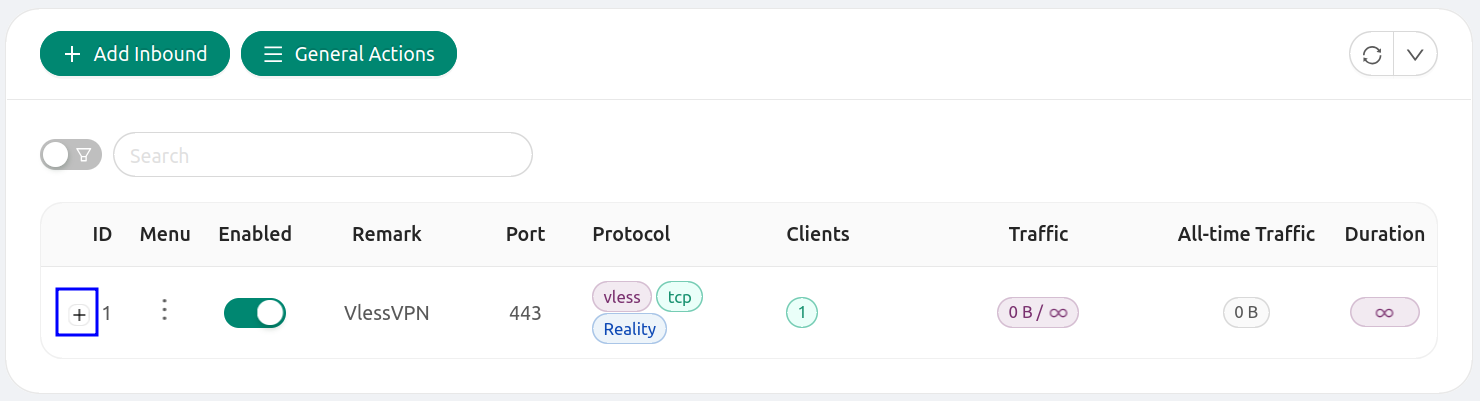
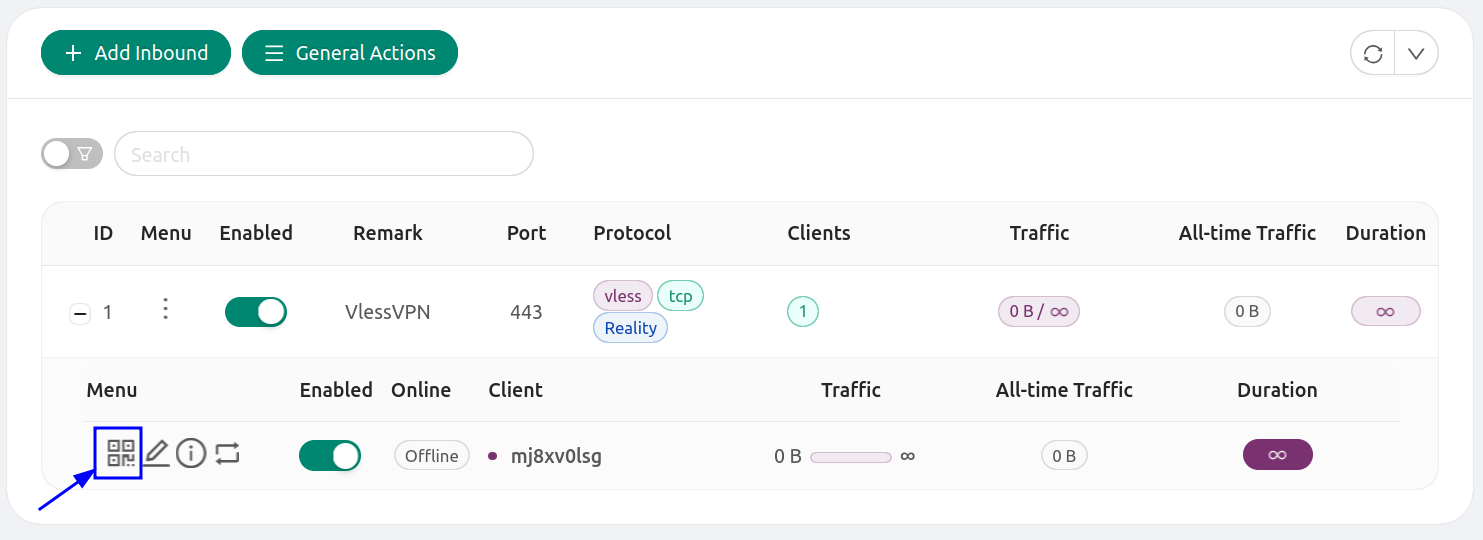
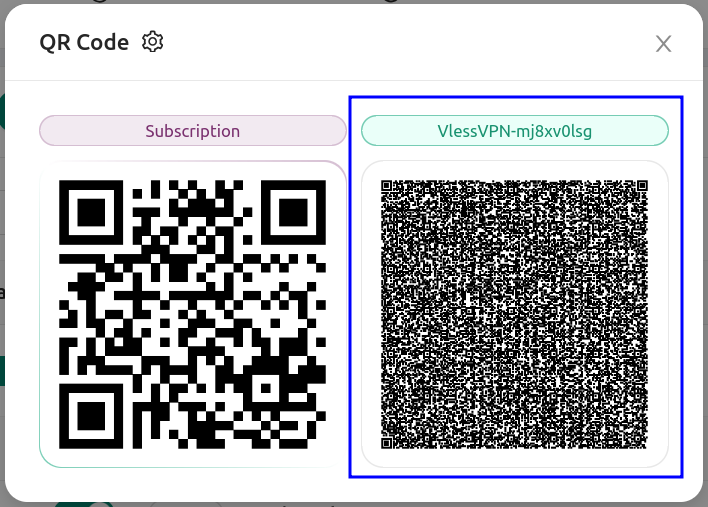
How to connect to 3x-ui (PC, Android, iOS)
Compatible 3x-ui clients include Hiddify, v2rayN, v2RayTun, v2RayNG, Nekoray and others.
Links:
- https://github.com/MHSanaei/3x-ui
- https://github.com/MHSanaei/3x-ui/wiki
- https://github.com/MHSanaei/3x-ui/wiki/Installation#docker-recommended
- https://github.com/XTLS/Xray-core
- https://xtls.github.io/en/config/inbounds/vless.html