

What is Cockpit?
CCockpit is a lightweight, web-based server management interface for Linux systems. It allows you to monitor, configure, and control your VPS directly from a standard web browser. Cockpit is especially useful for VPS environments where administrators need fast, secure, and convenient access to system management tools without relying exclusively on SSH. The Cockpit Web Terminal is particularly useful in environments where SSH access may be unreliable, restricted, or filtered by network providers, firewalls, or regional routing policies. Because Cockpit operates over secure HTTPS (port 9090), it can provide a more accessible management channel.What makes the Cockpit Web Terminal special?
Unlike VNC-based console access, the Cockpit Web Terminal provides:- Reliable access when SSH (port 22) is restricted or filtered
- Full command-line functionality directly in your browser
- Secure HTTPS-based communication
- Native clipboard support (copy and paste commands easily)
- Faster and more responsive interaction compared to VNC
- No additional client software required
How to install Cockpit Web Terminal on Debian 13
To install Cockpit Web Terminal on Debian 13, you can follow these steps:- Connect to your Debian 13 server using SSH or any terminal access method you prefer.
- Create a new user (optional): If you want to create a new user for accessing Cockpit, you can do so with the following command:
newusername with the desired username. After creating the user, you can log in to Cockpit using this new account. 3. Add the new user to the sudo group (optional): If you want the new user to have administrative privileges, you can add them to the sudo group:
- Update your package list and install Cockpit:
- Enable and start the Cockpit service:
- Open the necessary firewall port (if applicable):
- Restart the Cockpit service to apply changes:
Access Cockpit Web Terminal:
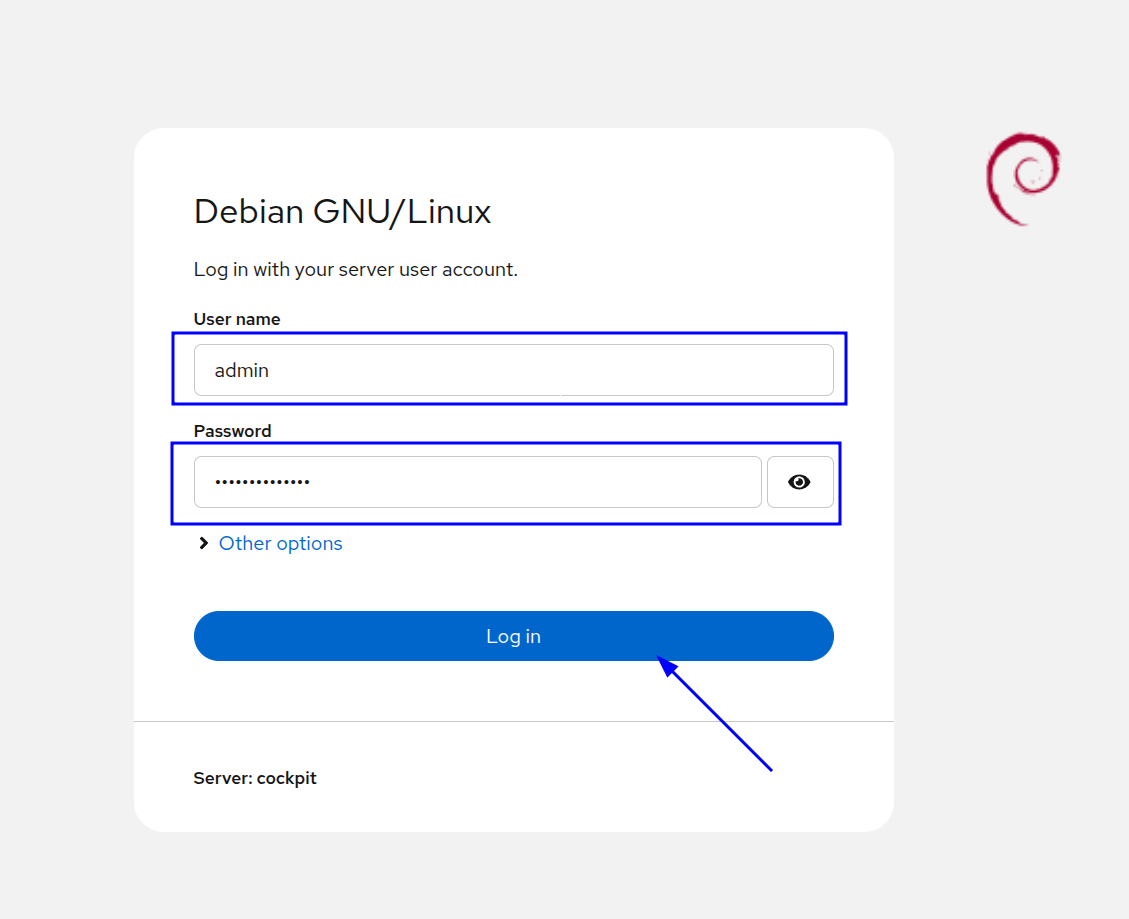
Open your web browser and navigate tohttps://your-server-ip:9090. You will be prompted to log in with your server’s username and password. Once logged in, you can access the web terminal from the Cockpit dashboard.
Security Notes
Cockpit uses HTTPS encryption by default. You may see a browser warning due to a self-signed certificate. This is normal for new installations. For production environments, you can install a trusted SSL certificate using Let’s Encrypt.Activate Administrator Privileges
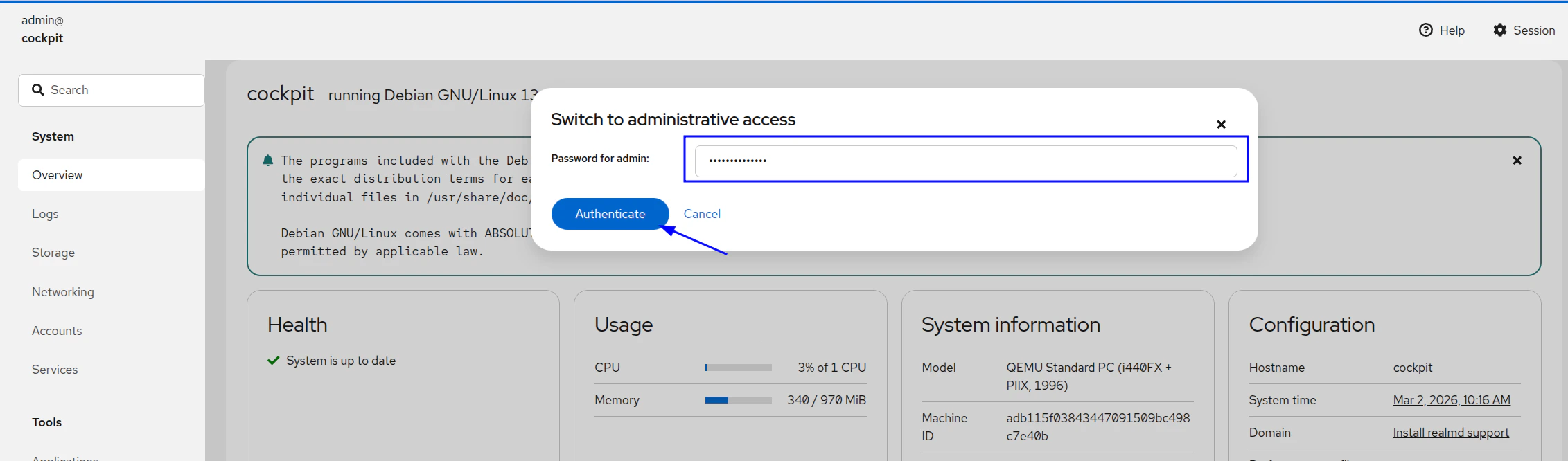
After logging in, click on your username in the top right corner and select “Turn on administrative access”. You will be prompted to re-enter your password to confirm elevated privileges.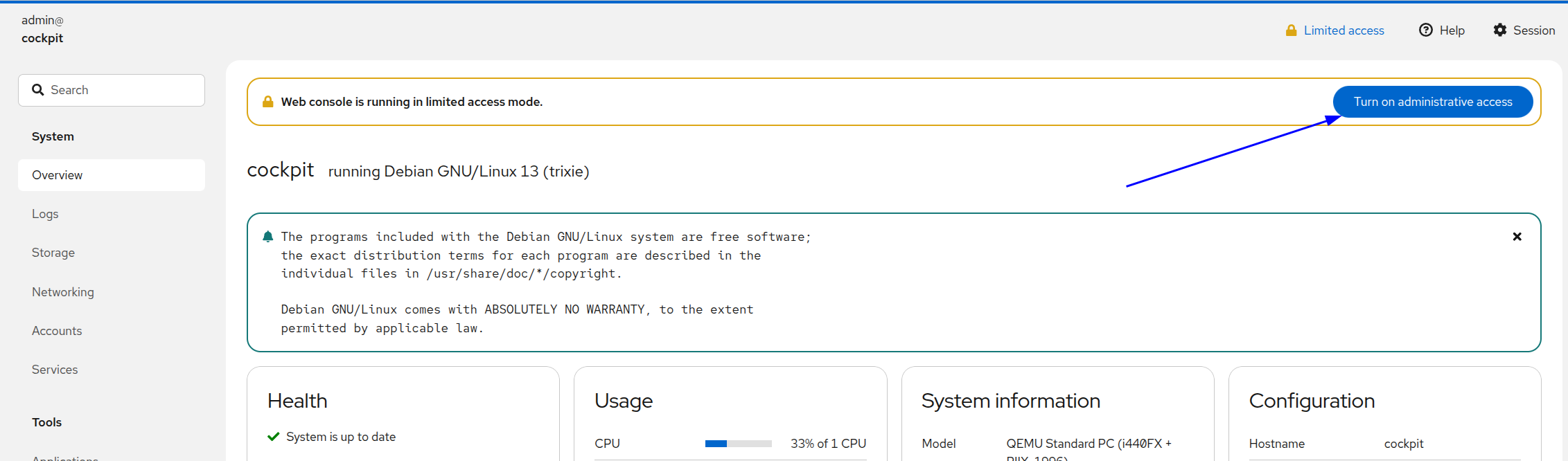
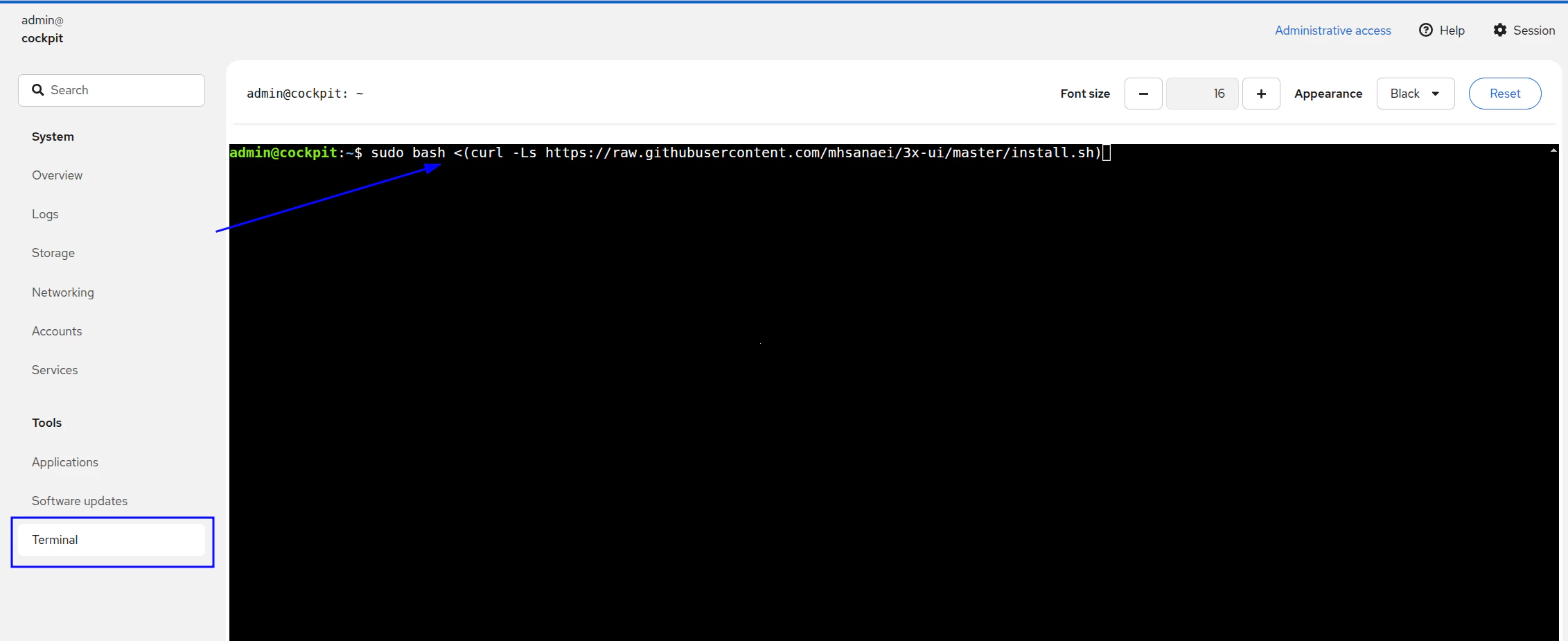
 Final, open the terminal from the left sidebar by clicking on “Terminal”. This will open the web terminal interface where you can execute commands directly on your server. Now that’s easy to copy paste any command from the web and execute it on your server without needing to use SSH or other remote terminal tools.
  Links:
- https://cockpit-project.org
- https://cockpit-project.org/running.html
- https://cockpit-project.org/guide/latest/
Cockpit on EDIS Global VPS
Cockpit works seamlessly on EDIS Global KVM VPS hosting. It provides a convenient web-based management interface alongside SSH and VNC access. Typical use cases include:- VPS monitoring and diagnostics
- VPN server administration
- Linux system management
- Remote infrastructure operations