> ## Documentation Index
> Fetch the complete documentation index at: https://docs.edisglobal.com/llms.txt
> Use this file to discover all available pages before exploring further.
# Understanding your VPS status
> Understand RUNNING, INTERNET THROTTLED, INTERNET BLOCKED, STOPPED and INSTALLING OS badges, and learn how to restore normal internet access.
Status badges in the [VPS Management Portal](https://manage.edisglobal.com/) show whether your VPS is running and whether its internet connection is restricted.
To find them, open **Services → My Services**, select your VPS and look for **Server Status** in the **Information** panel on the **Server Information** tab.
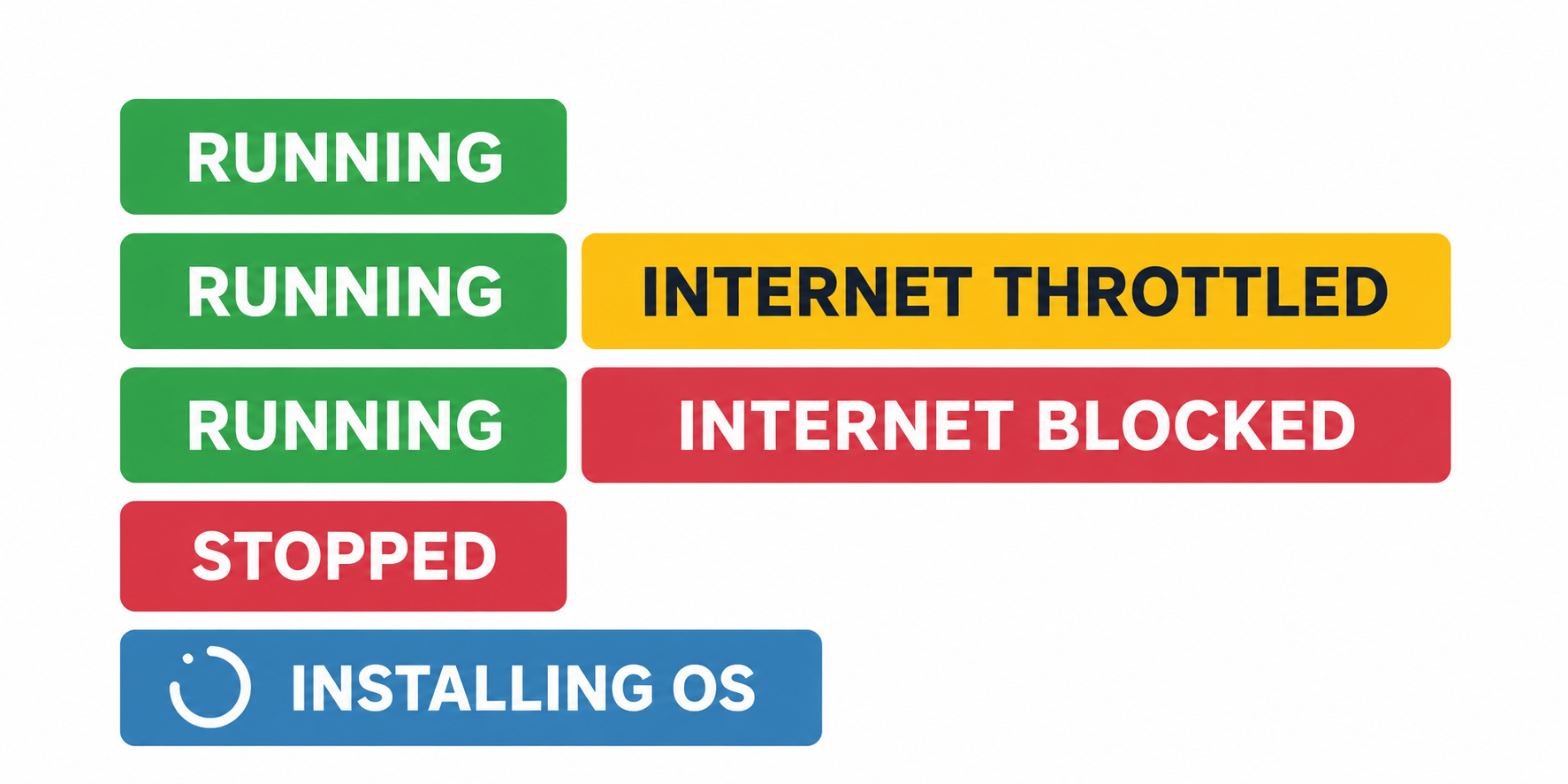 ## Status badges at a glance
| Badge | Meaning |
| - | - |
| **RUNNING** | Your VPS is powered on. Without an additional internet warning badge, its connection operates at normal speed. |
| **INTERNET THROTTLED** | Your available traffic allowance has been used up. Internet speed is limited to **1 Mbps**. |
| **INTERNET BLOCKED** | We have temporarily disabled internet access following review of an abuse report. You can still access the VPS through **noVNC**. |
| **STOPPED** | Your VPS is powered off. |
| **INSTALLING OS** | An automated operating-system installation is in progress. |
## Running
**RUNNING** means your VPS is powered on. When it appears on its own, no traffic-related speed restriction or abuse-related internet block is applied.
A running VPS may also display **INTERNET THROTTLED** or **INTERNET BLOCKED**. These additional badges describe its internet connection; the VPS itself remains running.
The badge shows the VPS power state. It does not check whether individual applications, websites, SSH or Remote Desktop are working inside the operating system.
## Internet throttled
**INTERNET THROTTLED** means your available traffic allowance has been exhausted. Your VPS remains online, but its internet connection is limited to **1 Mbps**.
To restore normal speed:
* **Assign additional traffic from your Traffic Pool** to the affected VPS. If the Pool balance is insufficient, top it up first, then assign traffic.
* **Wait for the monthly traffic refill.** The VPS's **Traffic Information** panel shows the next refill date or countdown.
Buying Pool Traffic adds it to your shared Pool. To increase the affected VPS's available allowance, assign the traffic to that VPS manually or through Auto-Hydration.
For instructions, see [Traffic Pool and Auto-Hydration](/faq/traffic-bandwidth/traffic-pool). See [traffic usage and monthly refills](/faq/traffic-bandwidth/traffic-stats-refill-explained) for details about your allowance and refill cycle.
## Internet blocked
**INTERNET BLOCKED** means we have temporarily disabled your VPS's internet connection following review of an abuse report. This helps prevent further reported activity and protects our infrastructure and potential victims.
When we apply a block, we send an email with the details and the complaint or supporting evidence included or attached. Refer to that email for the specific issue affecting your VPS.
### Access your VPS through noVNC
Your VPS remains running, and **noVNC remains available while internet access is blocked**. Use it to log in, investigate and make changes.
If VNC is currently disabled, click **Start VNC** in the portal, wait for it to become enabled, then click **Open Console**.
[How to open the noVNC console](/vps-management/enable-vnc-server)
### Option 1: Resolve the issue and request a review
Use noVNC to investigate, fix the underlying issue or remove the infringing content. Then reply to the abuse notification email explaining:
* What caused the reported activity, if known.
* What you changed to stop it and prevent it happening again.
Our team reviews your response and restores internet access once the issue is resolved or the infringing content has been removed.
If you cannot complete the repair without network access, explain this in your reply.
### Option 2: Reinstall your VPS
For a fresh start, use **Reinstall OS**, the automated operating-system installer in the VPS Management Portal.
**Internet access is restored automatically after a successful reinstall**, without waiting for our team to review your response.
**Reinstallation erases the existing operating system and data.** Save anything you need before proceeding.
Follow the [VPS reinstallation guide](/vps-management/autoinstall-reinstall-install-vps-linux-windows), then secure the fresh installation before putting it back into use.
We appreciate a reply to the abuse notification even if you choose to reinstall, so we know how you addressed the report. It is not required for automatic restoration after a successful reinstall.
### Think the report is incorrect?
Reply to the abuse notification email with an explanation so our team can review it.
For general guidance, see [Responding to abuse complaints](/responding-to-abuse-complaints).
## Stopped
**STOPPED** means your VPS is powered off. Its operating system and applications are not running.
To bring it online, use the power controls in the VPS Management Portal. See [Start, stop and restart your VPS](/vps-management/power-cycle-or-reboot-a-vps).
## Installing OS
**INSTALLING OS** means the automated installer is setting up your operating system. Wait for the installation to finish before connecting through SSH or Remote Desktop.
Do not power off, reboot or start another reinstall while installation is in progress.
See the [VPS reinstallation guide](/vps-management/autoinstall-reinstall-install-vps-linux-windows#installation-time-and-port-behavior) for expected installation times and connection details.
## Related topics
- [EDIS Global VPS Management Portal](/vps-management/vps-management-portal.md)
- [Understanding EDIS Global email notifications](/getting-started/understanding-email-notifications.md)
- [Understanding reverse DNS location vs VPS location](/faq/ip-addresses/anycast-reverse-dns-nameserver-locations-vs-vps-location.md)
- [Understanding packet loss in traceroute & MTR](/faq/ip-addresses/understanding-packet-loss-in-mtr-traceroute.md)
- [VNC status](/management-api-reference/vnc-management/get-vnc-status.md)
This documentation is built and hosted on [Mintlify](https://mintlify.com), a developer documentation platform.
## Status badges at a glance
| Badge | Meaning |
| - | - |
| **RUNNING** | Your VPS is powered on. Without an additional internet warning badge, its connection operates at normal speed. |
| **INTERNET THROTTLED** | Your available traffic allowance has been used up. Internet speed is limited to **1 Mbps**. |
| **INTERNET BLOCKED** | We have temporarily disabled internet access following review of an abuse report. You can still access the VPS through **noVNC**. |
| **STOPPED** | Your VPS is powered off. |
| **INSTALLING OS** | An automated operating-system installation is in progress. |
## Running
**RUNNING** means your VPS is powered on. When it appears on its own, no traffic-related speed restriction or abuse-related internet block is applied.
A running VPS may also display **INTERNET THROTTLED** or **INTERNET BLOCKED**. These additional badges describe its internet connection; the VPS itself remains running.
The badge shows the VPS power state. It does not check whether individual applications, websites, SSH or Remote Desktop are working inside the operating system.
## Internet throttled
**INTERNET THROTTLED** means your available traffic allowance has been exhausted. Your VPS remains online, but its internet connection is limited to **1 Mbps**.
To restore normal speed:
* **Assign additional traffic from your Traffic Pool** to the affected VPS. If the Pool balance is insufficient, top it up first, then assign traffic.
* **Wait for the monthly traffic refill.** The VPS's **Traffic Information** panel shows the next refill date or countdown.
Buying Pool Traffic adds it to your shared Pool. To increase the affected VPS's available allowance, assign the traffic to that VPS manually or through Auto-Hydration.
For instructions, see [Traffic Pool and Auto-Hydration](/faq/traffic-bandwidth/traffic-pool). See [traffic usage and monthly refills](/faq/traffic-bandwidth/traffic-stats-refill-explained) for details about your allowance and refill cycle.
## Internet blocked
**INTERNET BLOCKED** means we have temporarily disabled your VPS's internet connection following review of an abuse report. This helps prevent further reported activity and protects our infrastructure and potential victims.
When we apply a block, we send an email with the details and the complaint or supporting evidence included or attached. Refer to that email for the specific issue affecting your VPS.
### Access your VPS through noVNC
Your VPS remains running, and **noVNC remains available while internet access is blocked**. Use it to log in, investigate and make changes.
If VNC is currently disabled, click **Start VNC** in the portal, wait for it to become enabled, then click **Open Console**.
[How to open the noVNC console](/vps-management/enable-vnc-server)
### Option 1: Resolve the issue and request a review
Use noVNC to investigate, fix the underlying issue or remove the infringing content. Then reply to the abuse notification email explaining:
* What caused the reported activity, if known.
* What you changed to stop it and prevent it happening again.
Our team reviews your response and restores internet access once the issue is resolved or the infringing content has been removed.
If you cannot complete the repair without network access, explain this in your reply.
### Option 2: Reinstall your VPS
For a fresh start, use **Reinstall OS**, the automated operating-system installer in the VPS Management Portal.
**Internet access is restored automatically after a successful reinstall**, without waiting for our team to review your response.
**Reinstallation erases the existing operating system and data.** Save anything you need before proceeding.
Follow the [VPS reinstallation guide](/vps-management/autoinstall-reinstall-install-vps-linux-windows), then secure the fresh installation before putting it back into use.
We appreciate a reply to the abuse notification even if you choose to reinstall, so we know how you addressed the report. It is not required for automatic restoration after a successful reinstall.
### Think the report is incorrect?
Reply to the abuse notification email with an explanation so our team can review it.
For general guidance, see [Responding to abuse complaints](/responding-to-abuse-complaints).
## Stopped
**STOPPED** means your VPS is powered off. Its operating system and applications are not running.
To bring it online, use the power controls in the VPS Management Portal. See [Start, stop and restart your VPS](/vps-management/power-cycle-or-reboot-a-vps).
## Installing OS
**INSTALLING OS** means the automated installer is setting up your operating system. Wait for the installation to finish before connecting through SSH or Remote Desktop.
Do not power off, reboot or start another reinstall while installation is in progress.
See the [VPS reinstallation guide](/vps-management/autoinstall-reinstall-install-vps-linux-windows#installation-time-and-port-behavior) for expected installation times and connection details.
## Related topics
- [EDIS Global VPS Management Portal](/vps-management/vps-management-portal.md)
- [Understanding EDIS Global email notifications](/getting-started/understanding-email-notifications.md)
- [Understanding reverse DNS location vs VPS location](/faq/ip-addresses/anycast-reverse-dns-nameserver-locations-vs-vps-location.md)
- [Understanding packet loss in traceroute & MTR](/faq/ip-addresses/understanding-packet-loss-in-mtr-traceroute.md)
- [VNC status](/management-api-reference/vnc-management/get-vnc-status.md)
This documentation is built and hosted on [Mintlify](https://mintlify.com), a developer documentation platform.