> ## Documentation Index
> Fetch the complete documentation index at: https://docs.edisglobal.com/llms.txt
> Use this file to discover all available pages before exploring further.
# How to reset Windows Administrator password
> Reset the Windows Server Administrator password through the EDIS Global VPS portal using the Windows installer, VNC access, Virtio drivers, and command prompt.
This guide describes a common method to regain access to a Windows Server OS (used in scenarios when the password for an administrator account is forgotten or lost), without reinstalling the whole operating system or losing any data.
### **Access the VPS management portal**
* Login to your [VPS Management Portal](https://manage.edis.at/whmcs/clientarea.php)
* Locate your VPS from the Services tab
### **Mount password reset helper image and boot**
* [**Enable VNC Server**](https://docs.edisglobal.com/enable-vnc-server)
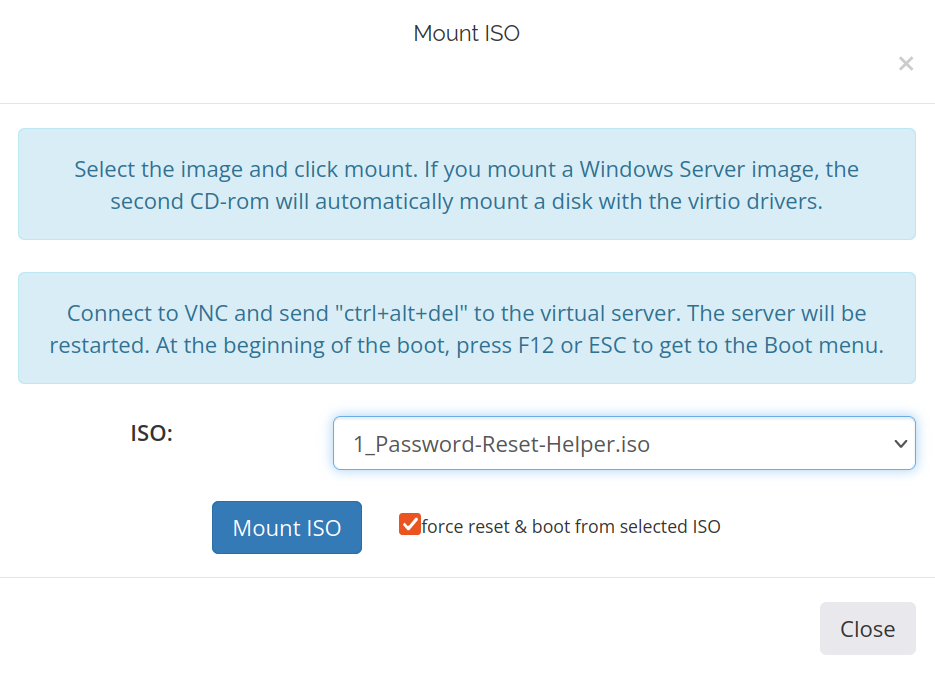
* Click [Mount ISO](https://docs.edisglobal.com/mount-iso-image)
* In the drop-down list choose image: **1\_Password-Reset-Helper.iso**
* Check the box **force reset & boot from the selected ISO** then click on the **Mount ISO** button
* Finish mount by clicking "**Mount ISO**"
 * Open the noVNC or connect by VNC client
###
### **Launch noVNC**
1. Click "**Launch noVNC**" to see console output
2. Click into the noVNC browser window to set focus
3. ISO will be loaded automatically, when it is loaded you can see this notification:
* Open the noVNC or connect by VNC client
###
### **Launch noVNC**
1. Click "**Launch noVNC**" to see console output
2. Click into the noVNC browser window to set focus
3. ISO will be loaded automatically, when it is loaded you can see this notification:
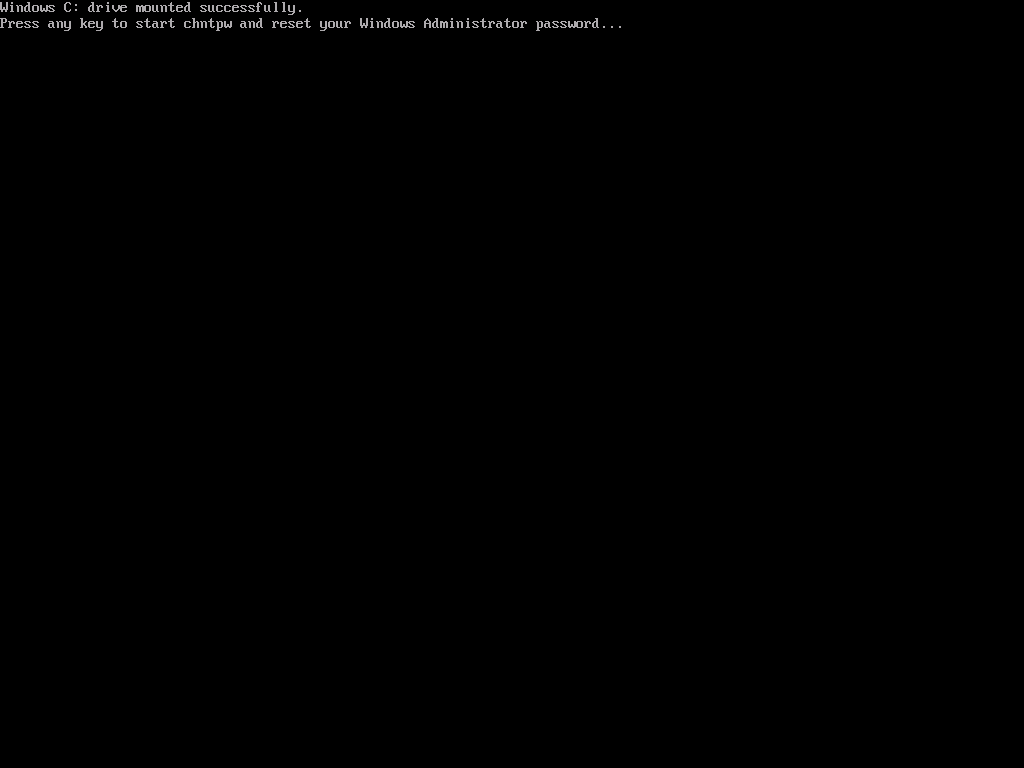 4. Press Enter
5. Select -> 1 and press Enter:
4. Press Enter
5. Select -> 1 and press Enter:
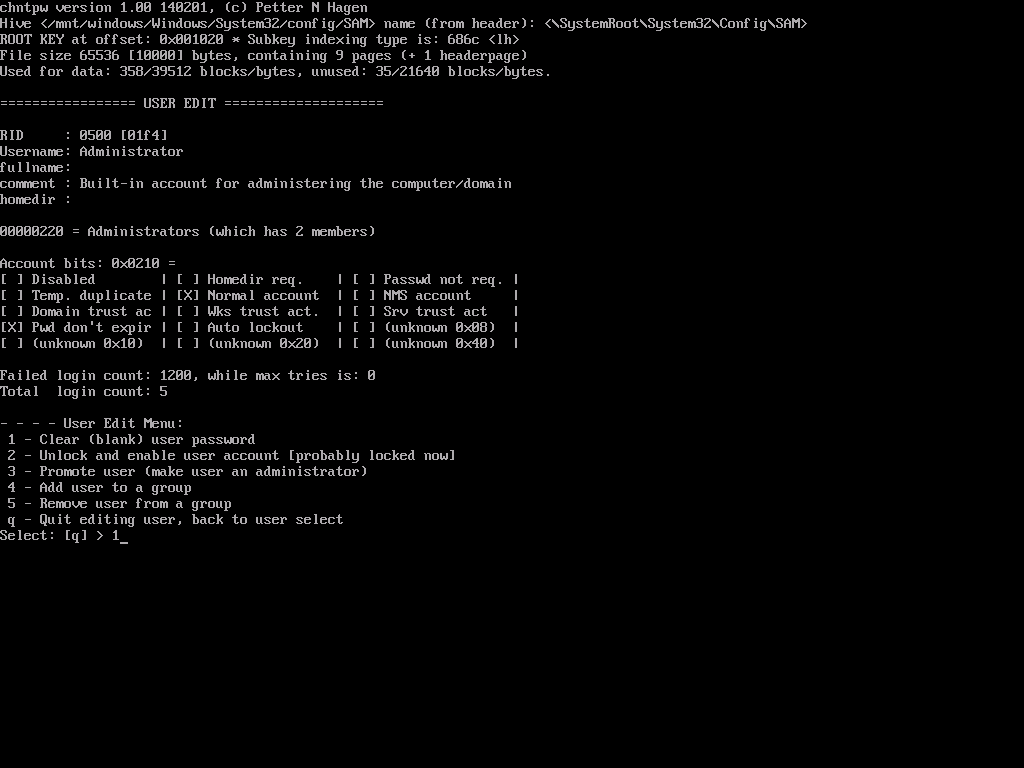 6. Select -> q and press Enter:
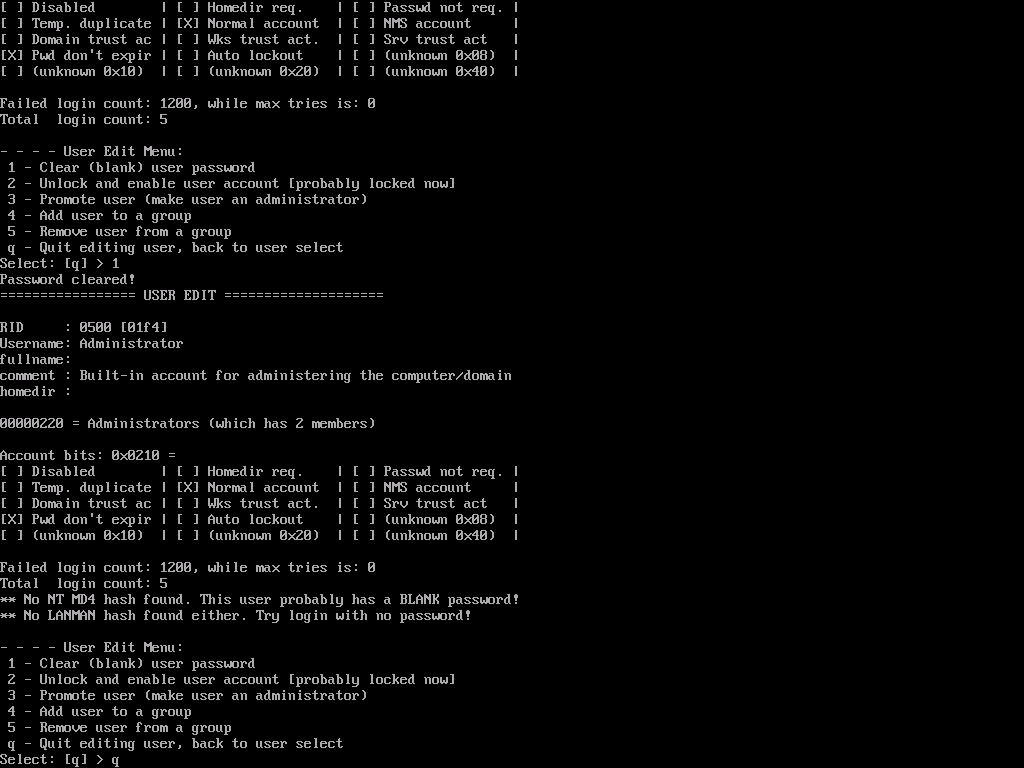 7. Select -> y and press Enter:
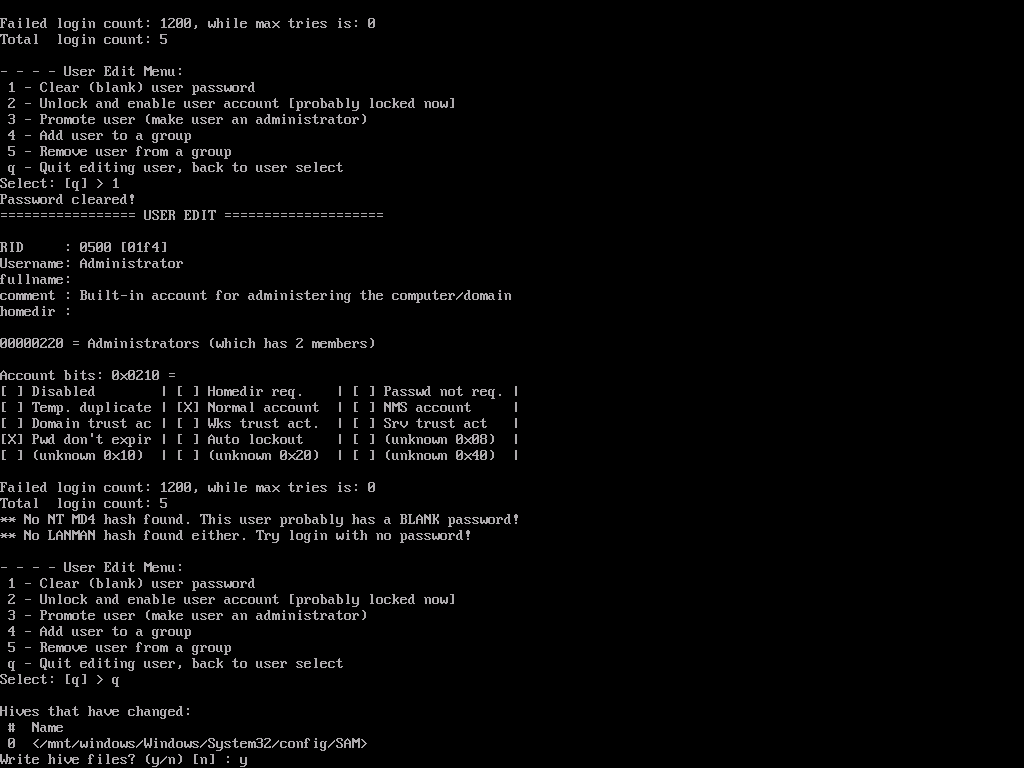 8. Accept the changes made by pressing Enter:
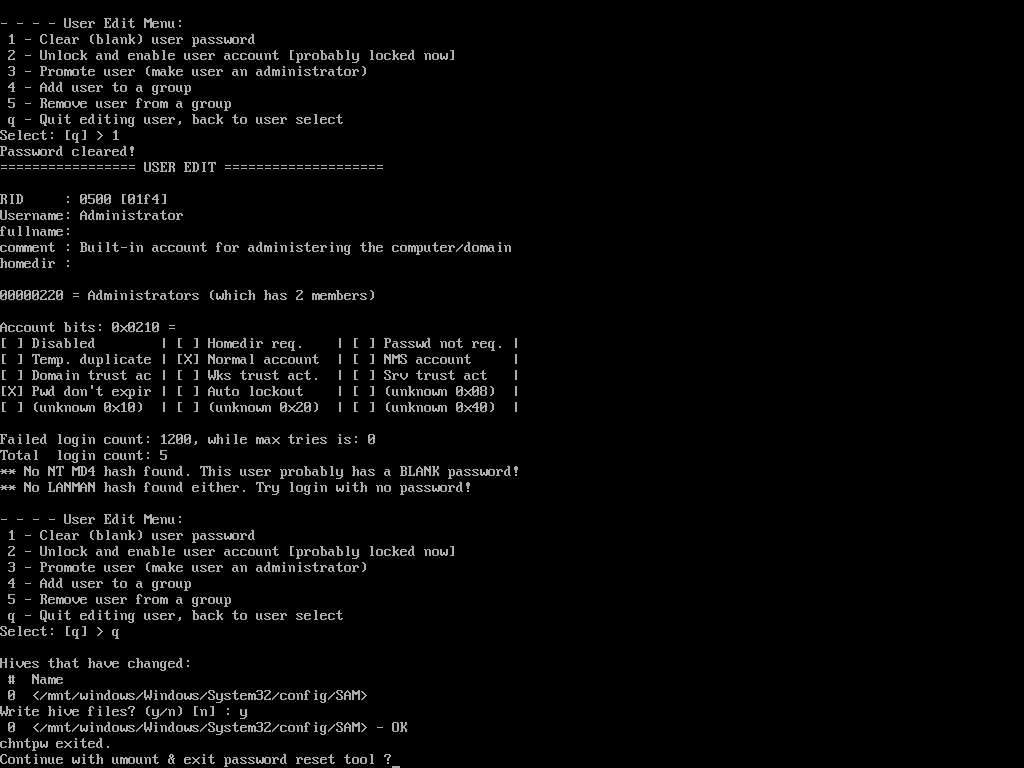 ### **Unmount the ISO**
Once the password is reset, make sure to [unmount the ISO](https://docs.edisglobal.com/enable-vnc-server) (**Password Reset Helper**) image. This can be done in the VPS Management Portal.
### **Reboot and Test**
After rebooting, Windows will automatically log in to the Administrator account **without requesting a password**. You **must set a new password** by opening the CMD (Command Prompt) with administrative rights:
### **Unmount the ISO**
Once the password is reset, make sure to [unmount the ISO](https://docs.edisglobal.com/enable-vnc-server) (**Password Reset Helper**) image. This can be done in the VPS Management Portal.
### **Reboot and Test**
After rebooting, Windows will automatically log in to the Administrator account **without requesting a password**. You **must set a new password** by opening the CMD (Command Prompt) with administrative rights:
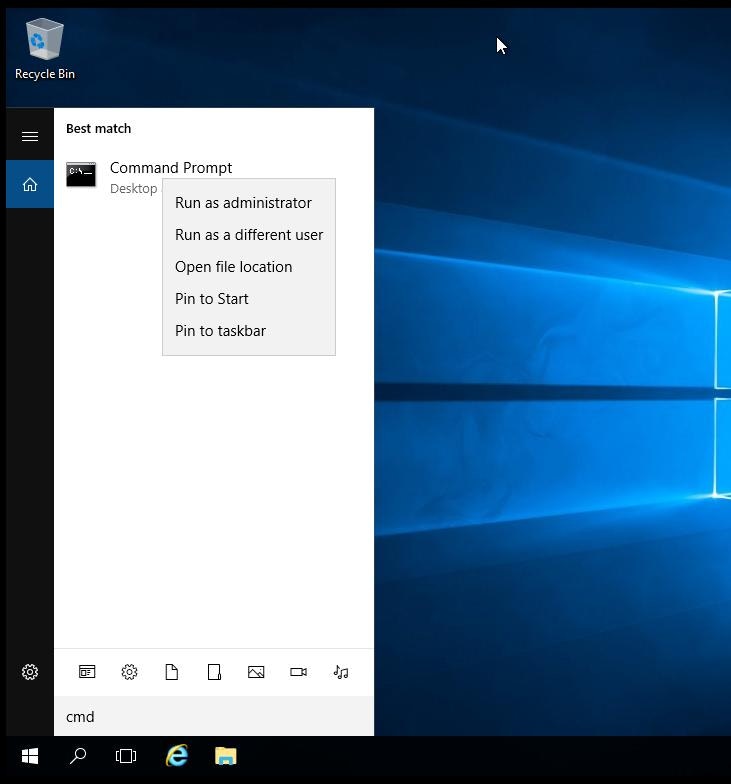 In the terminal window that opens, run the command:
```shell theme={"system"}
net user Administrator newpassword
```
Where:
\- `Administrator` is the Administrator account in Windows that has full system control -`newstrongpassword` is a new password.
In the terminal window that opens, run the command:
```shell theme={"system"}
net user Administrator newpassword
```
Where:
\- `Administrator` is the Administrator account in Windows that has full system control -`newstrongpassword` is a new password. 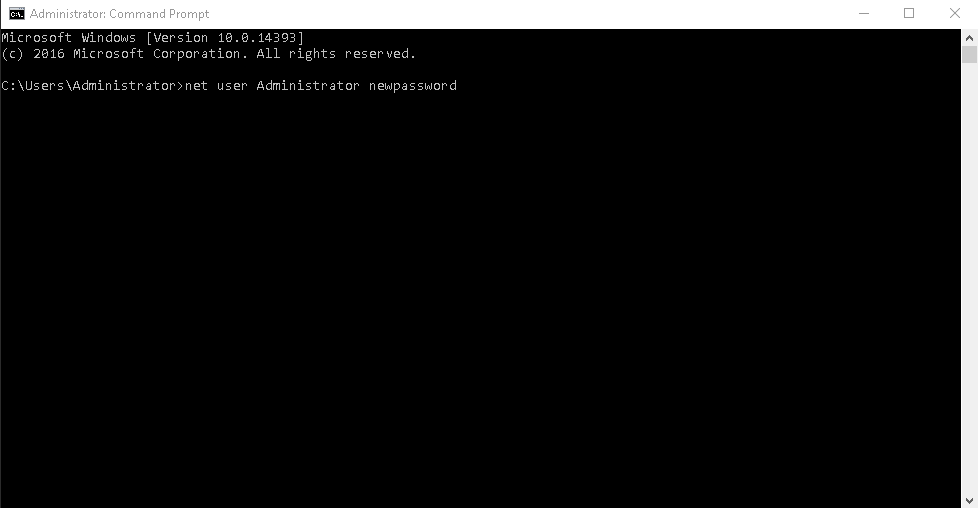 ### Disable VNC access
Now close the **noVNC**(a tab window) and [disable VNC access](https://docs.edisglobal.com/enable-vnc-server) in the VPS Management Portal.
### 🎉 Congratulations!
You've successfully updated your Windows Administrator password. Now, try logging into the server with your new credentials. This is crucial to ensure that the password change took effect and that you have regained access to your server. Happy computing! :)
### Disable VNC access
Now close the **noVNC**(a tab window) and [disable VNC access](https://docs.edisglobal.com/enable-vnc-server) in the VPS Management Portal.
### 🎉 Congratulations!
You've successfully updated your Windows Administrator password. Now, try logging into the server with your new credentials. This is crucial to ensure that the password change took effect and that you have regained access to your server. Happy computing! :)