> ## Documentation Index
> Fetch the complete documentation index at: https://docs.edisglobal.com/llms.txt
> Use this file to discover all available pages before exploring further.
# Mount an ISO image
> Mount a custom ISO image to your EDIS Global VPS through the management portal to install a custom OS or run live recovery and rescue environments.
export const CtaButton = ({label, link, openInNewTab}) => ;
## Mounting an ISO image on your VPS
[VPS Management Portal](https://manage.edisglobal.com/clientarea.php)
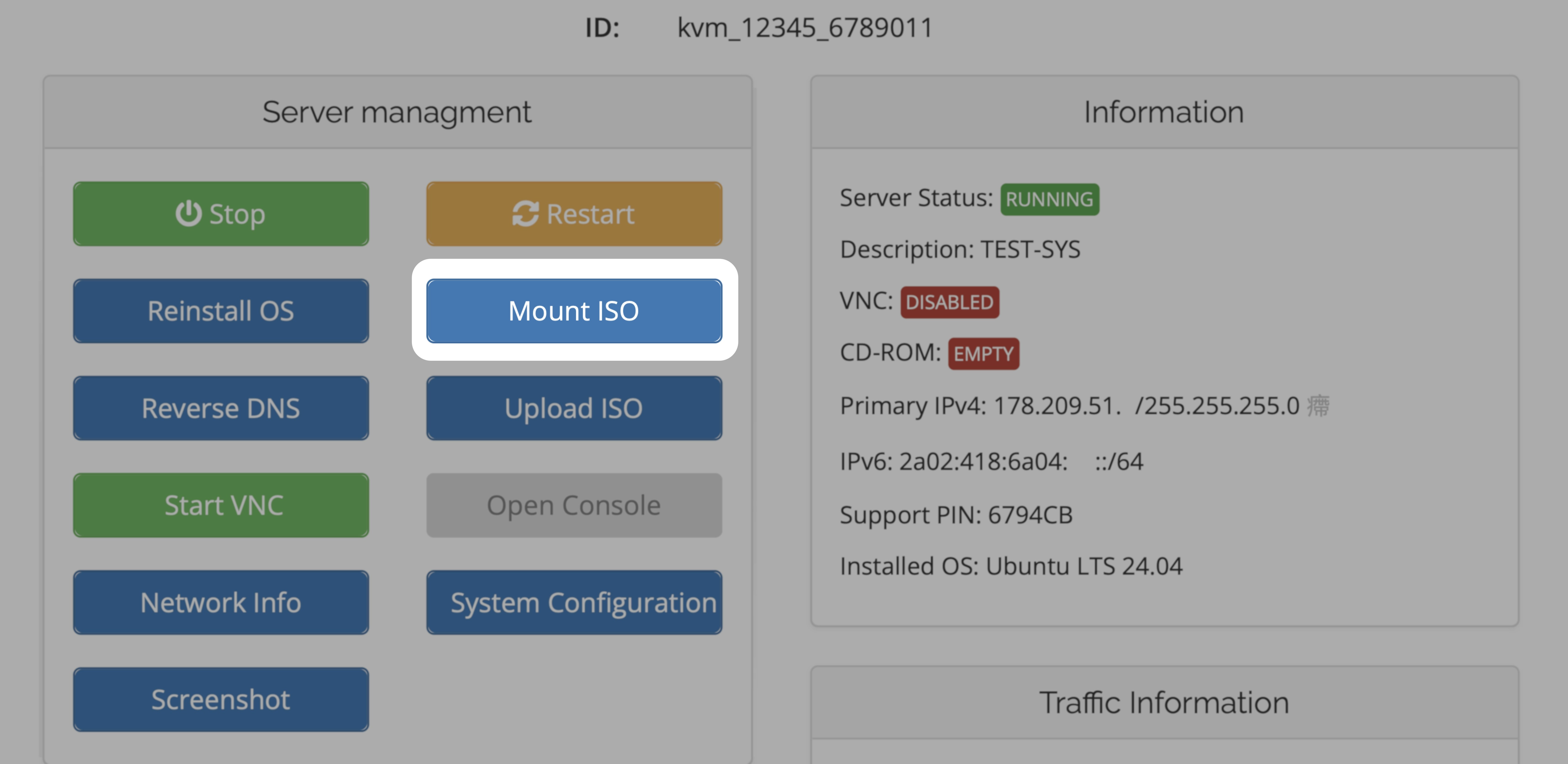
To select and attach (mount) an .iso file, either pick an .iso offered in the EDIS Global .iso library, or upload a personalized .iso using the provided Custom ISO feature. Once done, choose the boot device within a noVNC session and proceed with the installation.