> ## Documentation Index
> Fetch the complete documentation index at: https://docs.edisglobal.com/llms.txt
> Use this file to discover all available pages before exploring further.
# How to Change IP Address in Ubuntu VPS (18.04–24.04)
> Update your IP address without server reinstallation. Follow these step-by-step instructions to manually configure the network settings in Ubuntu.
export const CtaButton = ({label, link, openInNewTab}) => ;
## **Manual IP change instructions**
Learn how to update your IP address without server reinstallation. Follow these step-by-step instructions to manually configure the network settings in Ubuntu.
### Access portal and launch VNC
[VPS Management Portal](https://manage.edisglobal.com/clientarea.php)
Follow the instructions [here](https://docs.edisglobal.com/enable-vnc-server)
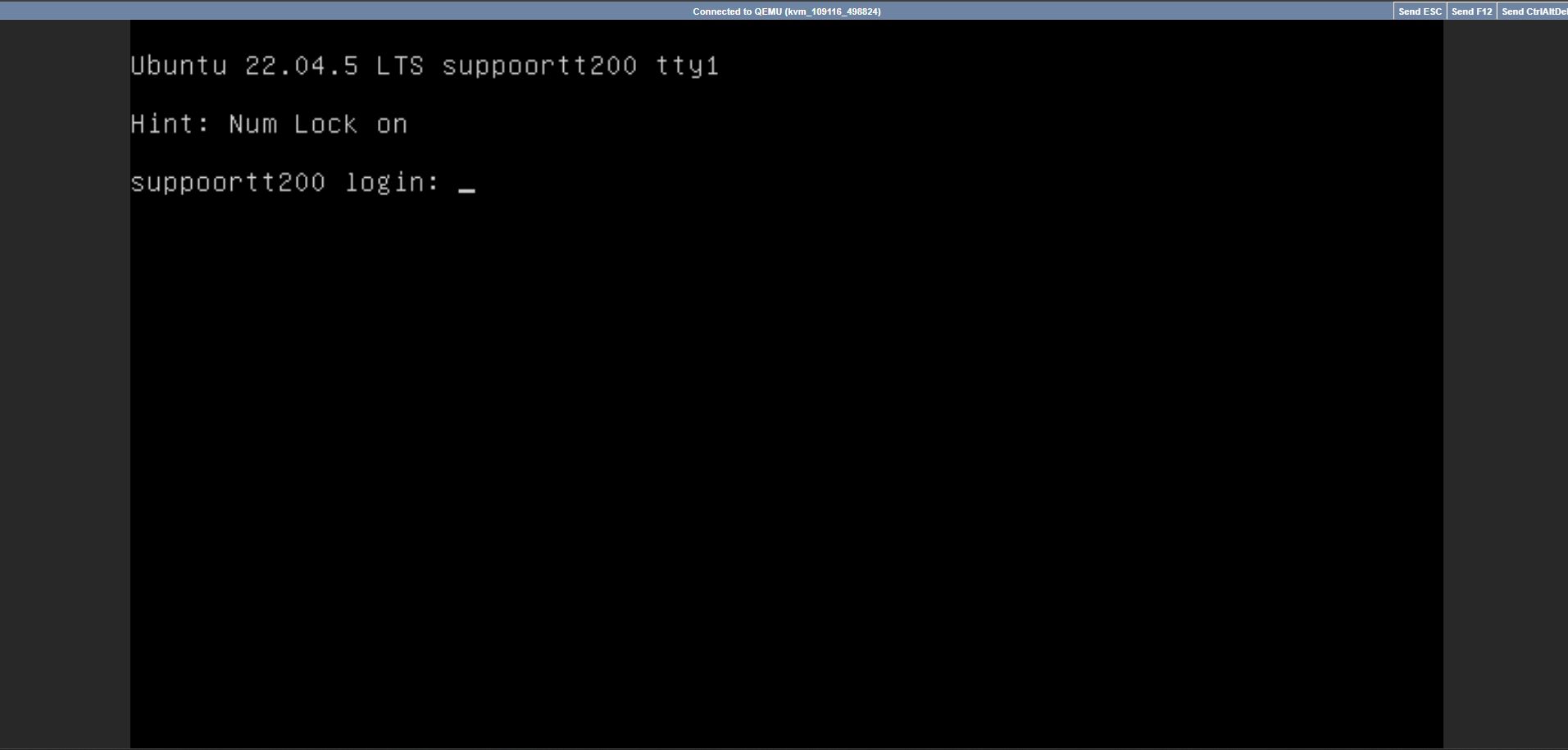
* Enter your username and password on the Ubuntu login page.
* The interface will look like the image below:
***
### Identify your network interface
1. **Open Terminal** in the VNC session.
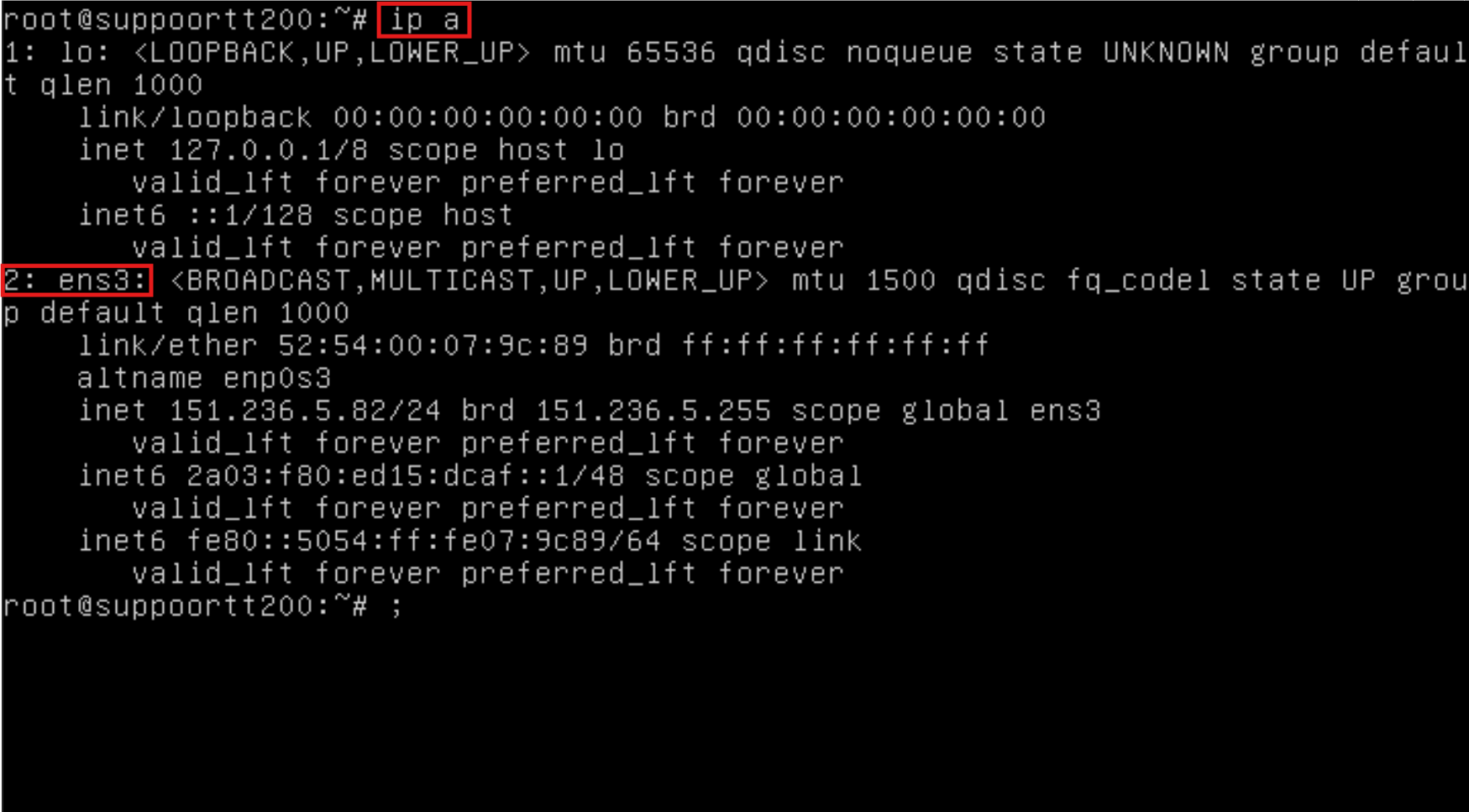
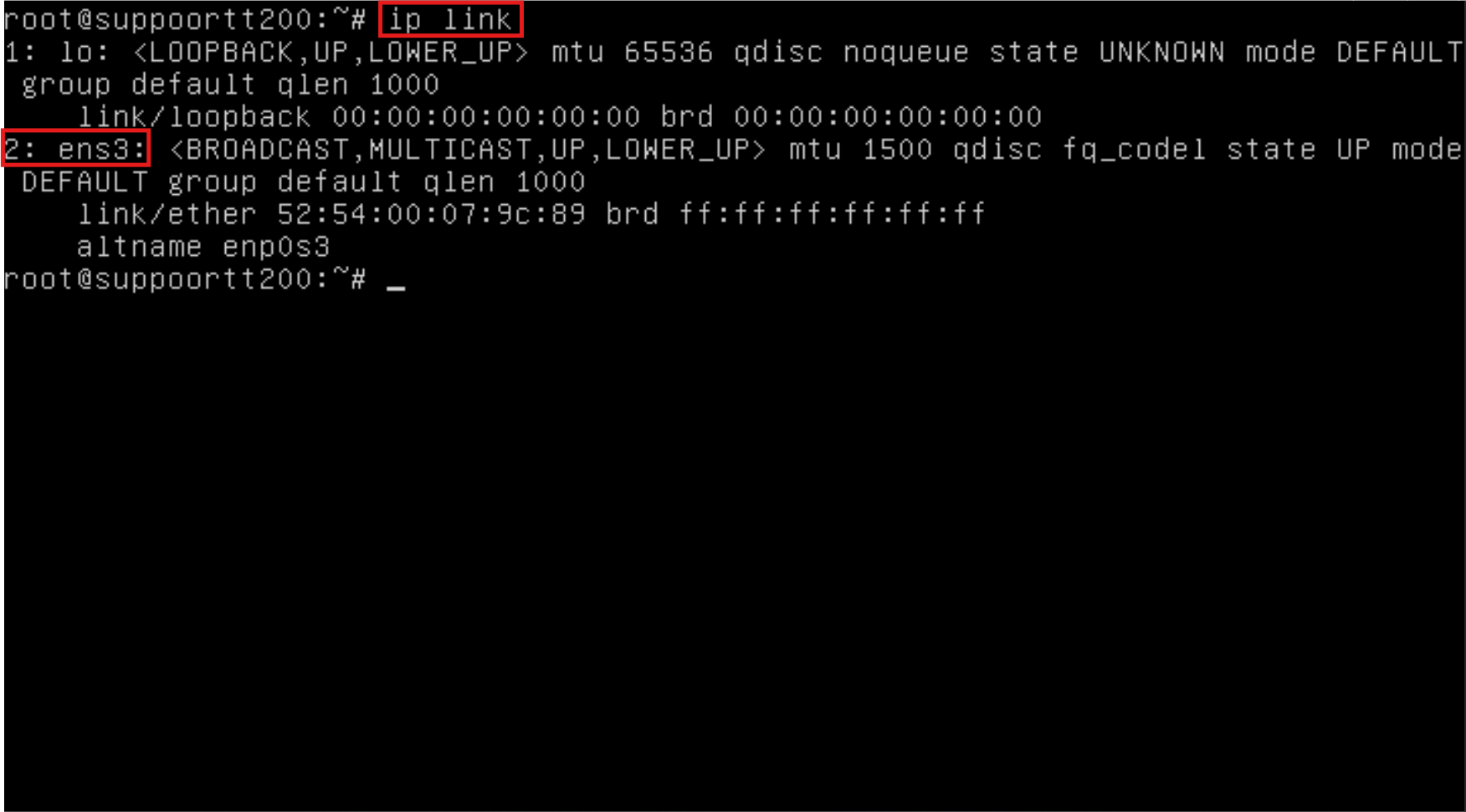
2. **Execute either of these commands** to find your network interface name:
```bash theme={"system"}
ip a
```
or
```bash theme={"system"}
ip link
```
Take note of your interface name (e.g., `ens3` or `eth0`).
***
### Edit the netplan configuration file
**Navigate to the Netplan directory**:
```bash theme={"system"}
cd /etc/netplan/
```
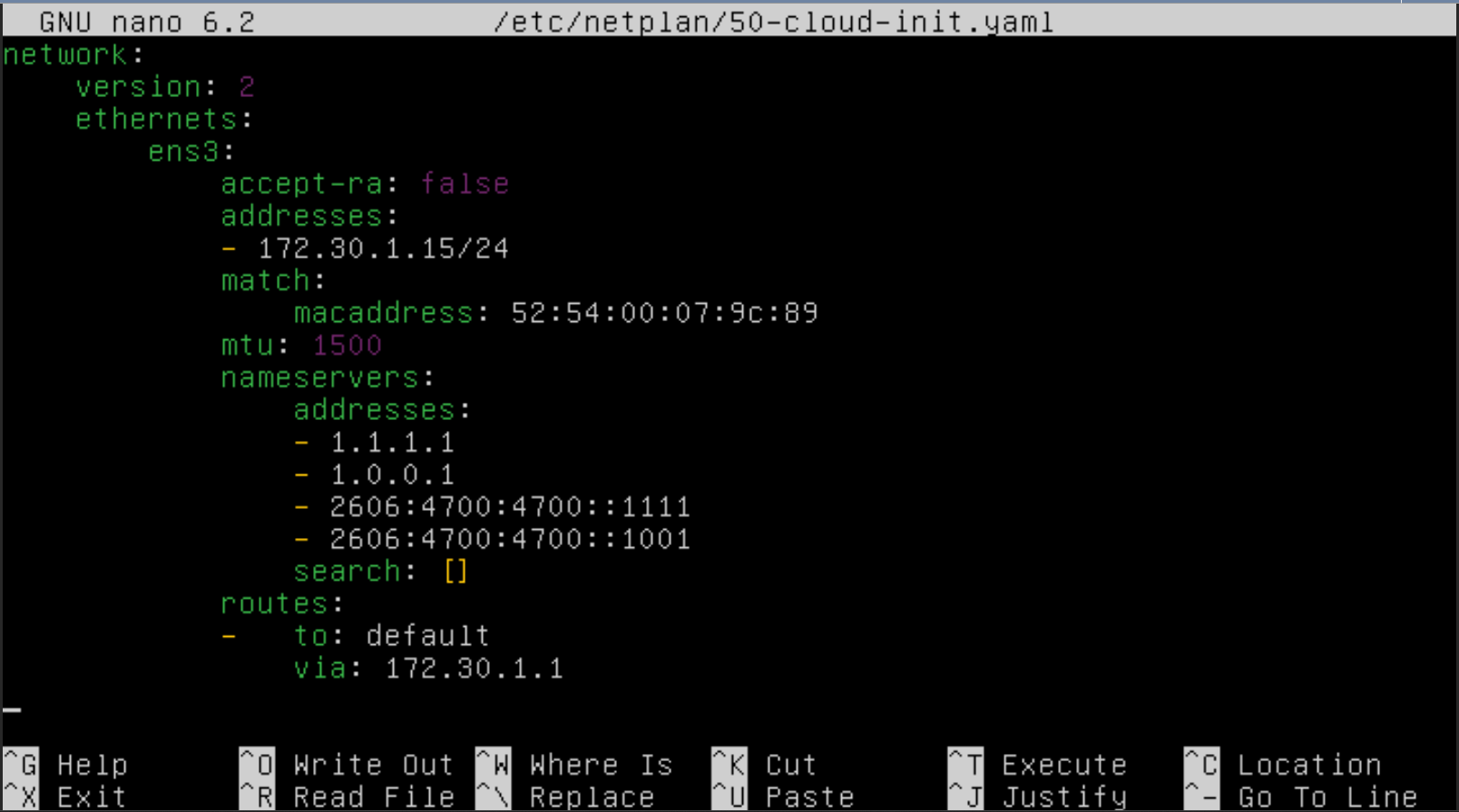
**Open the configuration file** (e.g., `50-cloud-init.yaml`):
```bash theme={"system"}
sudo nano /etc/netplan/50-cloud-init.yaml
```
Note: The filename might be different on your system (e.g., `01-network-manager-all.yaml`). Make sure to edit the correct file for your installation.
***
### Change the IP address
1. **Locate the current IP address** line and replace it with your new IP address (e.g., `172.16.30.15`).
2. **Update the Gateway address** in the routes section to match your new network configuration.
***
### Configure multiple IPs (optional)
To **add multiple IP addresses**, use this format in your configuration:
```yaml theme={"system"}
addresses:
- 172.30.1.16/24
- 172.30.1.17/24
- 172.30.1.18/24
```
**Important**: Maintain proper YAML indentation to avoid configuration errors.
***
### Save Configuration
1. Press `CTRL + X` to exit the editor
2. Press `Y` to confirm your changes
3. Press `Enter` to save the file
***
### Apply network changes
Execute the following command to apply your new network configuration:
```bash theme={"system"}
sudo netplan apply
```
***
### Verify Configuration
Check your new IP configuration using either command:
```bash theme={"system"}
ip a
```
Or check a specific interface:
```bash theme={"system"}
ip addr show dev ens3
```
(Replace `ens3` with your actual network interface name)
***
#### Fast Ubuntu VPS — ready in minutes
Spin up a secure **Ubuntu VPS** with up to 8 vCPU cores. Instant setup, full root access, SSD/NVMe storage, and reliable global performance.
Select your preferred hosting location, VPS plan, choose Ubuntu 24.04, 22.04 or 20.04 LTS at checkout, and get started with full SSH access within minutes.
 or
```bash theme={"system"}
ip link
```
or
```bash theme={"system"}
ip link
```
 Take note of your interface name (e.g., `ens3` or `eth0`).
***
### Edit the netplan configuration file
**Navigate to the Netplan directory**:
```bash theme={"system"}
cd /etc/netplan/
```
**Open the configuration file** (e.g., `50-cloud-init.yaml`):
```bash theme={"system"}
sudo nano /etc/netplan/50-cloud-init.yaml
```
Take note of your interface name (e.g., `ens3` or `eth0`).
***
### Edit the netplan configuration file
**Navigate to the Netplan directory**:
```bash theme={"system"}
cd /etc/netplan/
```
**Open the configuration file** (e.g., `50-cloud-init.yaml`):
```bash theme={"system"}
sudo nano /etc/netplan/50-cloud-init.yaml
```
 Note: The filename might be different on your system (e.g., `01-network-manager-all.yaml`). Make sure to edit the correct file for your installation.
***
### Change the IP address
1. **Locate the current IP address** line and replace it with your new IP address (e.g., `172.16.30.15`).
2. **Update the Gateway address** in the routes section to match your new network configuration.
***
### Configure multiple IPs (optional)
To **add multiple IP addresses**, use this format in your configuration:
```yaml theme={"system"}
addresses:
- 172.30.1.16/24
- 172.30.1.17/24
- 172.30.1.18/24
```
Note: The filename might be different on your system (e.g., `01-network-manager-all.yaml`). Make sure to edit the correct file for your installation.
***
### Change the IP address
1. **Locate the current IP address** line and replace it with your new IP address (e.g., `172.16.30.15`).
2. **Update the Gateway address** in the routes section to match your new network configuration.
***
### Configure multiple IPs (optional)
To **add multiple IP addresses**, use this format in your configuration:
```yaml theme={"system"}
addresses:
- 172.30.1.16/24
- 172.30.1.17/24
- 172.30.1.18/24
```
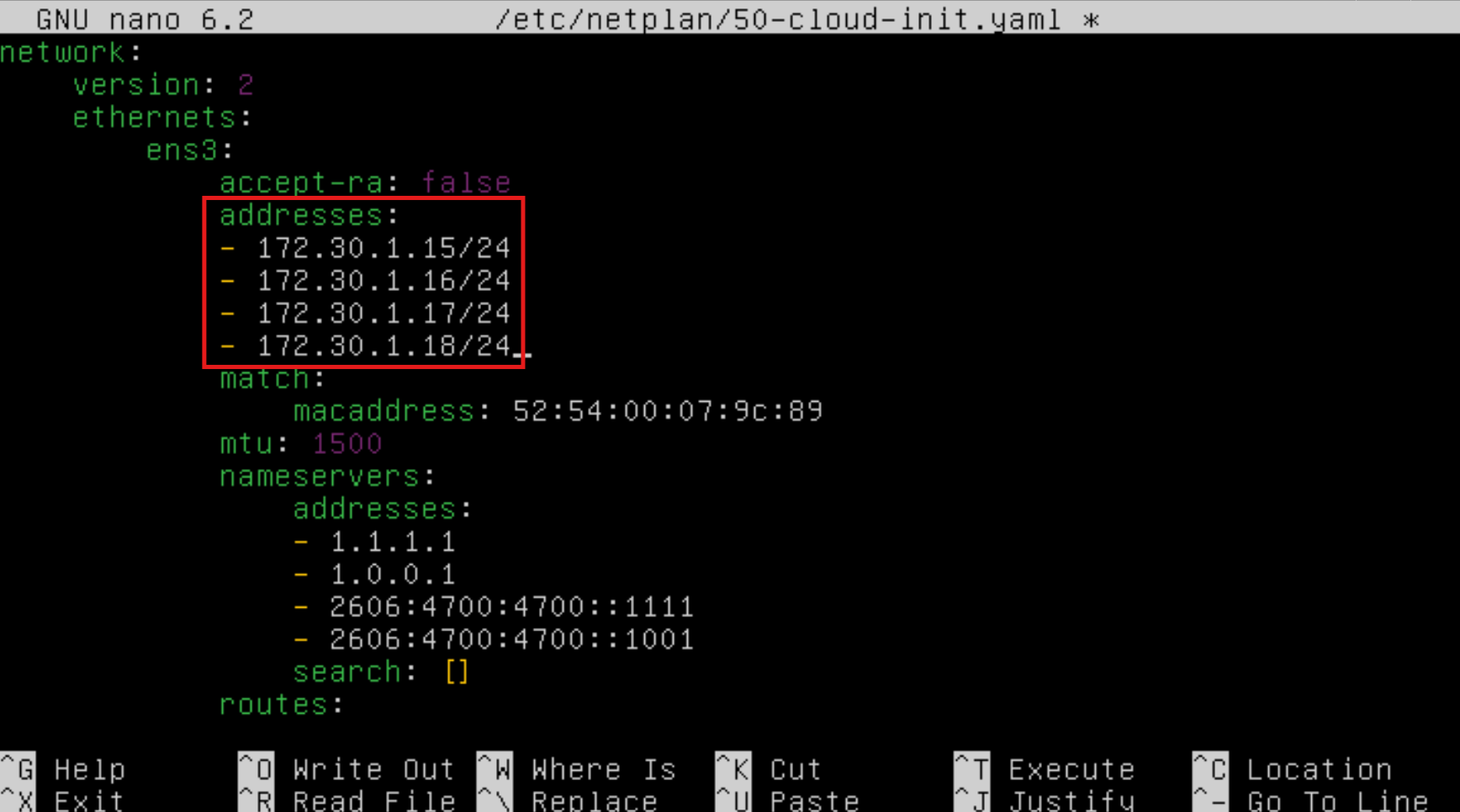 **Important**: Maintain proper YAML indentation to avoid configuration errors.
***
### Save Configuration
1. Press `CTRL + X` to exit the editor
2. Press `Y` to confirm your changes
3. Press `Enter` to save the file
***
### Apply network changes
Execute the following command to apply your new network configuration:
```bash theme={"system"}
sudo netplan apply
```
***
### Verify Configuration
Check your new IP configuration using either command:
```bash theme={"system"}
ip a
```
Or check a specific interface:
```bash theme={"system"}
ip addr show dev ens3
```
(Replace `ens3` with your actual network interface name)
***
#### Fast Ubuntu VPS — ready in minutes
Spin up a secure **Ubuntu VPS** with up to 8 vCPU cores. Instant setup, full root access, SSD/NVMe storage, and reliable global performance.
Select your preferred hosting location, VPS plan, choose Ubuntu 24.04, 22.04 or 20.04 LTS at checkout, and get started with full SSH access within minutes.
**Important**: Maintain proper YAML indentation to avoid configuration errors.
***
### Save Configuration
1. Press `CTRL + X` to exit the editor
2. Press `Y` to confirm your changes
3. Press `Enter` to save the file
***
### Apply network changes
Execute the following command to apply your new network configuration:
```bash theme={"system"}
sudo netplan apply
```
***
### Verify Configuration
Check your new IP configuration using either command:
```bash theme={"system"}
ip a
```
Or check a specific interface:
```bash theme={"system"}
ip addr show dev ens3
```
(Replace `ens3` with your actual network interface name)
***
#### Fast Ubuntu VPS — ready in minutes
Spin up a secure **Ubuntu VPS** with up to 8 vCPU cores. Instant setup, full root access, SSD/NVMe storage, and reliable global performance.
Select your preferred hosting location, VPS plan, choose Ubuntu 24.04, 22.04 or 20.04 LTS at checkout, and get started with full SSH access within minutes.