> ## Documentation Index
> Fetch the complete documentation index at: https://docs.edisglobal.com/llms.txt
> Use this file to discover all available pages before exploring further.
# Linux Rescue CD Guide: Fix Network, Firewall, and SSH Issues
> Recover a Linux VPS that fails to boot or has connectivity issues using SystemRescueCD to fix network configurations, firewall rules, and SSH problems.
# What is rescue CD and why use it? 💡
**SystemRescueCD** is a Linux-based live environment used for troubleshooting and maintenance. It allows you to:
* Access and repair non-booting systems
* Check and fix disk, network, and firewall issues
* Mount your main OS partitions and modify configurations
* Recover access when SSH or firewall rules block connectivity
***
## Mount and Boot the SystemRescueCD
1. Login to your [VPS Management Portal](https://manage.edisglobal.com/clientarea.php).
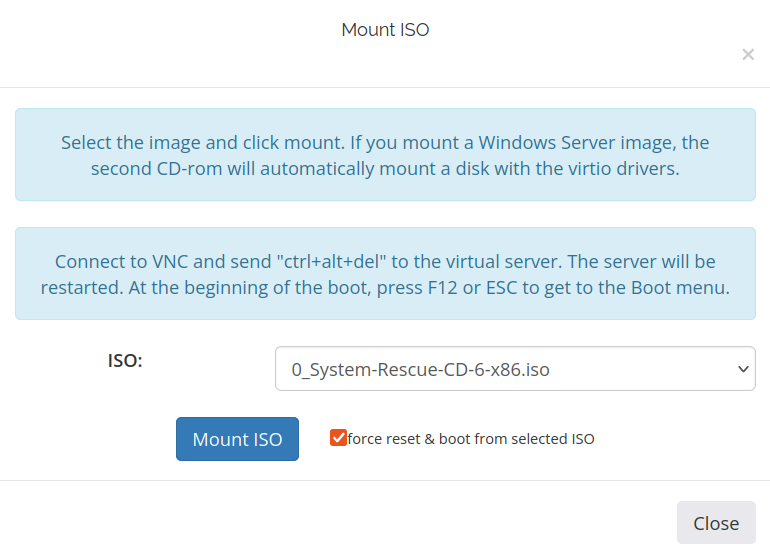
2. From your VPS dashboard, click **Mount ISO**.
3. In the ISO list, select **System-Rescue-CD-6-x86.iso**.
4. Enable the **force reset & boot** option and click **Mount ISO** to start the process.
 5. Once mounted, click **Enable VNC Server**, then open **noVNC** to access the console.
6. In the boot menu, select **Boot SystemRescueCd using default options** and press **Enter**.
5. Once mounted, click **Enable VNC Server**, then open **noVNC** to access the console.
6. In the boot menu, select **Boot SystemRescueCd using default options** and press **Enter**.
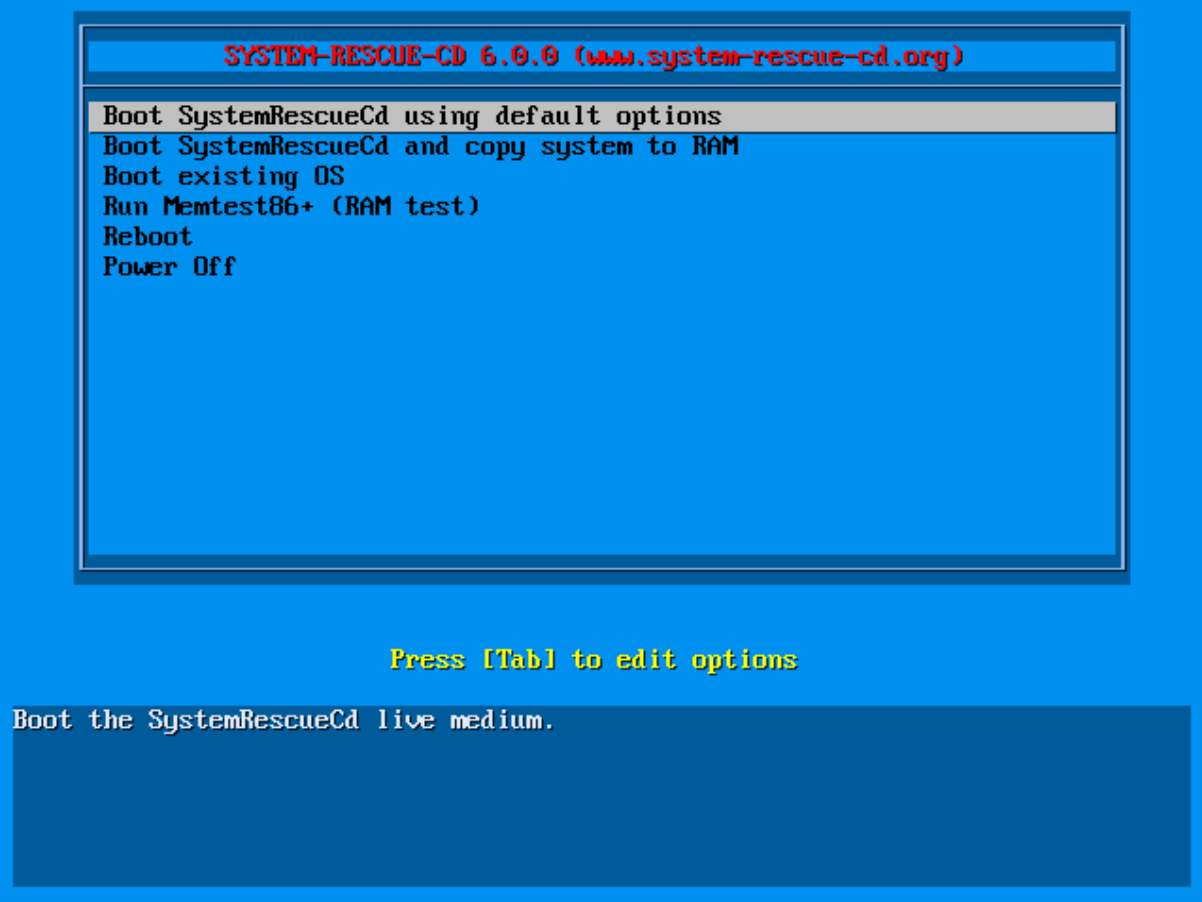 7. If it boots into a command-line interface, start the graphical desktop manually:
```bash theme={"system"}
startx
```
***
## Configure network in rescue mode 🌐
You can configure networking via the GUI (simplest) or command line.
### Using the graphical interface
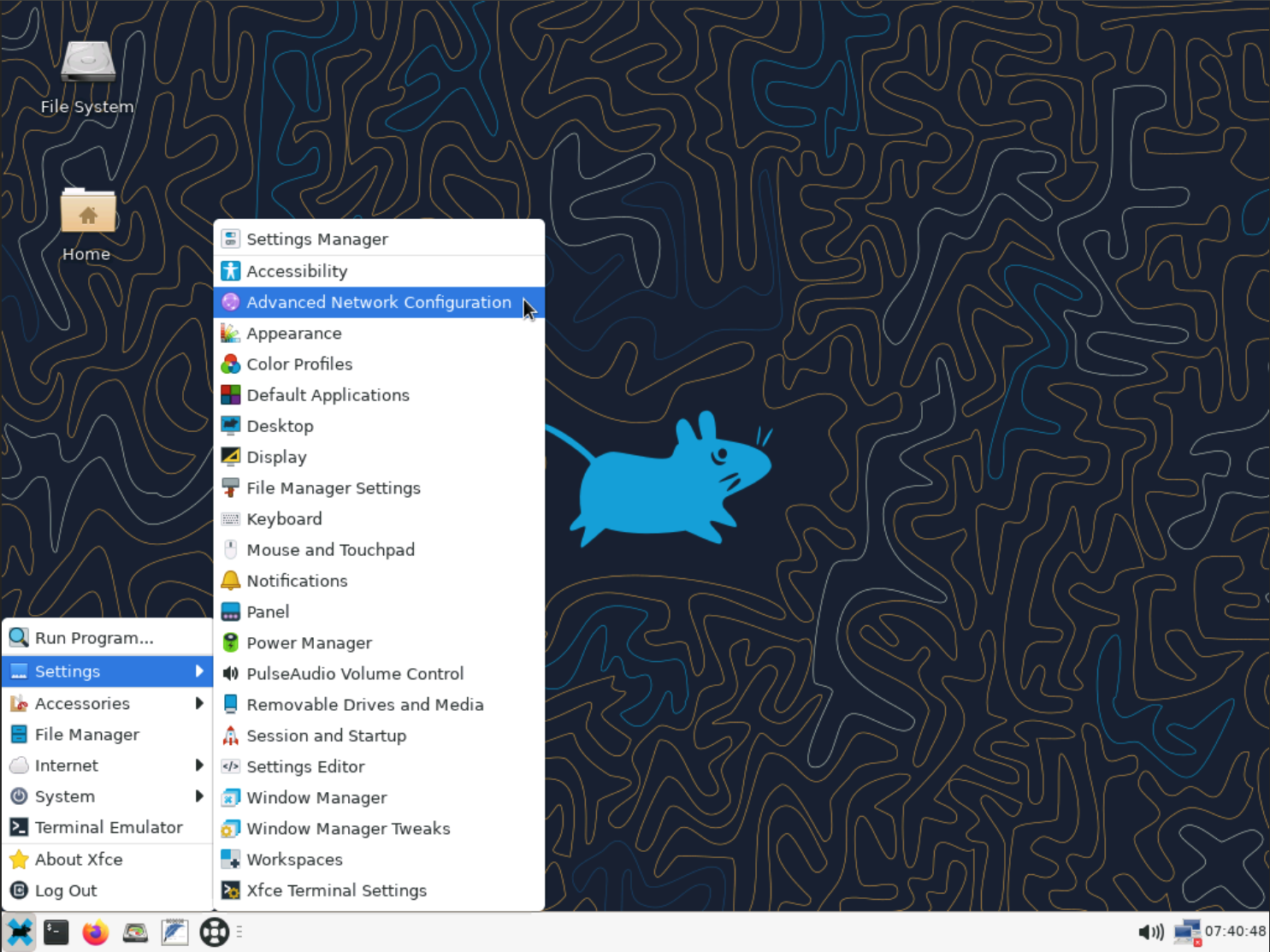
1. Open **Settings → Advanced Network Configuration**.\\
7. If it boots into a command-line interface, start the graphical desktop manually:
```bash theme={"system"}
startx
```
***
## Configure network in rescue mode 🌐
You can configure networking via the GUI (simplest) or command line.
### Using the graphical interface
1. Open **Settings → Advanced Network Configuration**.\\
 2. Select your wired interface (e.g., *Wired connection 1*).
3. Click the **gear** ⚙️ icon to open settings.\\
2. Select your wired interface (e.g., *Wired connection 1*).
3. Click the **gear** ⚙️ icon to open settings.\\
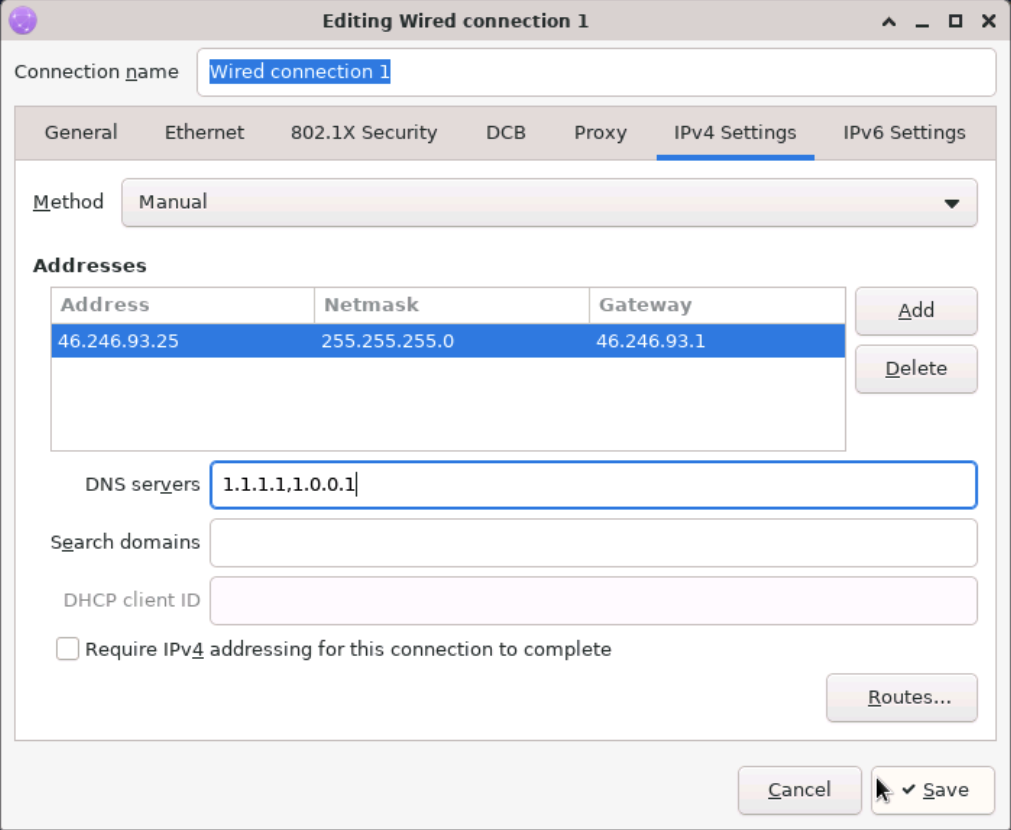
.png?fit=max&auto=format&n=sPVZ-5jya8wjbw93&q=85&s=2aa4ec5e32781c90871f3fbeab62ee26) 4. **IPv4** tab → **Method: Manual** → **Add** your IP, Netmask, and **your actual Gateway**.
5. **DNS**: e.g., `1.1.1.1, 1.0.0.1` → **Save**.\\
4. **IPv4** tab → **Method: Manual** → **Add** your IP, Netmask, and **your actual Gateway**.
5. **DNS**: e.g., `1.1.1.1, 1.0.0.1` → **Save**.\\
 You can find your assigned IP information here:\
👉 [VPS IP Address Settings](https://docs.edisglobal.com/vps-management/ip-address-information)
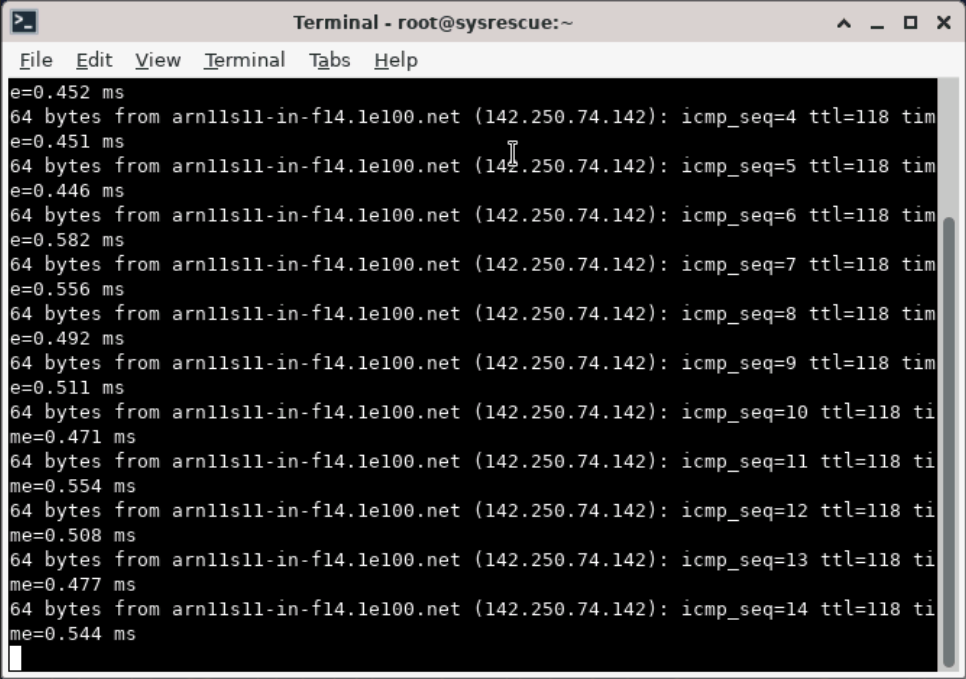
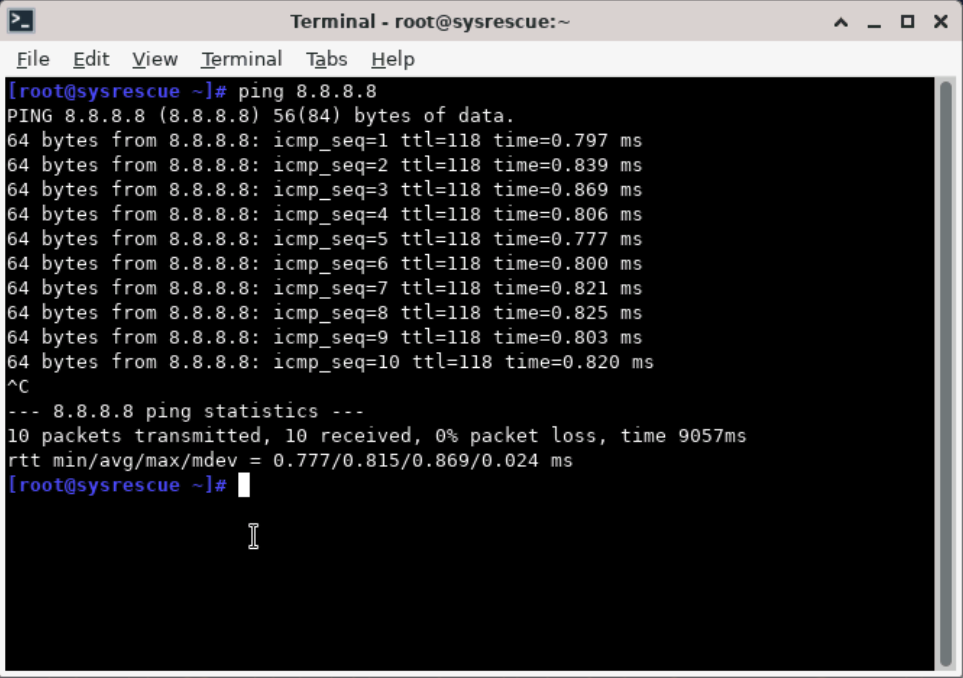
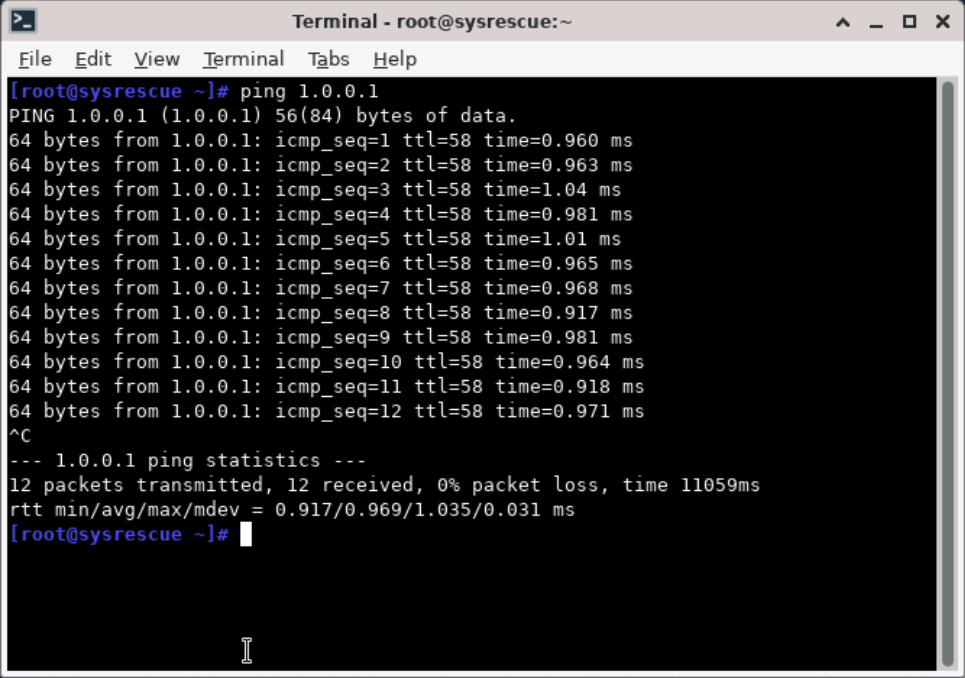
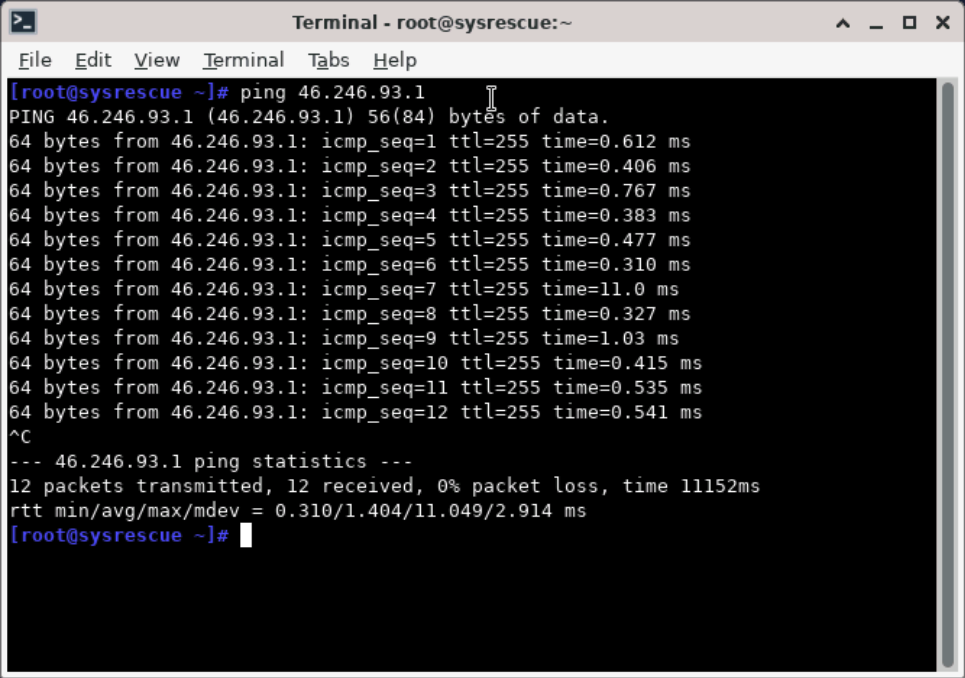
**Quick connectivity checks:**
```bash theme={"system"}
ping -c 3 8.8.8.8
ping -c 3 1.1.1.1
ping -c 3 # replace with your real gateway
ping -c 3 google.com # DNS + outbound test
```
**Ping screenshots:**
|
You can find your assigned IP information here:\
👉 [VPS IP Address Settings](https://docs.edisglobal.com/vps-management/ip-address-information)
**Quick connectivity checks:**
```bash theme={"system"}
ping -c 3 8.8.8.8
ping -c 3 1.1.1.1
ping -c 3 # replace with your real gateway
ping -c 3 google.com # DNS + outbound test
```
**Ping screenshots:**
|  |
|  |
| :--------------------------------------------------------------------------------------------------------------------------------------------------------------------------------------------------------------------------------------------------------------------------------------------------------------------------------------------------------------------------------------------------------------------------------------------------------------------------------------------------------------------------------------------------------------------------------------------------------------------------------------------------------------------------------------------------------------------------------------------------------------------------------------------------------------------------------------------------------------------------------------------------------------------------------------------------------------------------------------------------------------------------------------------------------------------------------------------------------------------------------------------------------------------------------------------------------------------------------------------------------------------------------------------------------------------------------------------------------------------------------------------------------------------: | :--------------------------------------------------------------------------------------------------------------------------------------------------------------------------------------------------------------------------------------------------------------------------------------------------------------------------------------------------------------------------------------------------------------------------------------------------------------------------------------------------------------------------------------------------------------------------------------------------------------------------------------------------------------------------------------------------------------------------------------------------------------------------------------------------------------------------------------------------------------------------------------------------------------------------------------------------------------------------------------------------------------------------------------------------------------------------------------------------------------------------------------------------------------------------------------------------------------------------------------------------------------------------------------------------------------------------------------------------------------------------------------------------------------------: |
|
|
| :--------------------------------------------------------------------------------------------------------------------------------------------------------------------------------------------------------------------------------------------------------------------------------------------------------------------------------------------------------------------------------------------------------------------------------------------------------------------------------------------------------------------------------------------------------------------------------------------------------------------------------------------------------------------------------------------------------------------------------------------------------------------------------------------------------------------------------------------------------------------------------------------------------------------------------------------------------------------------------------------------------------------------------------------------------------------------------------------------------------------------------------------------------------------------------------------------------------------------------------------------------------------------------------------------------------------------------------------------------------------------------------------------------------------: | :--------------------------------------------------------------------------------------------------------------------------------------------------------------------------------------------------------------------------------------------------------------------------------------------------------------------------------------------------------------------------------------------------------------------------------------------------------------------------------------------------------------------------------------------------------------------------------------------------------------------------------------------------------------------------------------------------------------------------------------------------------------------------------------------------------------------------------------------------------------------------------------------------------------------------------------------------------------------------------------------------------------------------------------------------------------------------------------------------------------------------------------------------------------------------------------------------------------------------------------------------------------------------------------------------------------------------------------------------------------------------------------------------------------------: |
|  |
|  |
***
### Using command line (if GUI not available)
If you’re in command-line mode:
```bash theme={"system"}
ip a # identify the interface (eth0 / ens3)
ip addr add / dev eth0
ip route add default via
echo "nameserver 1.1.1.1" > /etc/resolv.conf
echo "nameserver 8.8.8.8" >> /etc/resolv.conf
ping -c 4 8.8.8.8
ping -c 4
ping -c 4 google.com
```
***
## Checking firewall from rescue mode 🧱
If you are in the graphical environment, open a **Terminal** first.
When the Rescue CD boots, its internal firewall (iptables or nftables) is usually disabled.\
To review or modify the firewall of your **main system**, follow these steps:
1. Identify and mount your main partition:
```bash theme={"system"}
lsblk
mkdir -p /mnt/system
mount /dev/vda1 /mnt/system
# Replace /dev/vda1 with your actual root partition.
```
2. Check if UFW was enabled:
```bash theme={"system"}
cat /mnt/system/etc/ufw/ufw.conf
# look for: ENABLED=yes
```
3. Inspect rules:
```bash theme={"system"}
cat /mnt/system/etc/ufw/user.rules
# or, for iptables-persistent:
cat /mnt/system/etc/iptables/rules.v4
```
4. Temporarily disable firewall (for testing):
```bash theme={"system"}
chroot /mnt/system ufw disable
# or
chroot /mnt/system systemctl stop iptables
```
***
## Check SSH configuration and service 🔐
If you are in the graphical environment, open a **Terminal** first.
When the Rescue CD boots, SSH is not automatically running since the main system isn’t active yet.\
To review or fix the SSH configuration of your **main system**, follow these steps:
To troubleshoot SSH from the Rescue environment:
1. Mount the main system partition first:
```bash theme={"system"}
lsblk
mkdir -p /mnt/system
mount /dev/vda1 /mnt/system
# Replace /dev/vda1 with your actual root partition.
```
Verify it’s mounted correctly:
```bash theme={"system"}
mount | grep /mnt/system
ls /mnt/system/etc/
```
2. Inspect SSH config:
```bash theme={"system"}
cd /mnt/system/etc/ssh
cat sshd_config
```
3. Check if the SSH service is installed and enabled:
```bash theme={"system"}
chroot /mnt/system bash
ls /etc/systemd/system/ | grep ssh
exit
```
4. (Optional) Edit SSH settings:
```bash theme={"system"}
nano /mnt/system/etc/ssh/sshd_config
```
5. Test port reachability:
```bash theme={"system"}
nc -zv 22
# Replace 22 with your custom SSH port if changed.
# "open" means reachable; otherwise check firewall/network.
```
***
✅ Rescue mode gives you full control to recover your server — from fixing network issues and firewall rules to restoring SSH access and checking essential system settings.
|
***
### Using command line (if GUI not available)
If you’re in command-line mode:
```bash theme={"system"}
ip a # identify the interface (eth0 / ens3)
ip addr add / dev eth0
ip route add default via
echo "nameserver 1.1.1.1" > /etc/resolv.conf
echo "nameserver 8.8.8.8" >> /etc/resolv.conf
ping -c 4 8.8.8.8
ping -c 4
ping -c 4 google.com
```
***
## Checking firewall from rescue mode 🧱
If you are in the graphical environment, open a **Terminal** first.
When the Rescue CD boots, its internal firewall (iptables or nftables) is usually disabled.\
To review or modify the firewall of your **main system**, follow these steps:
1. Identify and mount your main partition:
```bash theme={"system"}
lsblk
mkdir -p /mnt/system
mount /dev/vda1 /mnt/system
# Replace /dev/vda1 with your actual root partition.
```
2. Check if UFW was enabled:
```bash theme={"system"}
cat /mnt/system/etc/ufw/ufw.conf
# look for: ENABLED=yes
```
3. Inspect rules:
```bash theme={"system"}
cat /mnt/system/etc/ufw/user.rules
# or, for iptables-persistent:
cat /mnt/system/etc/iptables/rules.v4
```
4. Temporarily disable firewall (for testing):
```bash theme={"system"}
chroot /mnt/system ufw disable
# or
chroot /mnt/system systemctl stop iptables
```
***
## Check SSH configuration and service 🔐
If you are in the graphical environment, open a **Terminal** first.
When the Rescue CD boots, SSH is not automatically running since the main system isn’t active yet.\
To review or fix the SSH configuration of your **main system**, follow these steps:
To troubleshoot SSH from the Rescue environment:
1. Mount the main system partition first:
```bash theme={"system"}
lsblk
mkdir -p /mnt/system
mount /dev/vda1 /mnt/system
# Replace /dev/vda1 with your actual root partition.
```
Verify it’s mounted correctly:
```bash theme={"system"}
mount | grep /mnt/system
ls /mnt/system/etc/
```
2. Inspect SSH config:
```bash theme={"system"}
cd /mnt/system/etc/ssh
cat sshd_config
```
3. Check if the SSH service is installed and enabled:
```bash theme={"system"}
chroot /mnt/system bash
ls /etc/systemd/system/ | grep ssh
exit
```
4. (Optional) Edit SSH settings:
```bash theme={"system"}
nano /mnt/system/etc/ssh/sshd_config
```
5. Test port reachability:
```bash theme={"system"}
nc -zv 22
# Replace 22 with your custom SSH port if changed.
# "open" means reachable; otherwise check firewall/network.
```
***
✅ Rescue mode gives you full control to recover your server — from fixing network issues and firewall rules to restoring SSH access and checking essential system settings.