> ## Documentation Index
> Fetch the complete documentation index at: https://docs.edisglobal.com/llms.txt
> Use this file to discover all available pages before exploring further.
# Windows Remote Desktop
> Connect to a Windows Server VPS using Remote Desktop Protocol (RDP). Step-by-step instructions for both Windows and macOS clients with troubleshooting tips.
## **How to Connect to a Remote System on Windows and Mac**
This guide offers a clear procedure to connect to a Windows server via Remote Desktop Protocol (RDP). While the focus is on Windows, Mac users will find steps tailored for them, too. Please make sure you have Windows installed on your VPS. If you ordered a VPS with Linux installed, you can [reinstall the OS](https://docs.edisglobal.com/autoinstall-reinstall-install-vps-linux-windows) at any time with Windows.
## **For Windows users**
**Open Remote Desktop Connection:**
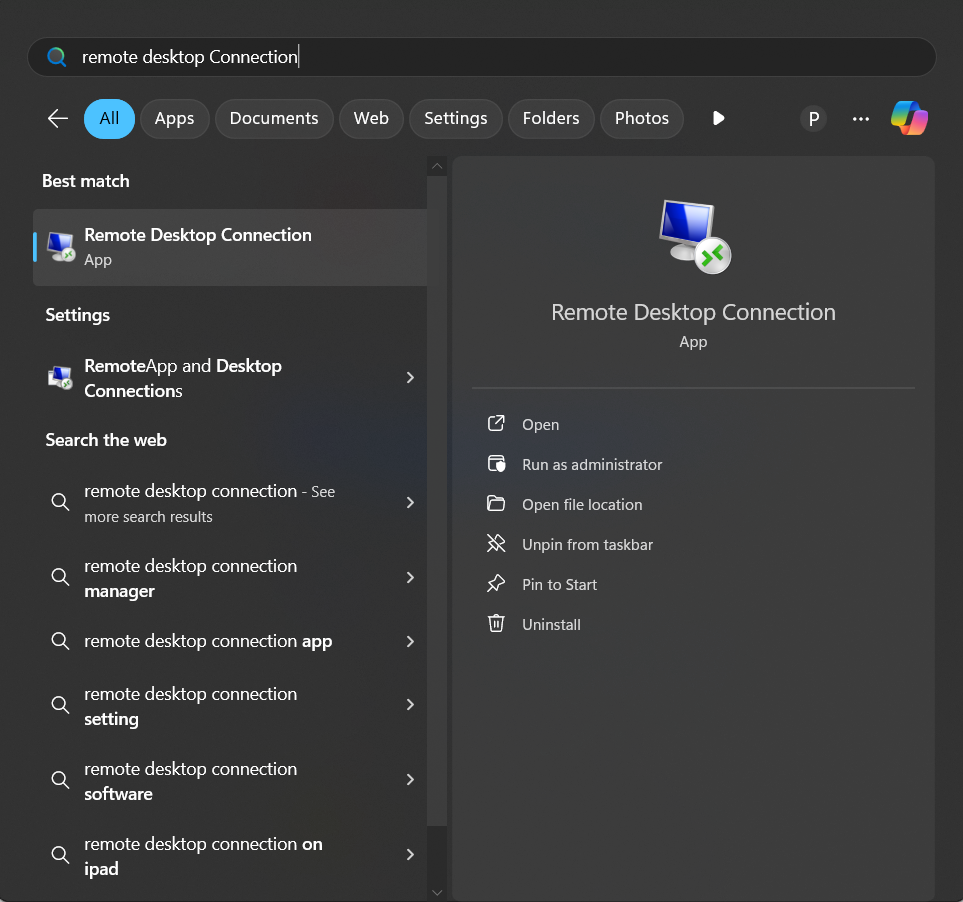
Press the **Windows key** on your keyboard, type **Remote Desktop Connection** in the search bar, and click on the app to open it.
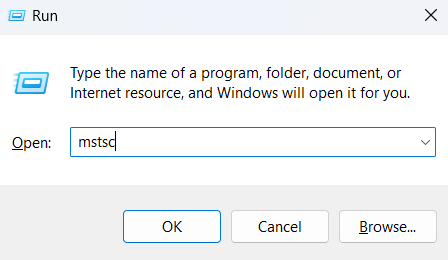
 **Alternatively**, press Win + R to open the Run dialog, type mstsc, and press Enter to open the Remote Desktop Connection window.
 **Enter the IP Address or Hostname:**
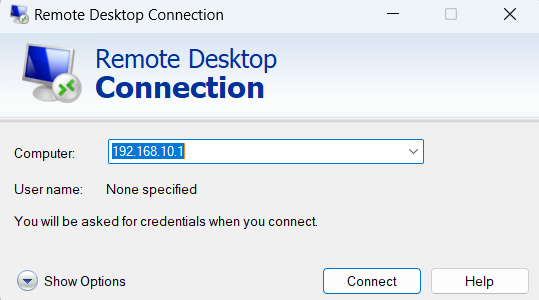
In the **Remote Desktop Connection** window, type the **IP address** or **hostname** of the remote system you want to connect to.
**Enter the IP Address or Hostname:**
In the **Remote Desktop Connection** window, type the **IP address** or **hostname** of the remote system you want to connect to.
 **Open Additional Settings:**
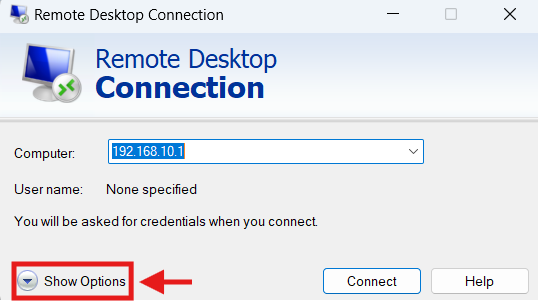
Click on the **Show Options** button to open advanced settings.
**Open Additional Settings:**
Click on the **Show Options** button to open advanced settings.
 **Choose Authentication Preferences:**
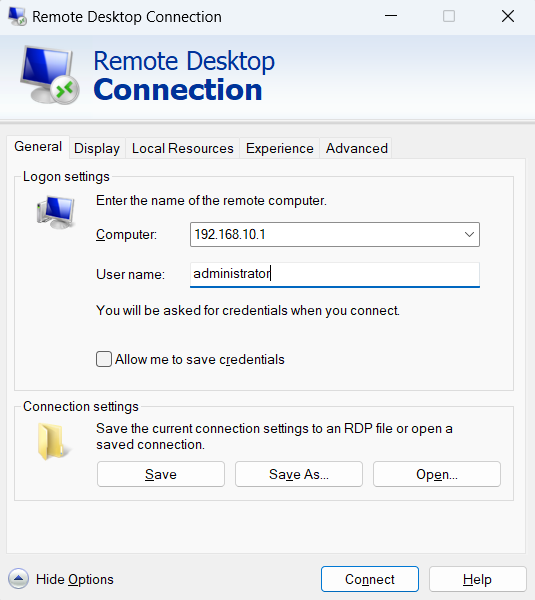
In the opened menu, you can check the box to prompt for new login credentials every time you connect to the server. The **username** is set to **Administrator** by default.
**Choose Authentication Preferences:**
In the opened menu, you can check the box to prompt for new login credentials every time you connect to the server. The **username** is set to **Administrator** by default.
 **Authenticate:**
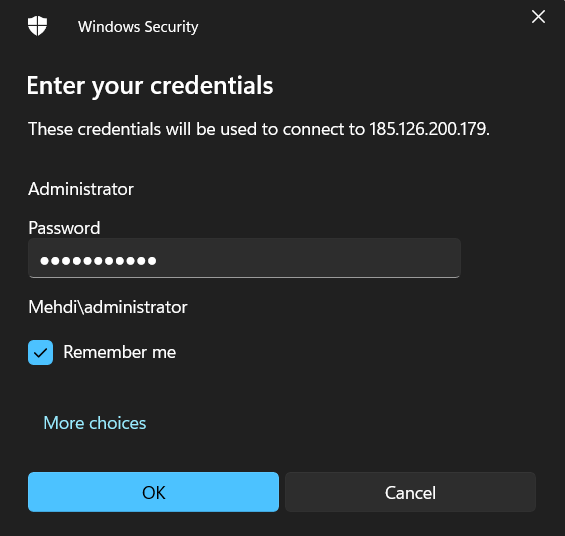
Click on the **Connect** button. You need to enter the server password, enter it, and check the box "Remember me".
**Authenticate:**
Click on the **Connect** button. You need to enter the server password, enter it, and check the box "Remember me".
 **Establish the Connection:**
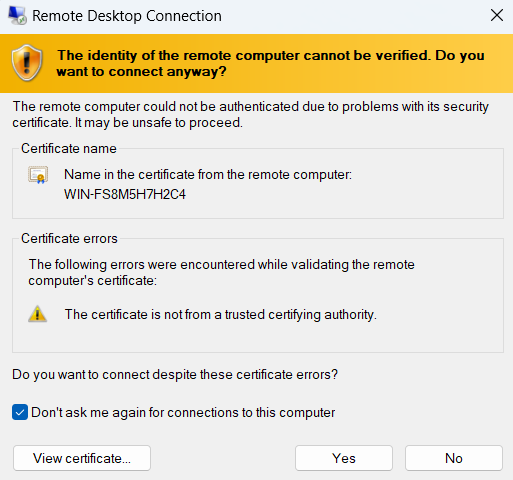
After successful authentication, a prompt will appear confirming the connection to the server. **Check the box** to ensure the prompt doesn’t appear again, then click **Yes** to continue.
**Establish the Connection:**
After successful authentication, a prompt will appear confirming the connection to the server. **Check the box** to ensure the prompt doesn’t appear again, then click **Yes** to continue.
 **Start the Connection Process:**
The process of connecting to the remote server begins.
**Start the Connection Process:**
The process of connecting to the remote server begins.
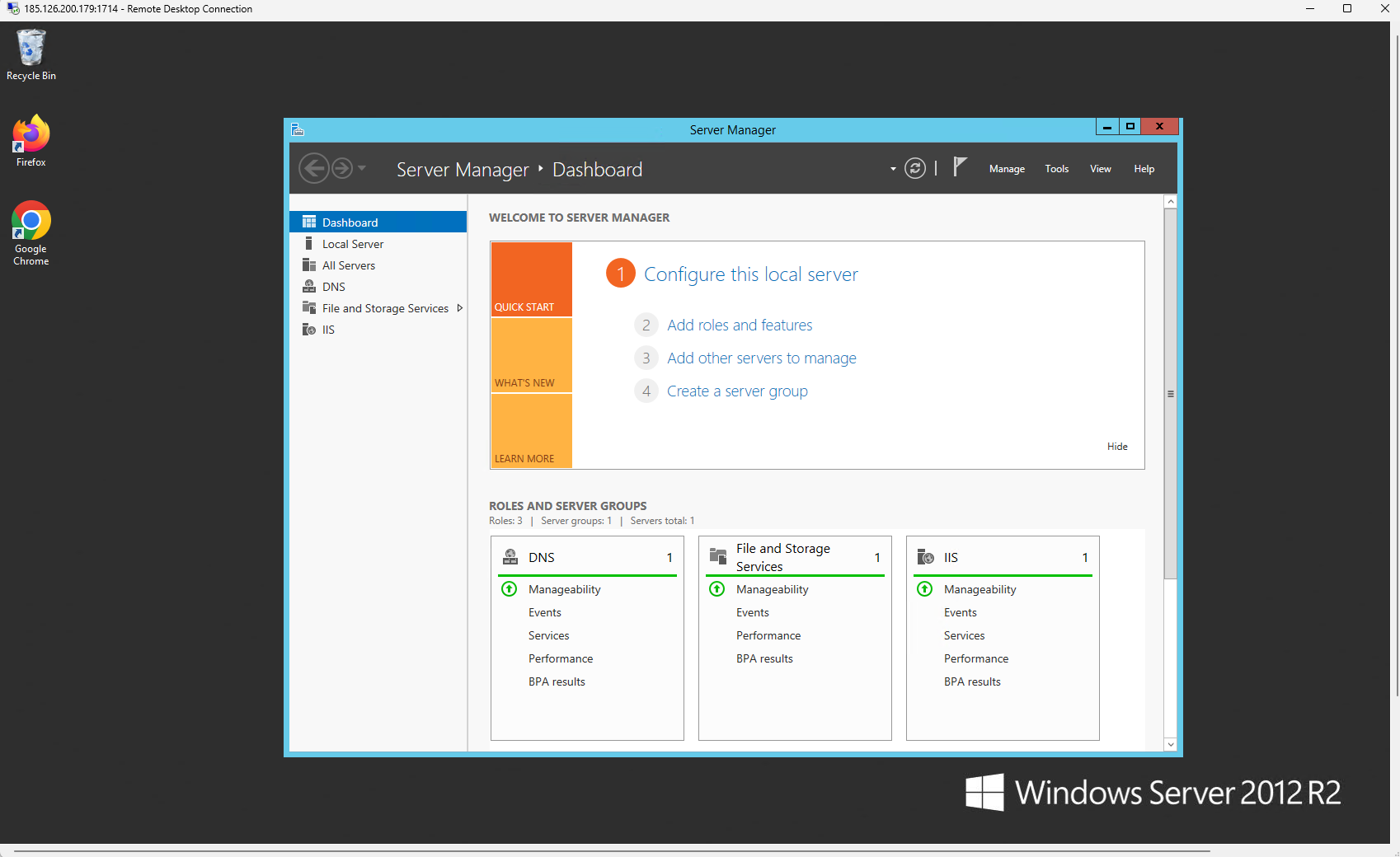
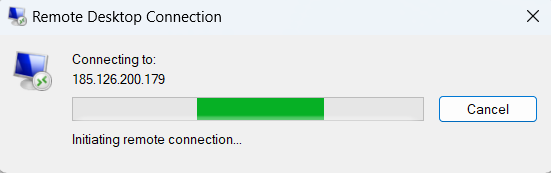 You should now be connected to the remote system and able to control it.
 ## **For MacOS users**
**Install Microsoft "Windows App":**
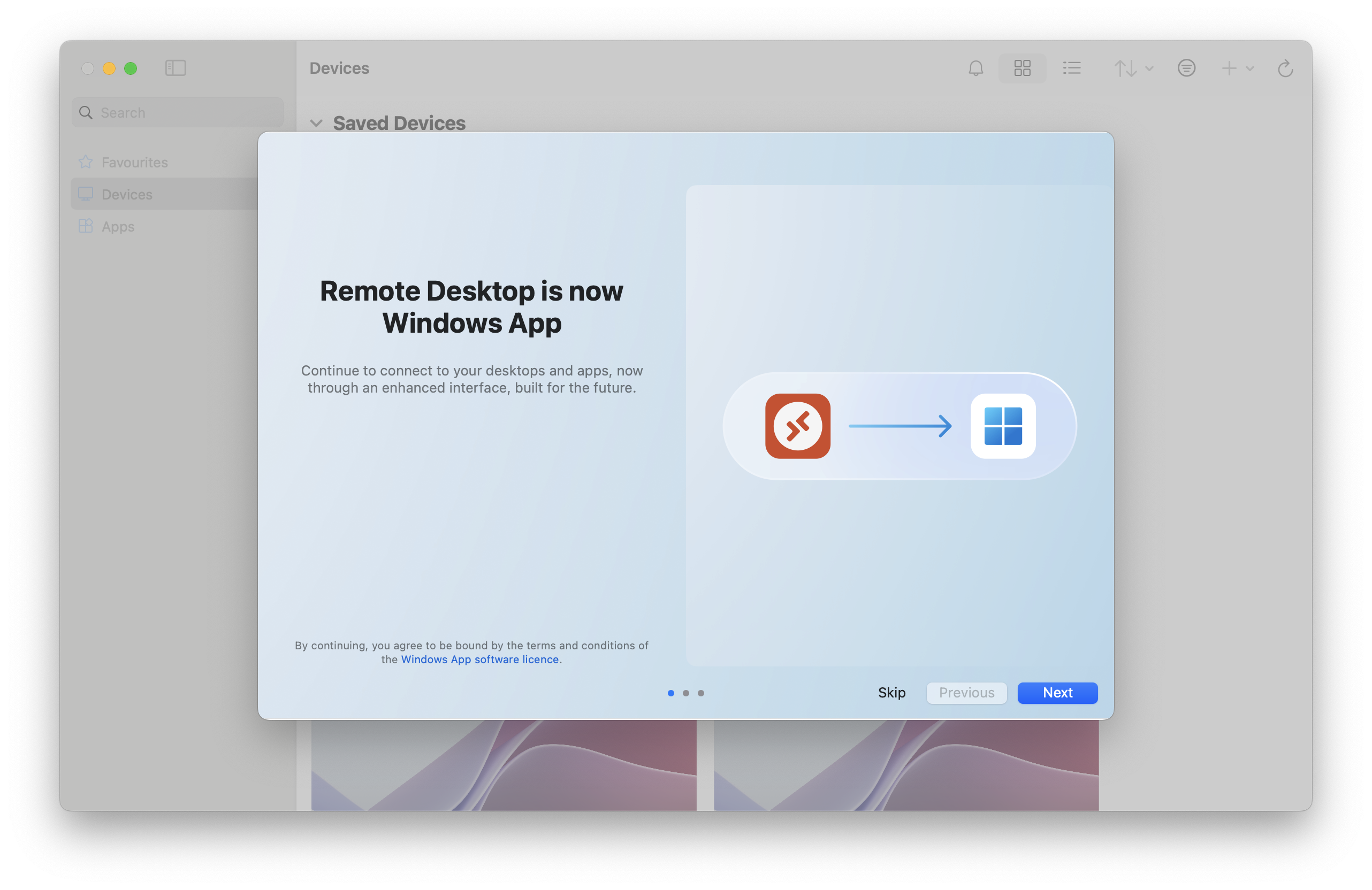
Download "Windows App" (former Remote Desktop) from the [Mac App Store](https://itunes.apple.com/ru/app/microsoft-remote-desktop-10/id1295203466?mt=12).
**Open Windows App:** Launch the app after installation.
## **For MacOS users**
**Install Microsoft "Windows App":**
Download "Windows App" (former Remote Desktop) from the [Mac App Store](https://itunes.apple.com/ru/app/microsoft-remote-desktop-10/id1295203466?mt=12).
**Open Windows App:** Launch the app after installation.
 **Add a New Connection:**
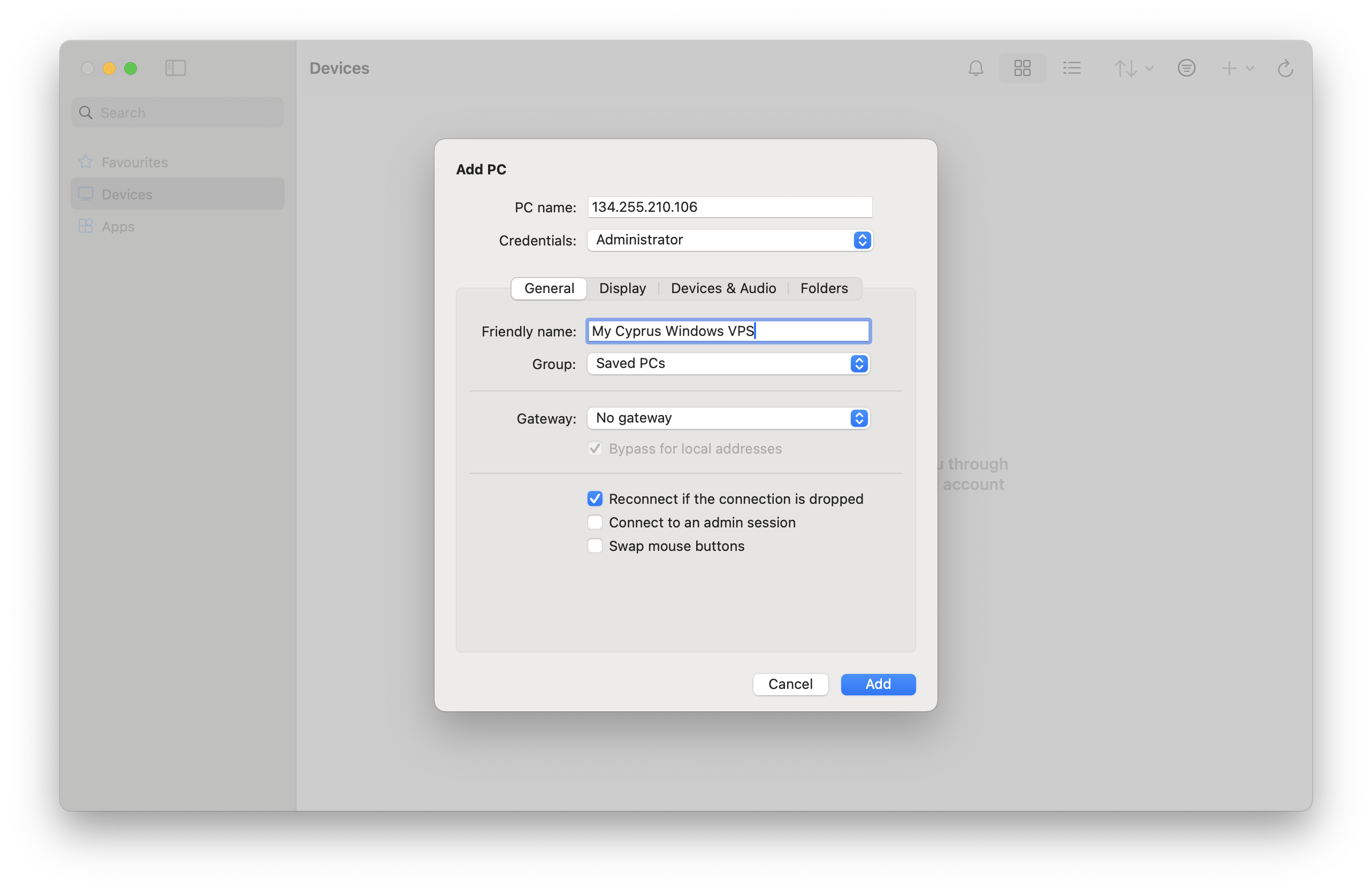
1. Click the **+** button to add a new connection.
2. Enter the **IP address** of the remote system (PC name) and name your connection (Friendly Name)
3. Credentials: pick **Administrator**
4. Click "Add" to save the new connection
**Add a New Connection:**
1. Click the **+** button to add a new connection.
2. Enter the **IP address** of the remote system (PC name) and name your connection (Friendly Name)
3. Credentials: pick **Administrator**
4. Click "Add" to save the new connection
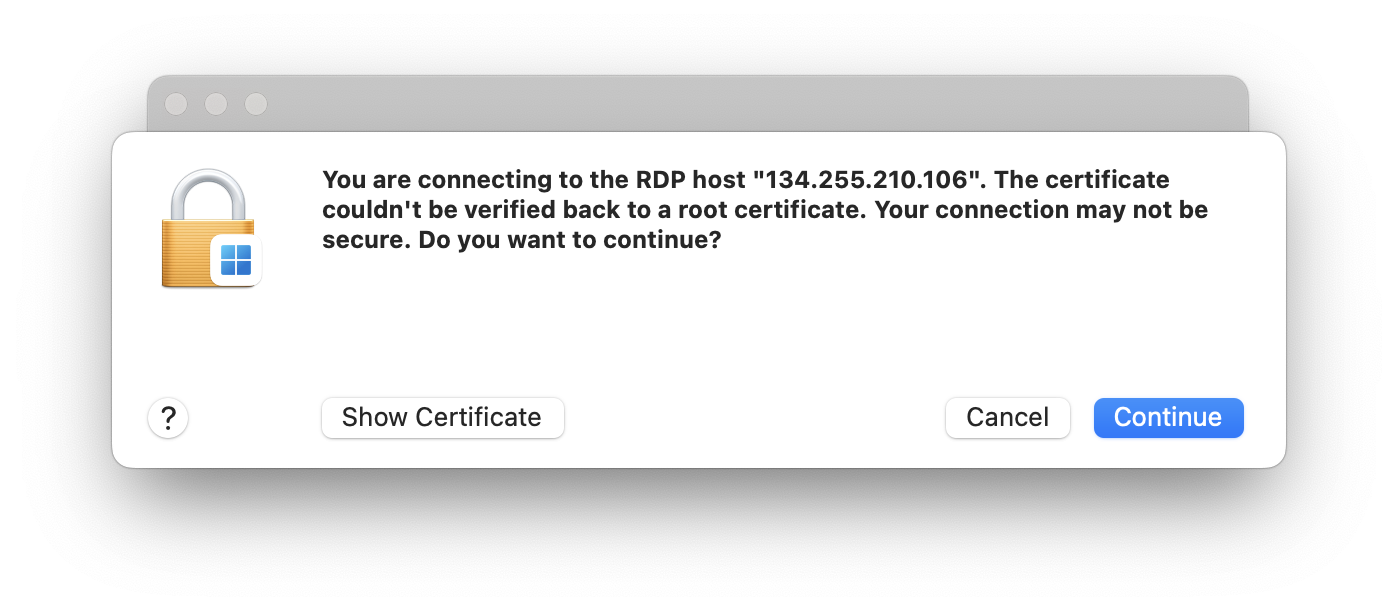
 Double-Click the newly created connection (tile), Confirm the Certificate warning (**Continue**)
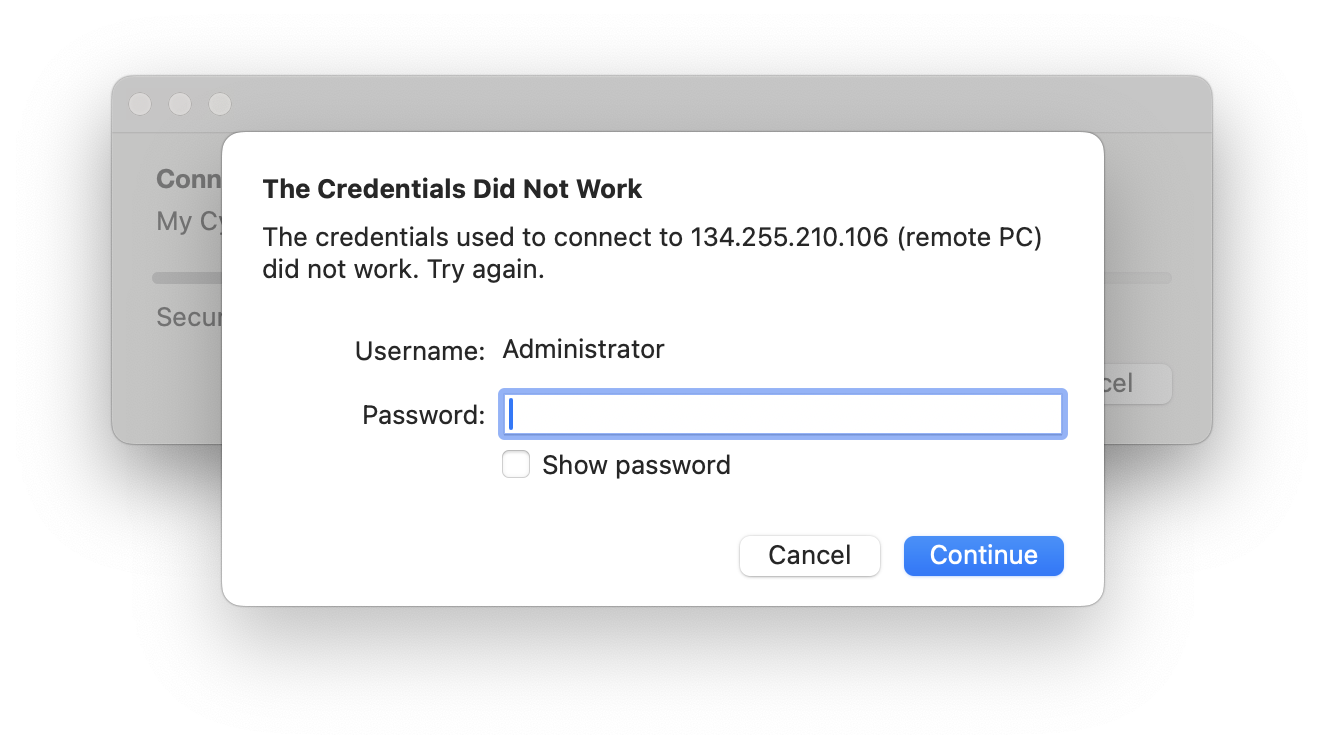
 Enter your password and **Continue** to connect.
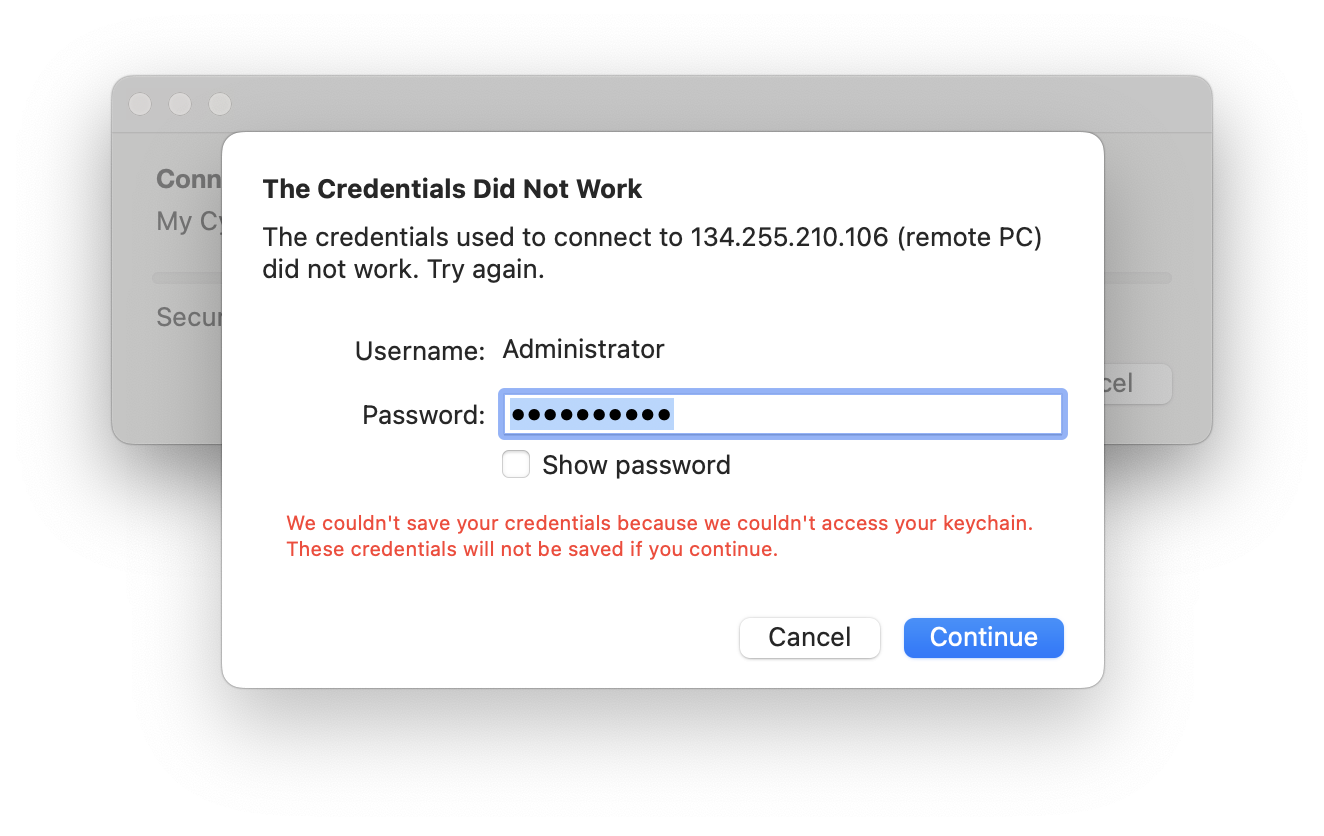
 You might see another warning. It is related to keychain access on your Mac. You can safely ignore it and click **Continue** to connect.
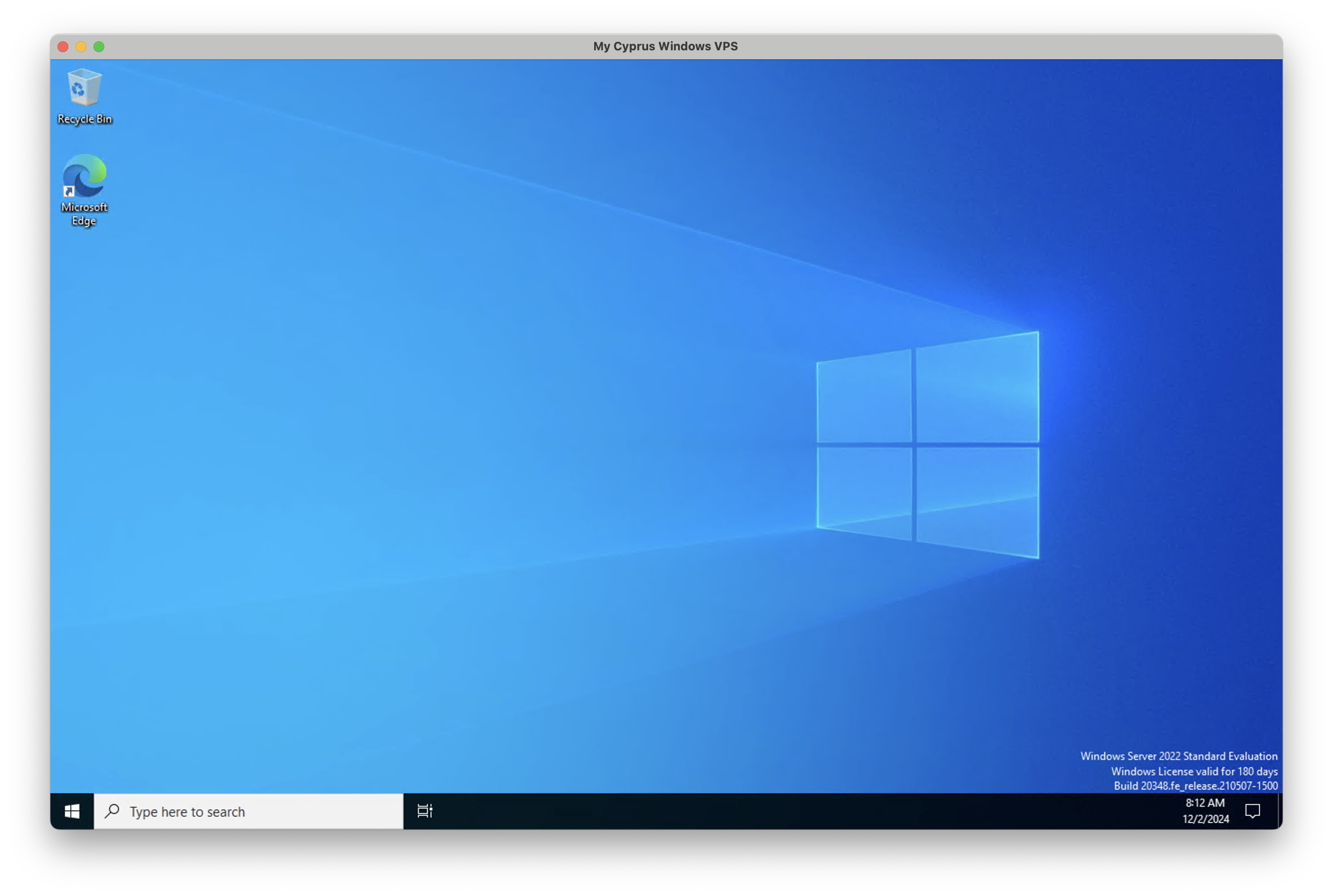
 Once you are connected, you'll see your Windows Desktop and you can continue with the initial configuration or usage.
 ## Troubleshooting
* [RDP Error 0xd07: User Account Locked](/vps-management/rdp-error-0xd07-user-account-locked) — what to do when Windows blocks RDP logins after too many failed attempts.
## Troubleshooting
* [RDP Error 0xd07: User Account Locked](/vps-management/rdp-error-0xd07-user-account-locked) — what to do when Windows blocks RDP logins after too many failed attempts.