> ## Documentation Index
> Fetch the complete documentation index at: https://docs.edisglobal.com/llms.txt
> Use this file to discover all available pages before exploring further.
# How to Pay Invoices with Account Credit
> Pay open EDIS Global invoices using your account credit balance. Step-by-step guide for applying credit to invoices from the client portal billing area.
export const CtaButton = ({label, link, openInNewTab}) => ;
## Pay invoices with account credit
Account credit can be used to pay invoices from your Client Portal.
### Important
* **Future invoices** are paid **automatically** from your account credit.
* **Existing invoices** must be paid **manually** by applying credit.
### How to Apply Credit to an Invoice
1. Log in to the **Client Portal**
2. Go to **Billing → My Invoices**
3. Open the invoice you want to pay
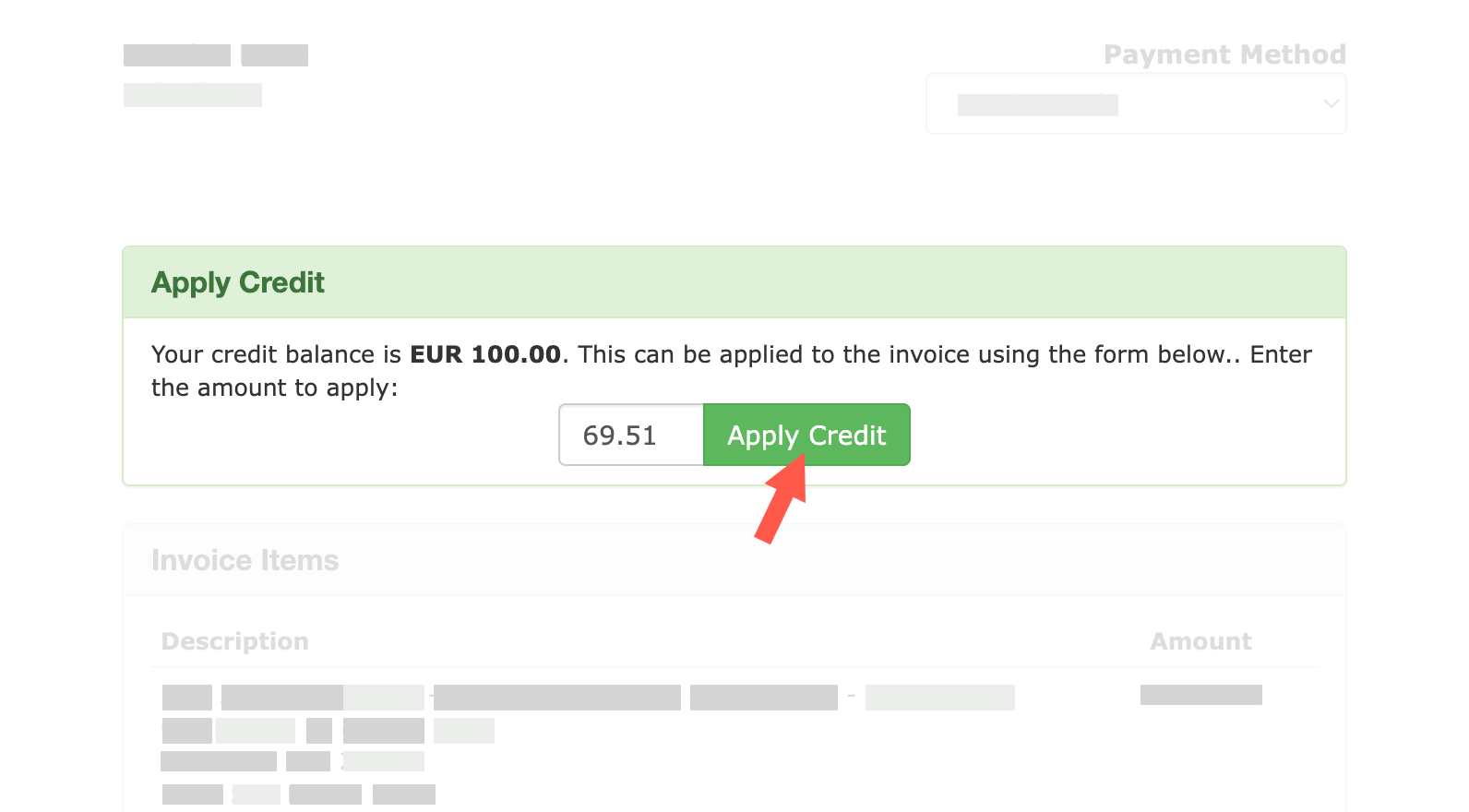
4. On the invoice, locate the green **Apply Credit** section
5. Enter the amount you want to apply (or the full invoice amount)
6. Click **Apply Credit**
If you apply the full amount due, the invoice will be marked as **Paid** immediately.
***
### Need more credit?
You can top up your account credit at any time and use your credit balance immediately to pay invoices.
 If you apply the full amount due, the invoice will be marked as **Paid** immediately.
***
### Need more credit?
You can top up your account credit at any time and use your credit balance immediately to pay invoices.
If you apply the full amount due, the invoice will be marked as **Paid** immediately.
***
### Need more credit?
You can top up your account credit at any time and use your credit balance immediately to pay invoices.