> ## Documentation Index
> Fetch the complete documentation index at: https://docs.edisglobal.com/llms.txt
> Use this file to discover all available pages before exploring further.
# v2rayNG VPN client on Android
> Connect an Android device to a VLESS VPN with the v2rayNG client. Step-by-step guide covering installation, configuration import, and connection testing.
## Connect to VLESS VPN in Android
1. **Install v2rayNG**
* Open **Google Play**, search for **v2rayNG**, then download and install the app.
* Official site link: [https://en.v2rayng.org/download/](https://en.v2rayng.org/download/)
* Official Github release page: [https://github.com/2dust/v2rayNG/releases/](https://github.com/2dust/v2rayNG/releases/)
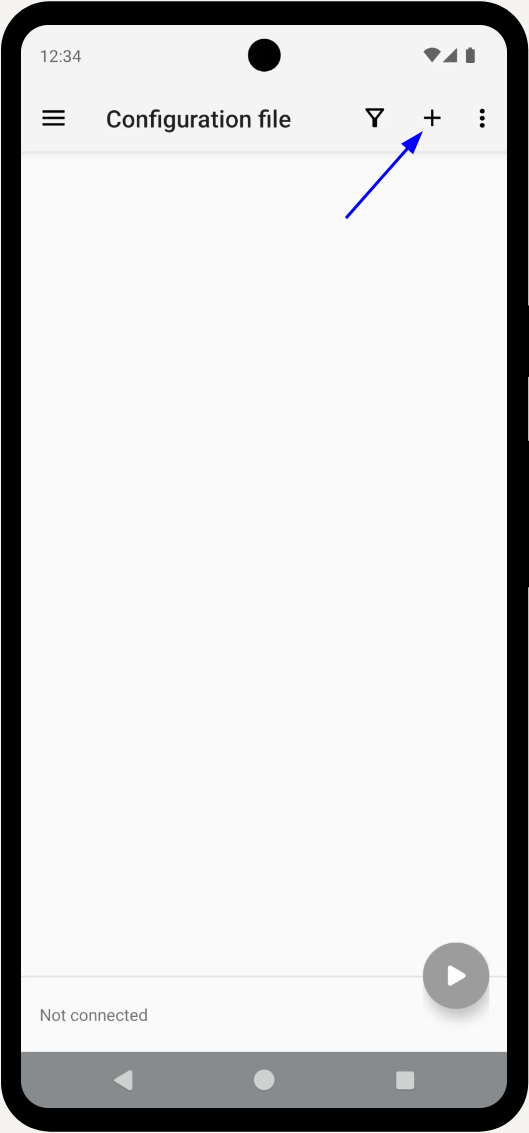
2. **Open v2rayNG and create a new connection**
Tap the **“➕”** icon (usually in the top-right corner) to add a new server.
 3. **Add the VPN config from 3x-ui**
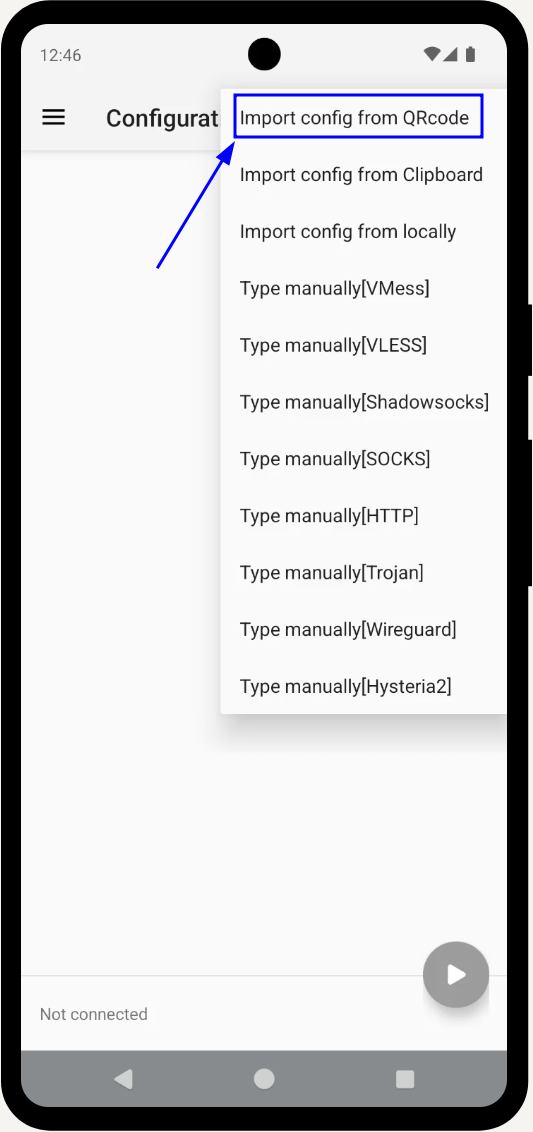
* In v2rayNG, choose **Scan QR code** (and point the camera at the QR from 3x-ui).
* The new VPN profile will appear in the list.
3. **Add the VPN config from 3x-ui**
* In v2rayNG, choose **Scan QR code** (and point the camera at the QR from 3x-ui).
* The new VPN profile will appear in the list.
 4. **Connect and check the status**\
Tap the newly added profile, then tap the **paper airplane / connect ▶️** button.\\
4. **Connect and check the status**\
Tap the newly added profile, then tap the **paper airplane / connect ▶️** button.\\
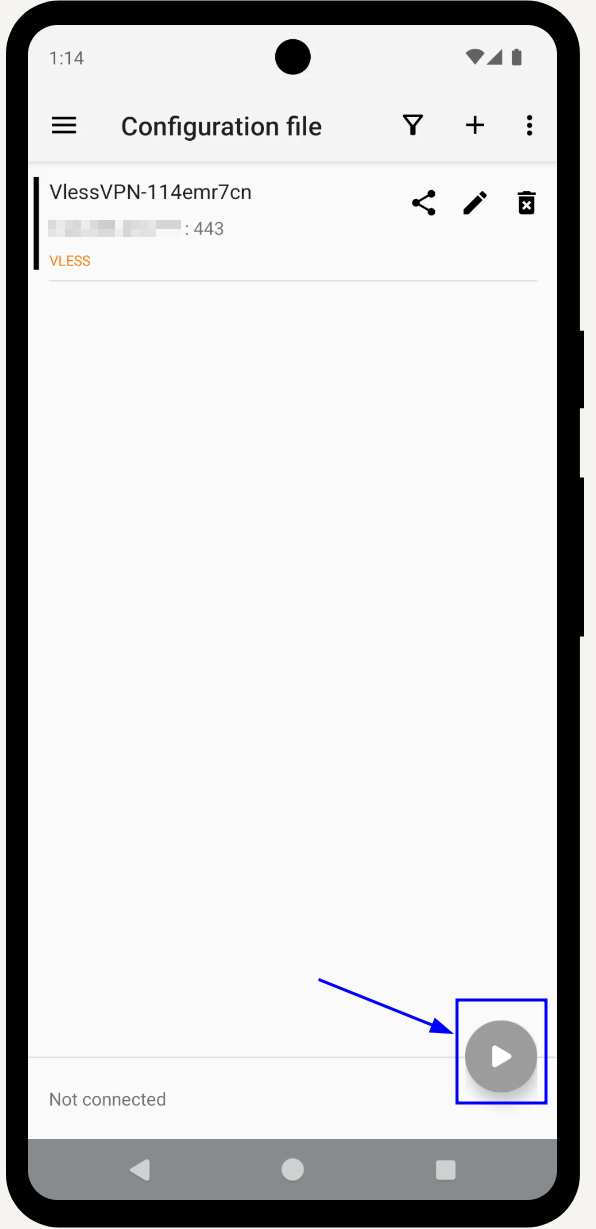 When you tap connect, Android shows a “Connection request” pop-up from v2rayNG. Tap **OK** to allow the app to create the VPN connection and continue.
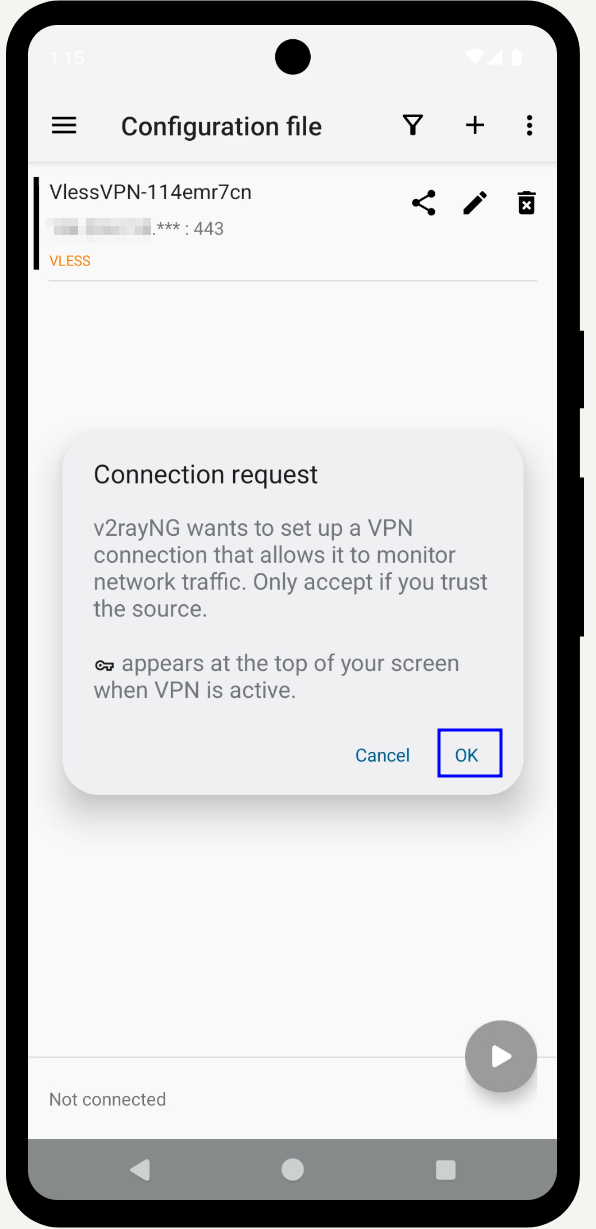 When the status changes to **Connected ✅**, your Android device📱 is using the VPN. Click to **Connected, tap to check connection**
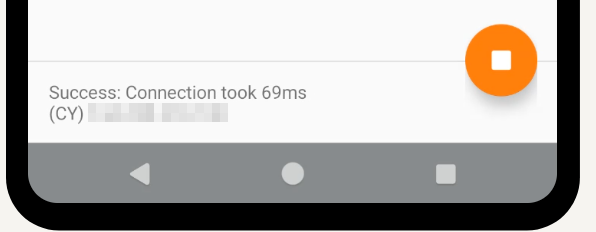
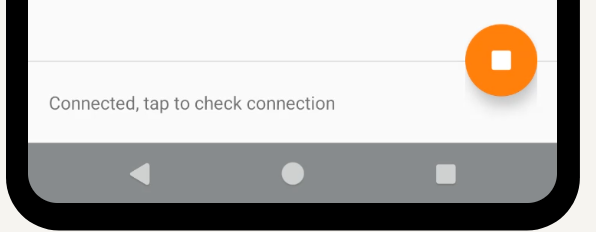 If you see \**Success: Connection took *ms**, that means connection establishment.