> ## Documentation Index
> Fetch the complete documentation index at: https://docs.edisglobal.com/llms.txt
> Use this file to discover all available pages before exploring further.
# How to Install Google Chrome on Windows Server
> Step-by-step guide to install Google Chrome on Windows Server, including disabling IE Enhanced Security Configuration and running the installer.
After activating VPS with Windows, one of the first tasks is often to install a web browser like Google Chrome. This guide provides a detailed, step-by-step process for installing Google Chrome on your rented Windows Server VPS, ensuring you have a secure and efficient browsing experience right from the start.
## How to get going
1. [Order a VPS](https://www.edisglobal.com/) with pre-installed Windows Server OS.
2. [Connect to the server via RDP](../getting-started/windows-remote-desktop), port 3389.
3. Open the **Server Manager**. The Server Manager usually opens automatically when the operating system starts. However, if the Server Manager does not open automatically, click on the **Start** button. Then, find and select "**Server Manager**" in the **Start** menu. It is typically pinned by default when you install Windows Server.
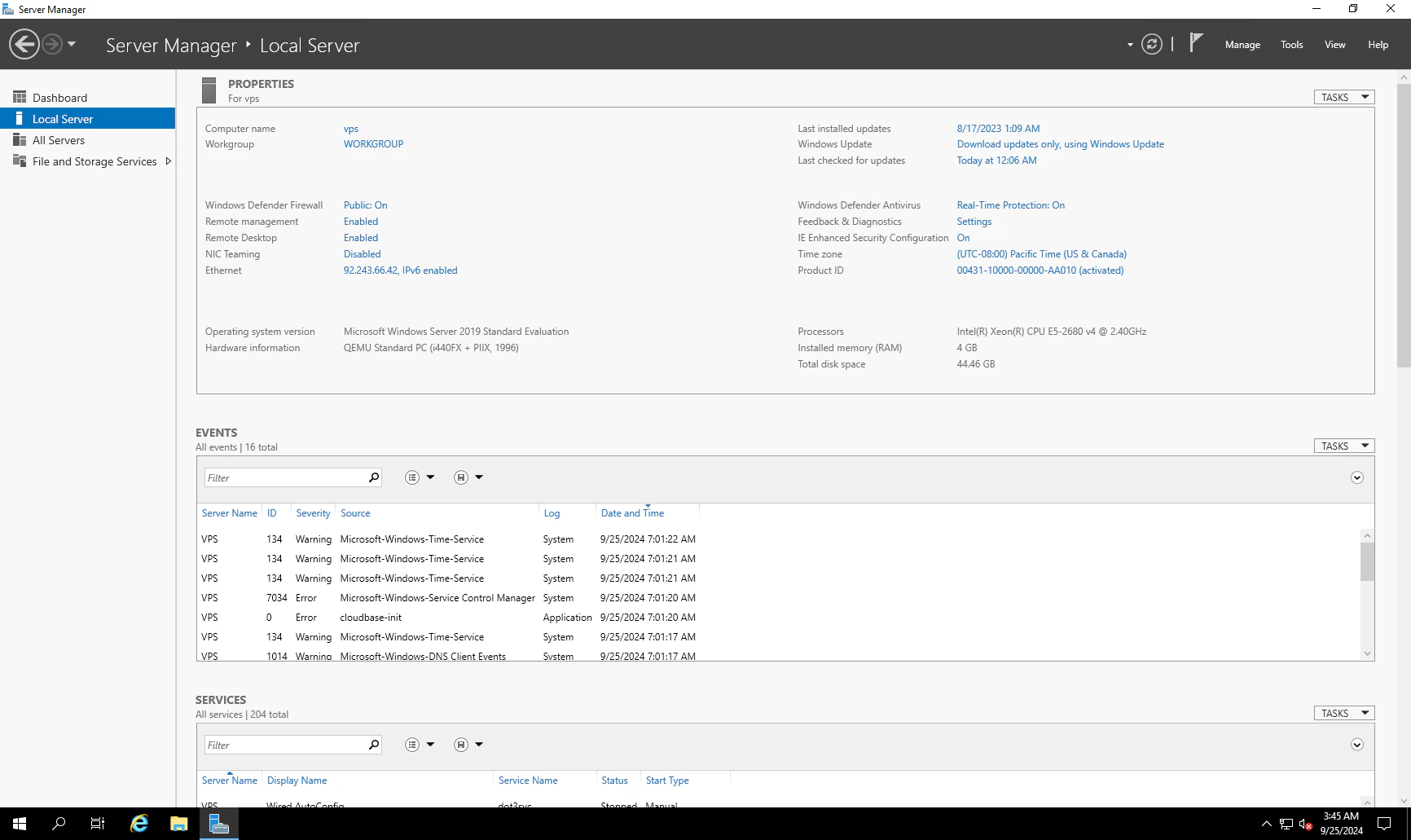
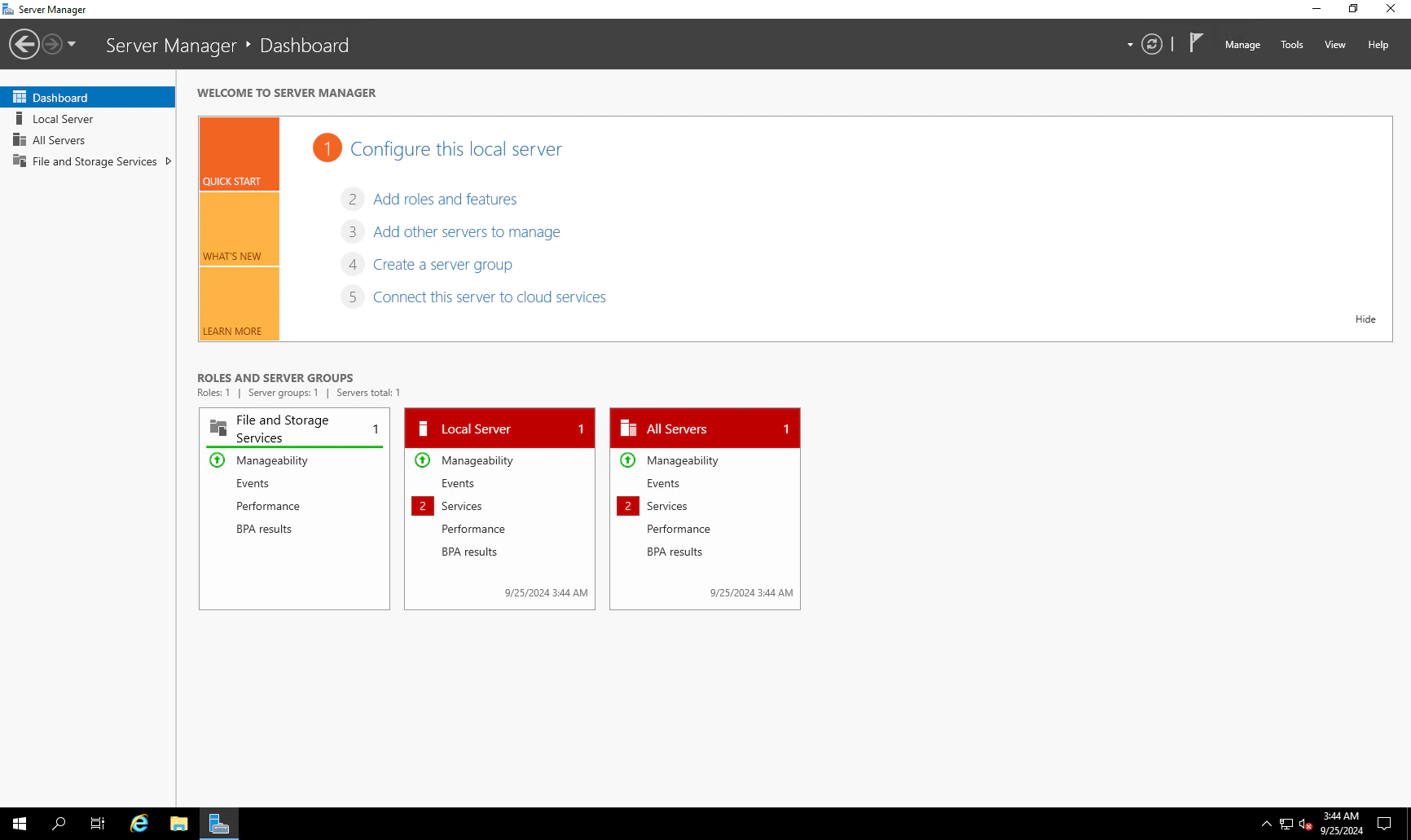 4. Choose the **Local Server** section on the Server Manager
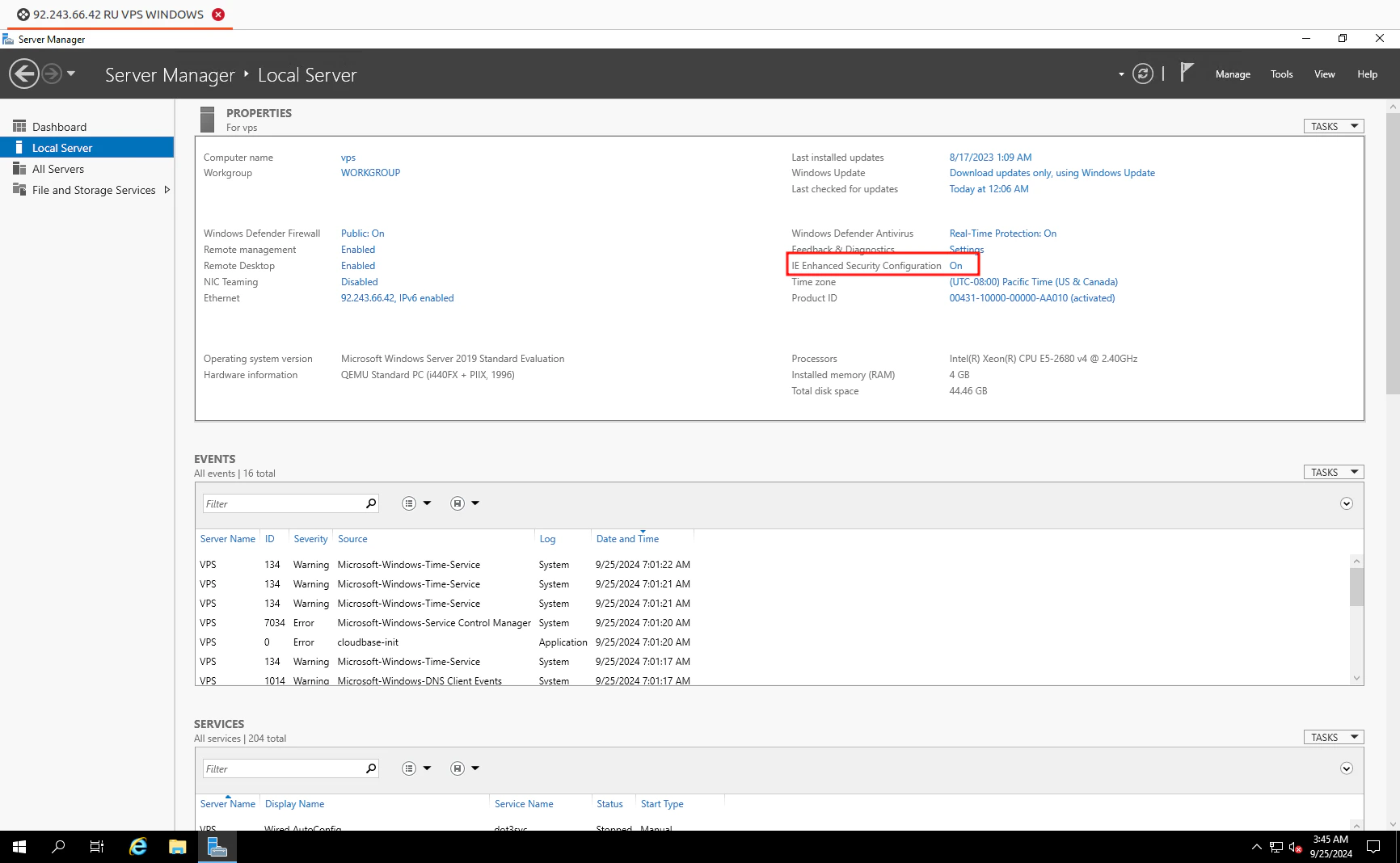
 5. Disable the IE Enhanced Security Configuration setting by clicking on "On":
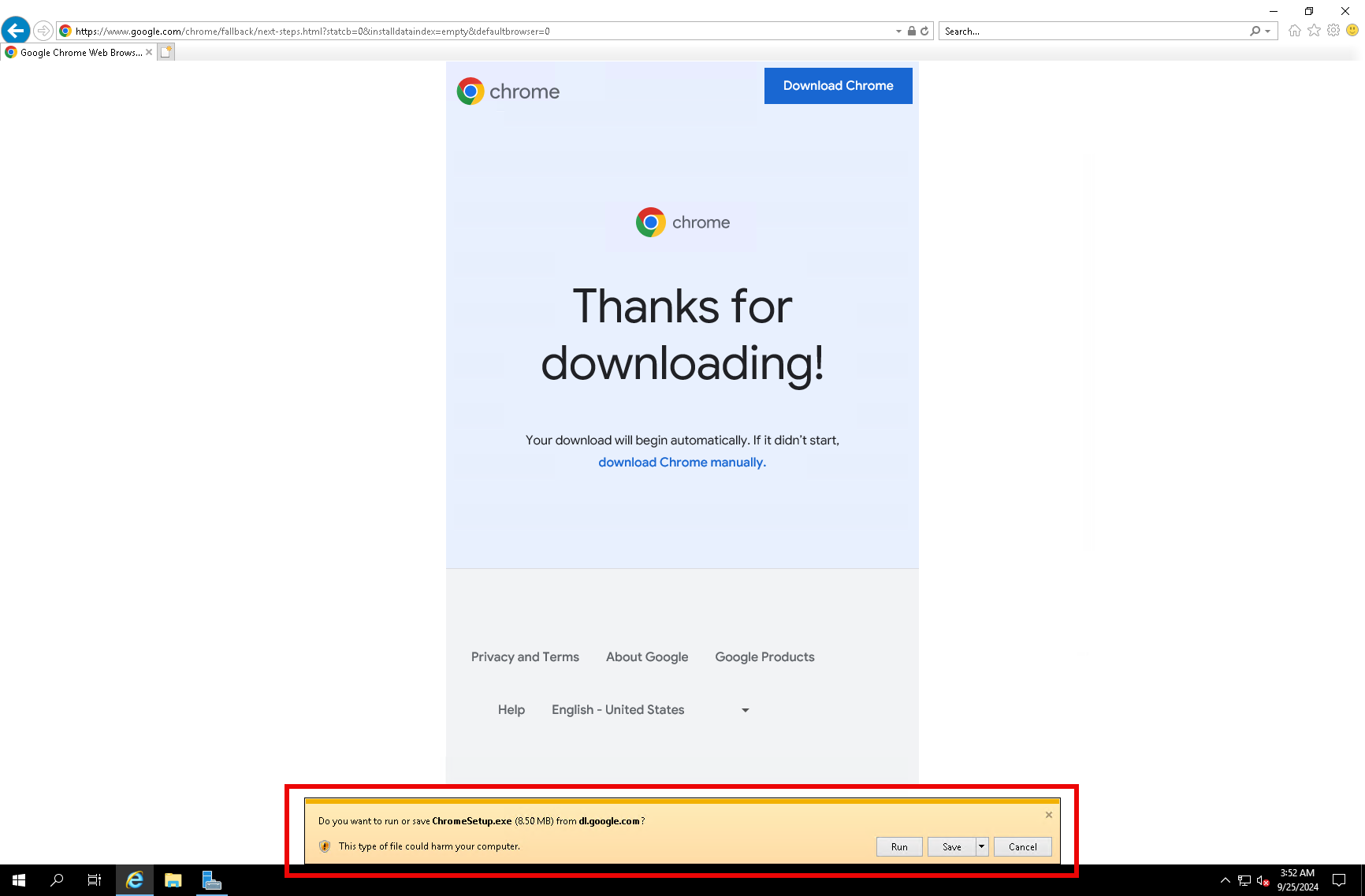
 6. Click to **Run** button on the new pop-up window that will be located in the bottom section of the screen.
 7. Set Google Chrome as the default browser.
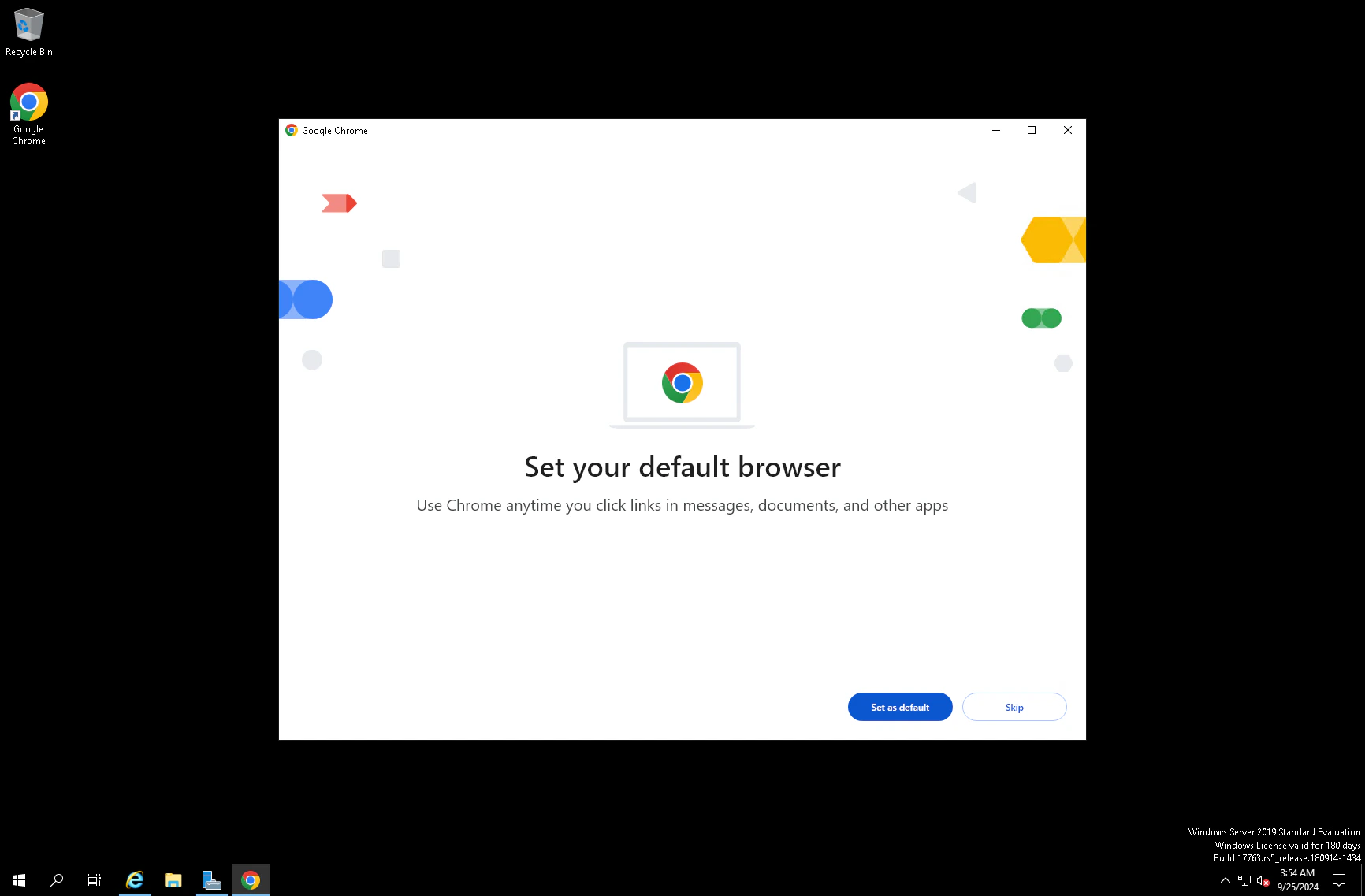 8. Congratulations! Google Chrome has been successfully installed on your Windows Server. This installation enhances the server's capabilities by providing a fast and secure web browser.