> ## Documentation Index
> Fetch the complete documentation index at: https://docs.edisglobal.com/llms.txt
> Use this file to discover all available pages before exploring further.

# Forgot Linux root Password

> This doc explains how to set a new password for the root user on a Linux VPS by booting the machine in single-user mode using VNC.

export const CtaButton = ({label, link, openInNewTab}) => <button className="custom-cta-button">
    <a href={link} target={openInNewTab ? "_blank" : "_self"}>
      {label}
    </a>
  </button>;

## **Set a New Password by booting your Linux VPS in Single-User Mode**

EDIS does not install KVM guest drivers in its virtual machines. You receive authentic OS images, without any open doors. This comes at the price though. It is not possible to change the root password from the administration panel. Nevertheless, it is possible to set a new password after booting the machine in single-user mode using VNC.

Follow these easy steps if you no longer have access to your Linux operating system, and you need to set a fresh Linux root password on your KVM.

<Steps>
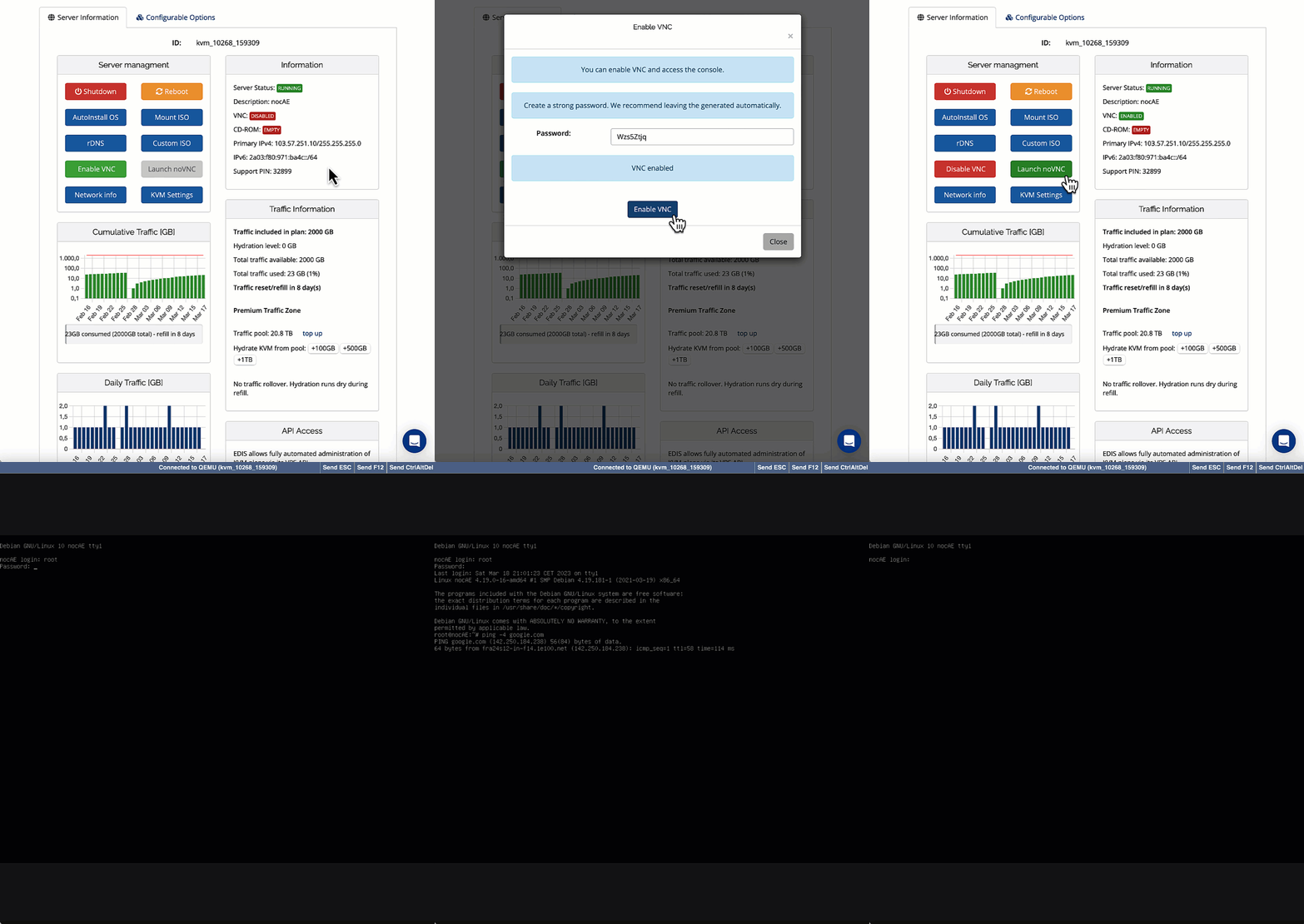
  <Step title="Start by Enabling VNC">
    [KVM-Panel](https://manage.edisglobal.com/clientarea.php)

    VNC gives you "remote access to your server's keyboard and screen".

    <img src="https://mintcdn.com/edisglobal-b1e34a56/NkL1H5vNhR4UaR1l/assets/F8eNYsykWzRS62iS3P4Us_edis-vnc-novnc.gif?s=ee3b16ab43bd6e12e8845f978937734a" alt="Reset Linux Root Password (Single-User Mode)" width="1017" height="1080" data-path="assets/F8eNYsykWzRS62iS3P4Us_edis-vnc-novnc.gif" />
  </Step>

  <Step title="Launch noVNC session" />

  <Step title="Reboot your VPS" />

  <Step title="Enter the Grub (boot loader) menu">
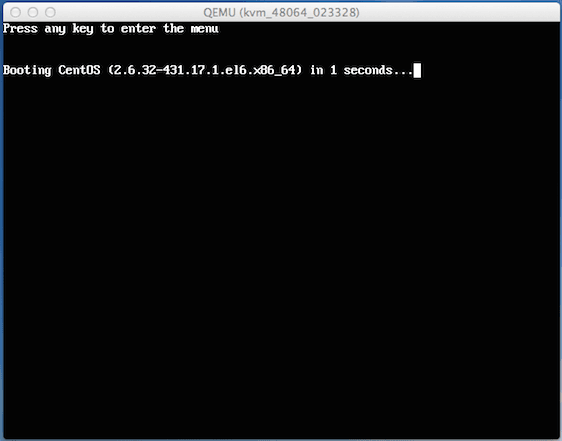
    Press any key to enter the Grub (boot loader) menu, once the following screen shows

    <img src="https://mintcdn.com/edisglobal-b1e34a56/NkL1H5vNhR4UaR1l/assets/Fvrm2wZksE9VQ7RLz4dUW_grub-13e81545cf.png?fit=max&auto=format&n=NkL1H5vNhR4UaR1l&q=85&s=98c60d805ae7b11be50b4213cb70984d" alt="Reset Linux Root Password (Single-User Mode)" width="562" height="441" data-path="assets/Fvrm2wZksE9VQ7RLz4dUW_grub-13e81545cf.png" />
  </Step>

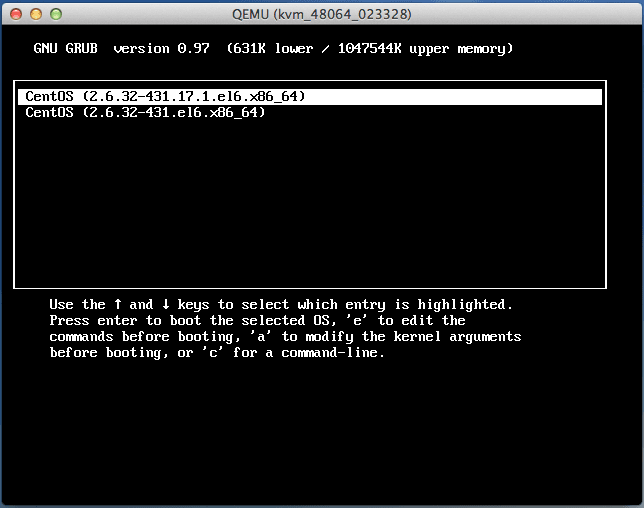
  <Step title="Press `e` on your keyboard to edit the kernel boot options.">
    <img src="https://mintcdn.com/edisglobal-b1e34a56/BiYfx4c5cLLWdRH5/assets/PDn-VLEH4oY9Ts5aMWFtt_grub-menu-02a3c5087e.png?fit=max&auto=format&n=BiYfx4c5cLLWdRH5&q=85&s=52845afc38321c0e16d9dba6eb5a3456" alt="Reset Linux Root Password (Single-User Mode)" width="644" height="508" data-path="assets/PDn-VLEH4oY9Ts5aMWFtt_grub-menu-02a3c5087e.png" />
  </Step>

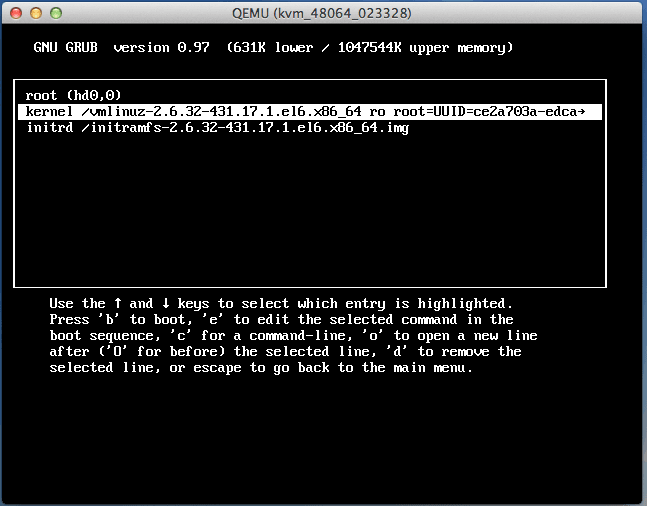
  <Step title="Highlight the second stanzas (line) and press `e` again.">
    <img src="https://mintcdn.com/edisglobal-b1e34a56/BiYfx4c5cLLWdRH5/assets/UupFVGCUzqwNZuW7v-njE_grub-edit-1-a6217c96fc.png?fit=max&auto=format&n=BiYfx4c5cLLWdRH5&q=85&s=73a03842c1b8761778b689cb499cc59e" alt="Reset Linux Root Password (Single-User Mode)" width="647" height="506" data-path="assets/UupFVGCUzqwNZuW7v-njE_grub-edit-1-a6217c96fc.png" />
  </Step>

  <Step title="Edit the line highlighted in the previous step">
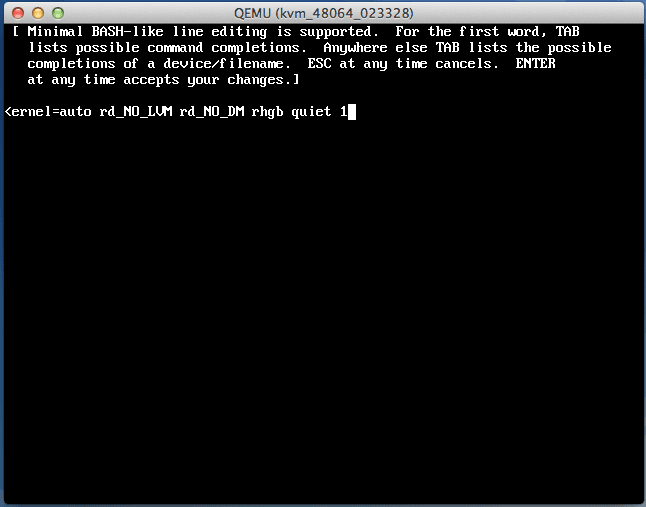
    You will now be able to edit the line highlighted in the previous step. Simply add `1` at the end of the line as indicated in the following screenshot, then confirm pressing `Enter`.

    On Debian, add `init=/bin/bash` instead of `1` at the end of the line.

    <img src="https://mintcdn.com/edisglobal-b1e34a56/BiYfx4c5cLLWdRH5/assets/dmeyDtDBPFyQZjL7_rrMm_grub-edit-2-1a8c865f73.png?fit=max&auto=format&n=BiYfx4c5cLLWdRH5&q=85&s=694afb4a6e6e011af28c626087d68ad3" alt="Reset Linux Root Password (Single-User Mode)" width="646" height="507" data-path="assets/dmeyDtDBPFyQZjL7_rrMm_grub-edit-2-1a8c865f73.png" />
  </Step>

  <Step title="Now you see the Grub stanzas as shown in step 5">
    Press `b` to continue booting, using the modified configuration. Linux will now boot into single-user mode, allowing for some special administrative tasks. (This will provide you with root access without the need to enter the root password) and can be used to set a new root password. Once the system is up and running type the following command to update the root password:

    ```shell theme={"system"}
    passwd root
    ```

    You will be asked to enter a new password for the user root.
  </Step>

  <Step title="Once finished, reboot your VPS and you will be able to use the newly set root password" />
</Steps>

The principle of how to reset a forgotten root password is described here:
<CtaButton label="External WIKI article" link="https://en.wikibooks.org/wiki/Linux_Guide/Reset_a_forgotten_root_password" openInNewTab={true} />