> ## Documentation Index
> Fetch the complete documentation index at: https://docs.edisglobal.com/llms.txt
> Use this file to discover all available pages before exploring further.
# How to Reset Administrator Password on Windows Server
> Reset a forgotten Windows Server Administrator password using the Windows Installer, VNC access, Virtio drivers, and command prompt recovery.
If you’ve forgotten the Administrator password for your Windows Server or need to reset it, this guide provides a step-by-step process to regain access through the VPS management portal. By mounting an ISO and using the command prompt, you can securely reset the password without reinstalling the operating system, ensuring that all server data remains intact. Follow these instructions carefully to successfully reset your password while preserving all data on your server.
### Access the VPS management portal
1. [Activate VNC access for VPS](https://docs.edisglobal.com/enable-vnc-server)
2. Open launch noVNC or VNC client
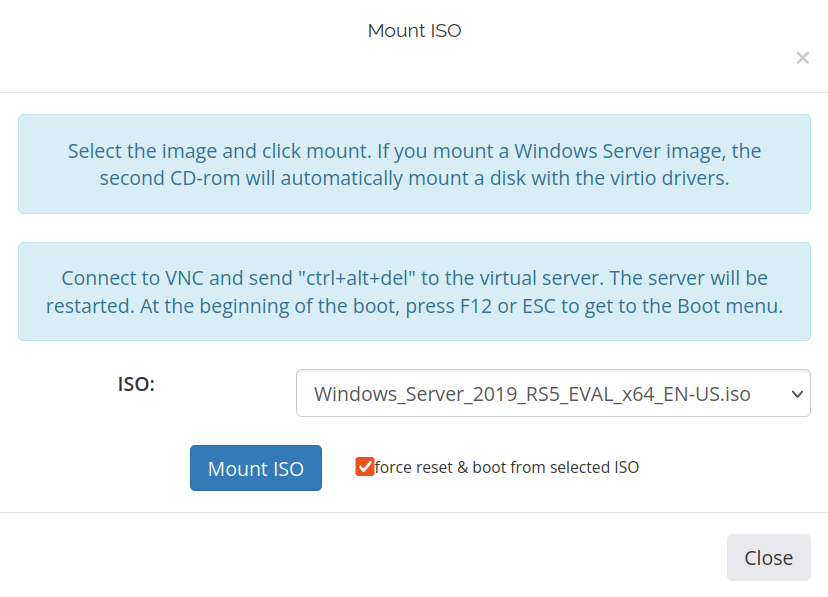
3. [Mount ISO](https://docs.edisglobal.com/mount-iso-image) in the Server management section.
4. In the drop-down list choose for example: Windows Server 2019
5. Check the box **force reset & boot from the selected ISO** then click on the **Mount ISO** button
 6. Open the noVNC tab in your browser or VNC client.
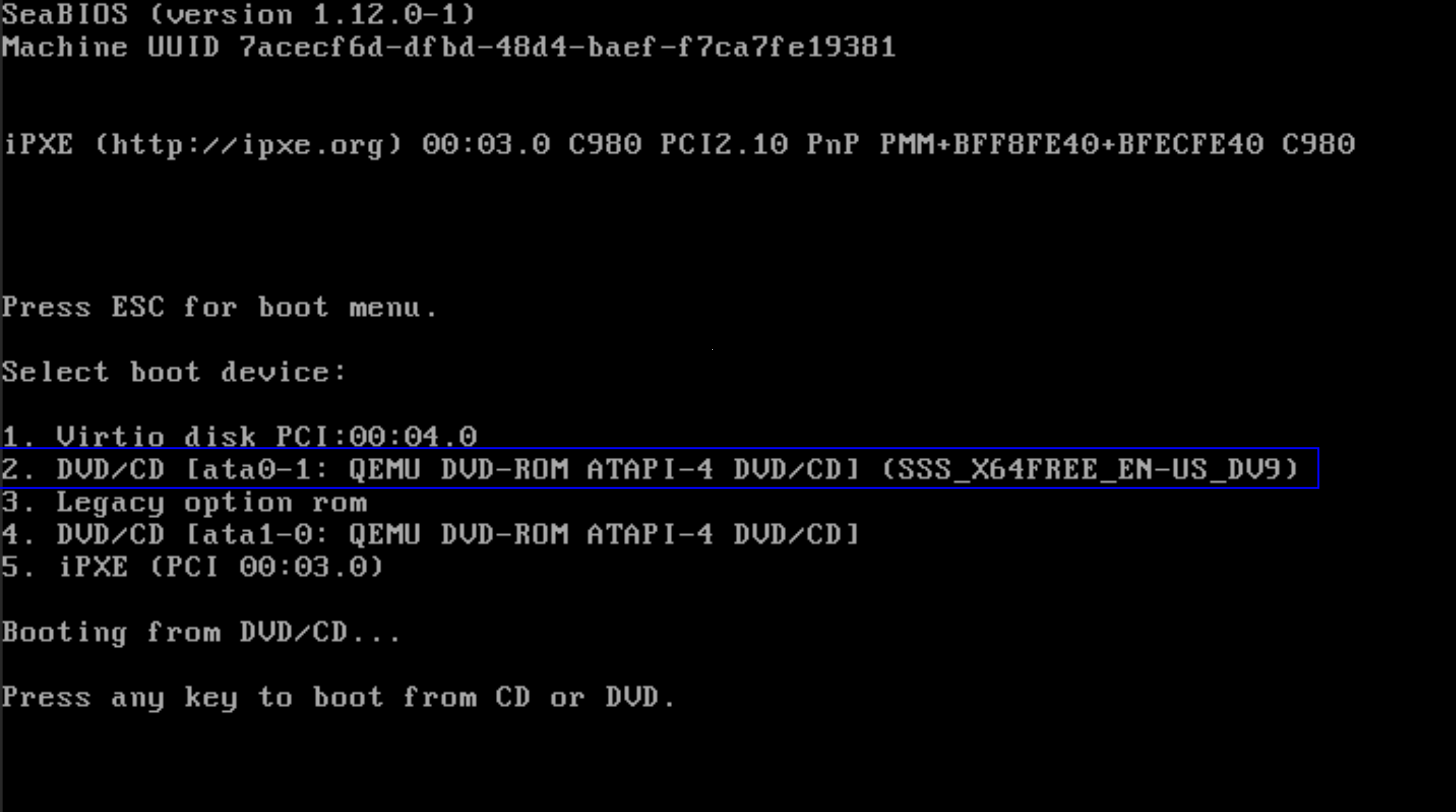
7. Press `2` to boot from mounted .iso (DVD/CD), For example:
6. Open the noVNC tab in your browser or VNC client.
7. Press `2` to boot from mounted .iso (DVD/CD), For example:
 ### Windows installation setup
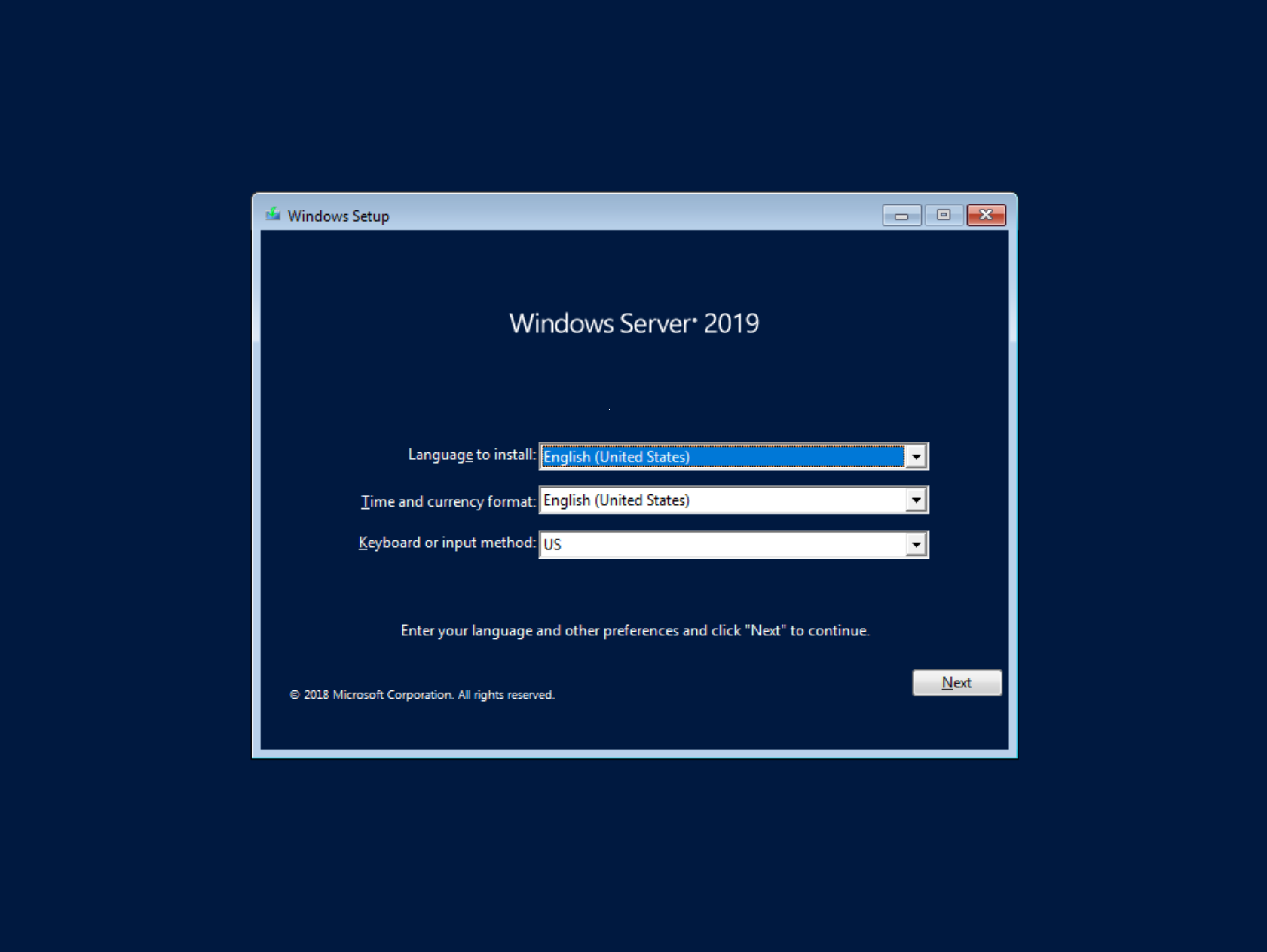
1. Wait until the Windows installation is loaded and on the Windows Setup window click to **Next** button.
### Windows installation setup
1. Wait until the Windows installation is loaded and on the Windows Setup window click to **Next** button.
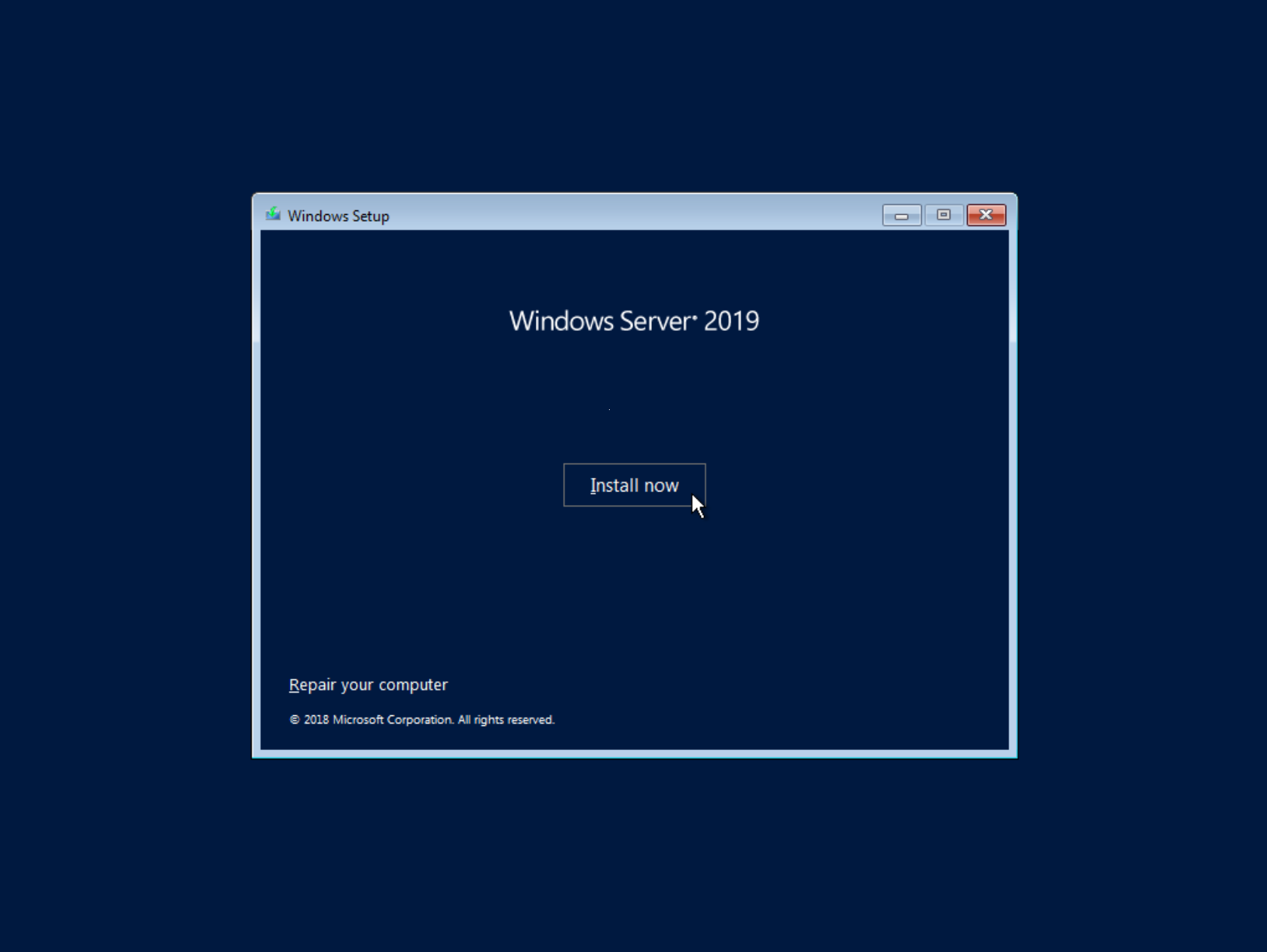
 2. Press **Install now** button on the center of the new window.
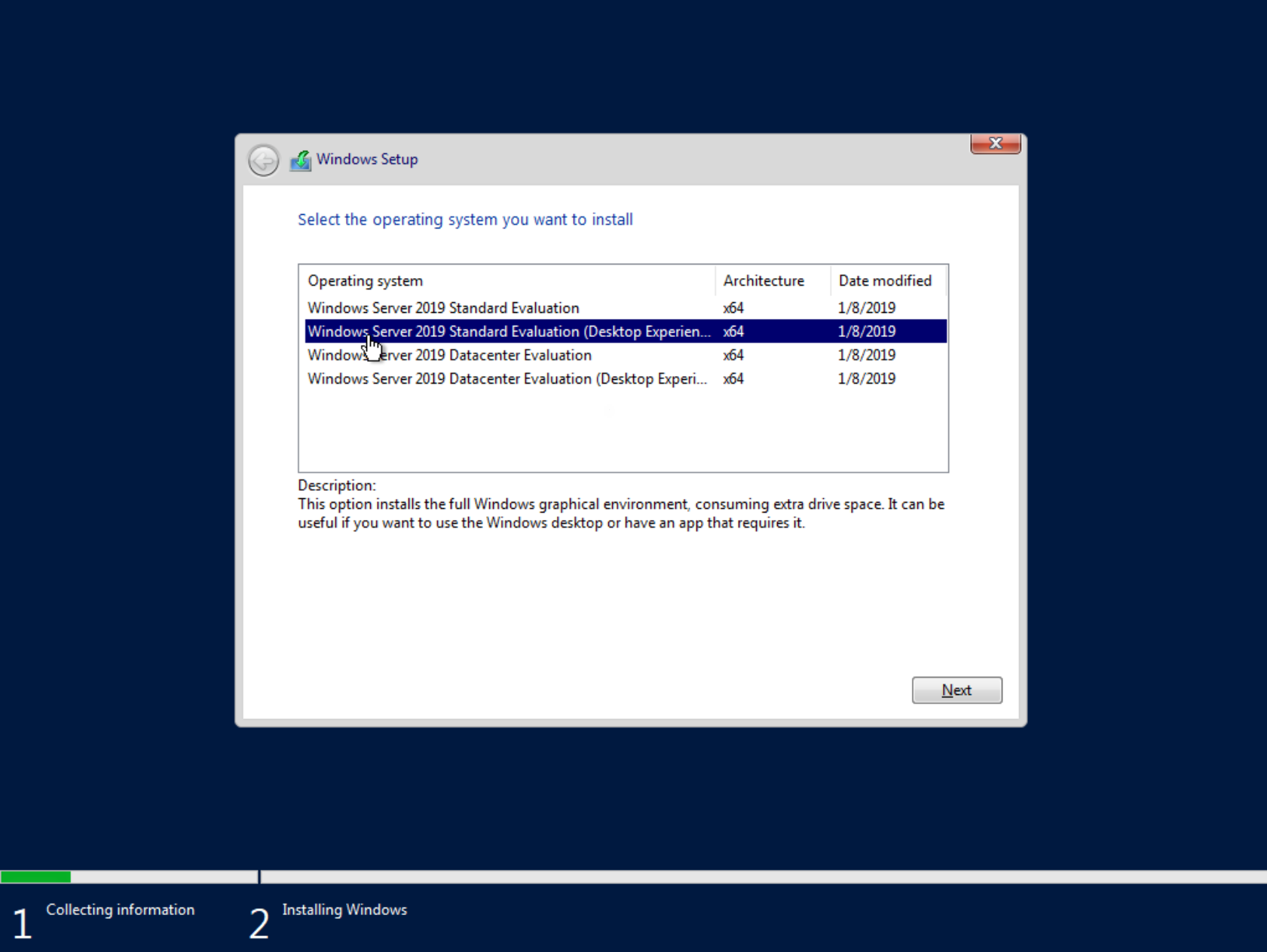
 3. Choose Windows Server 2019 Standard Evaluation (Desktop Experience) and click Next:
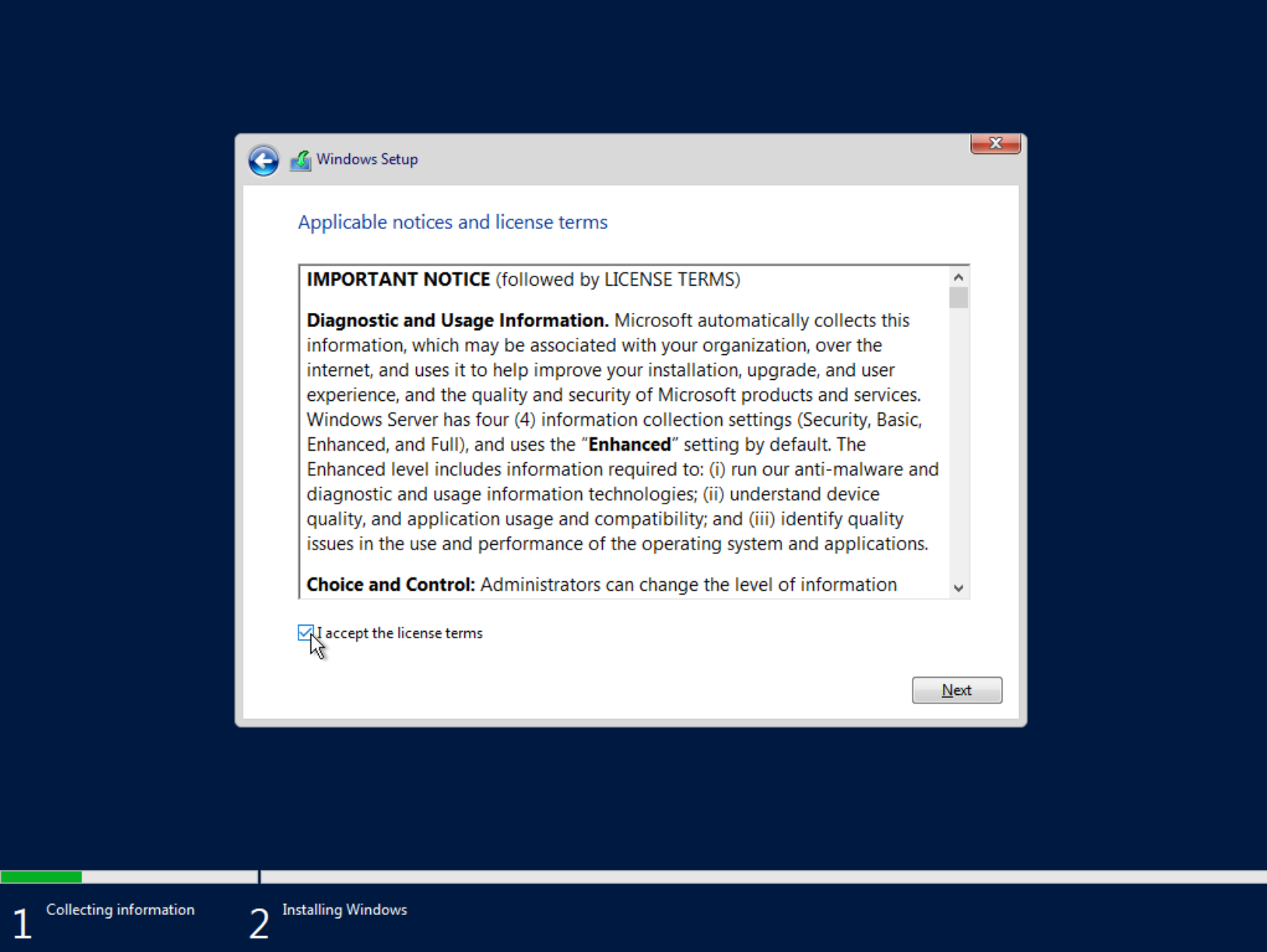
 4. Check the box to **accept the license terms**, then click the **Next** button.
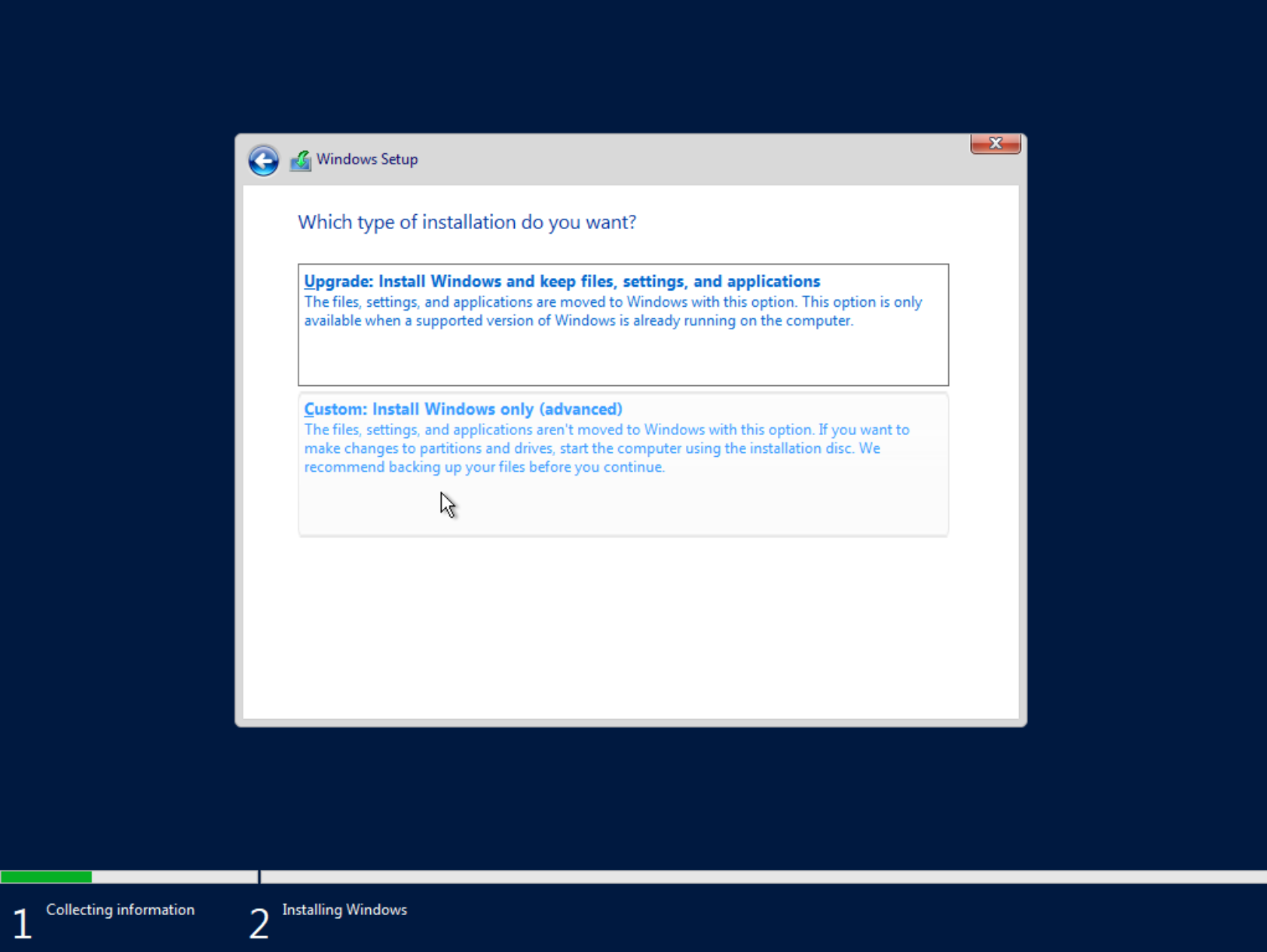
 5. Choose Custom: Install Windows only(advanced) option:
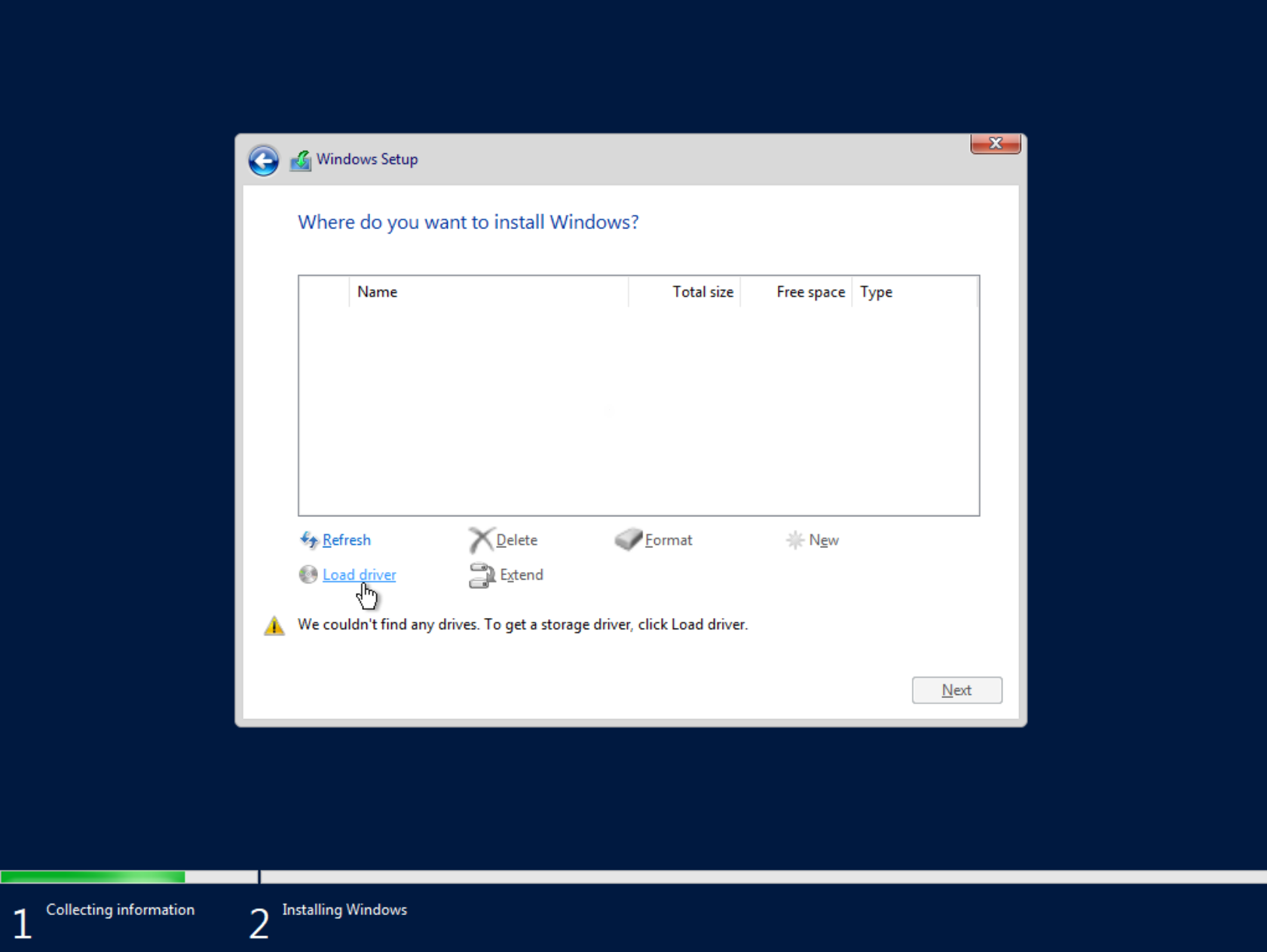
 6. On the new window click on the **Load Driver**:
 ### Load the virtio driver
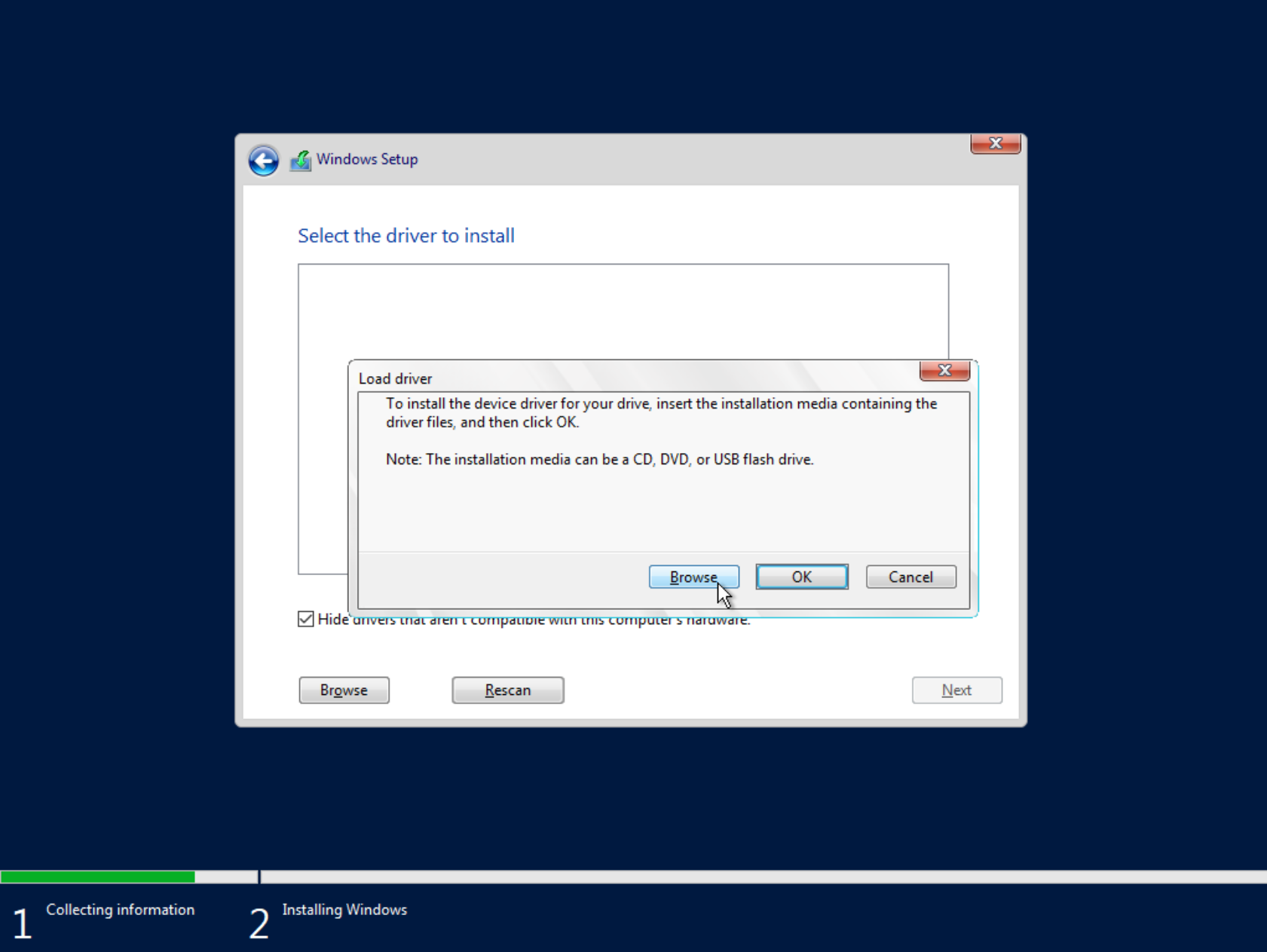
1. On the Load driver window, click to Browse button
### Load the virtio driver
1. On the Load driver window, click to Browse button
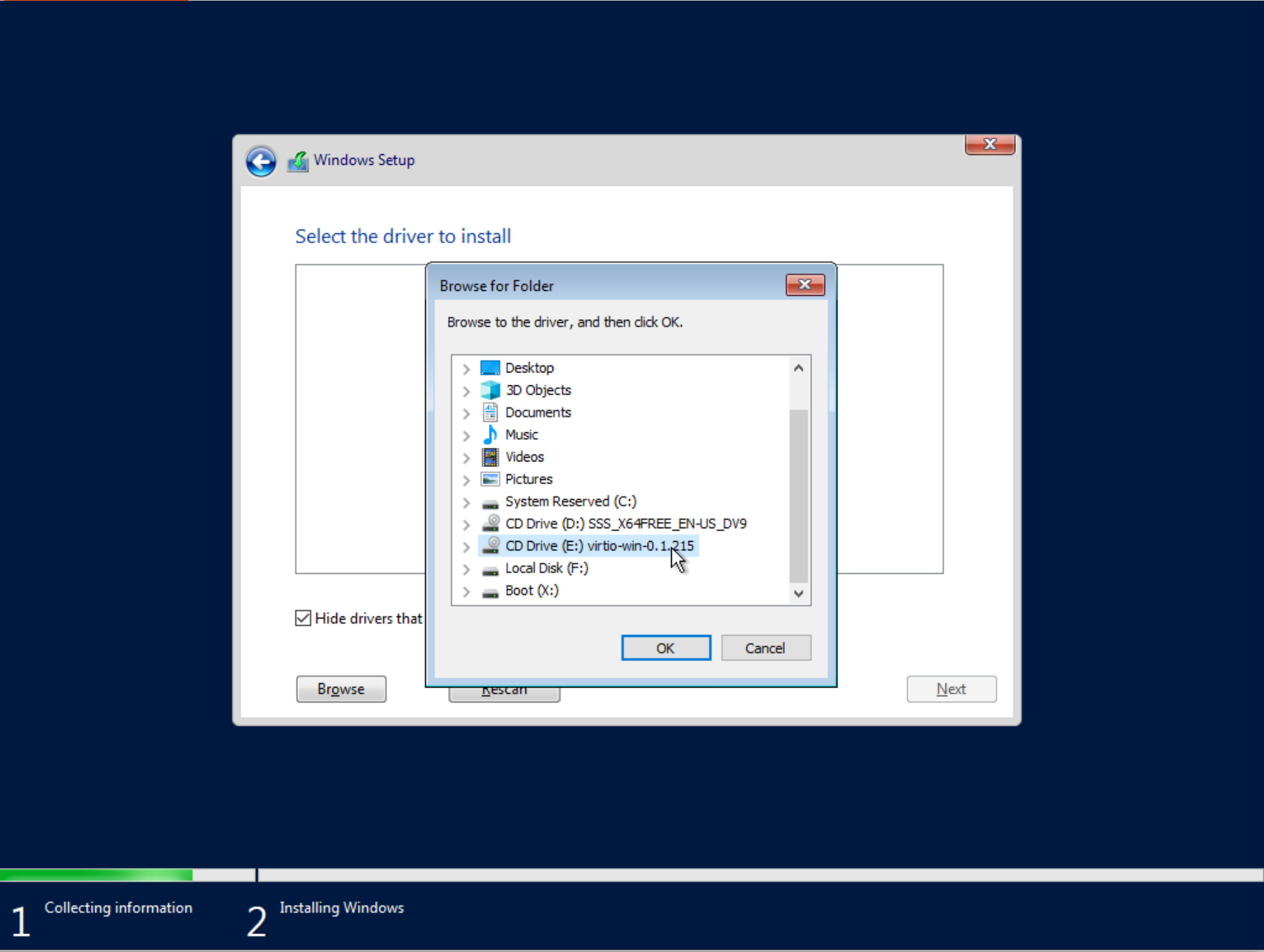
 2. Select the drive labeled "**virtio-win-0.1.215**" to load the necessary Virtio drivers for the installation.
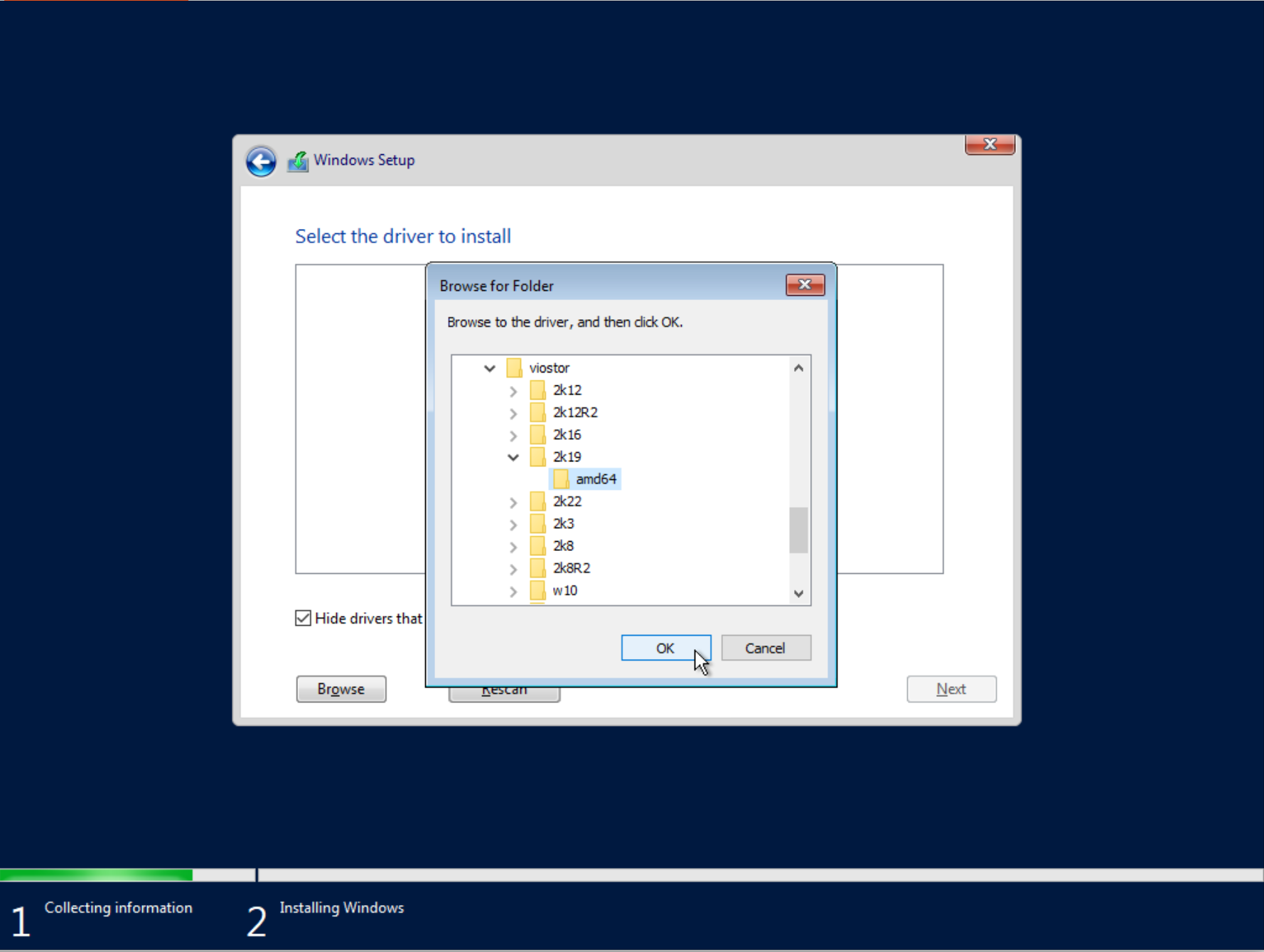
 3. Choose viostor directory -> 2k19 -> amd64, and click to OK:
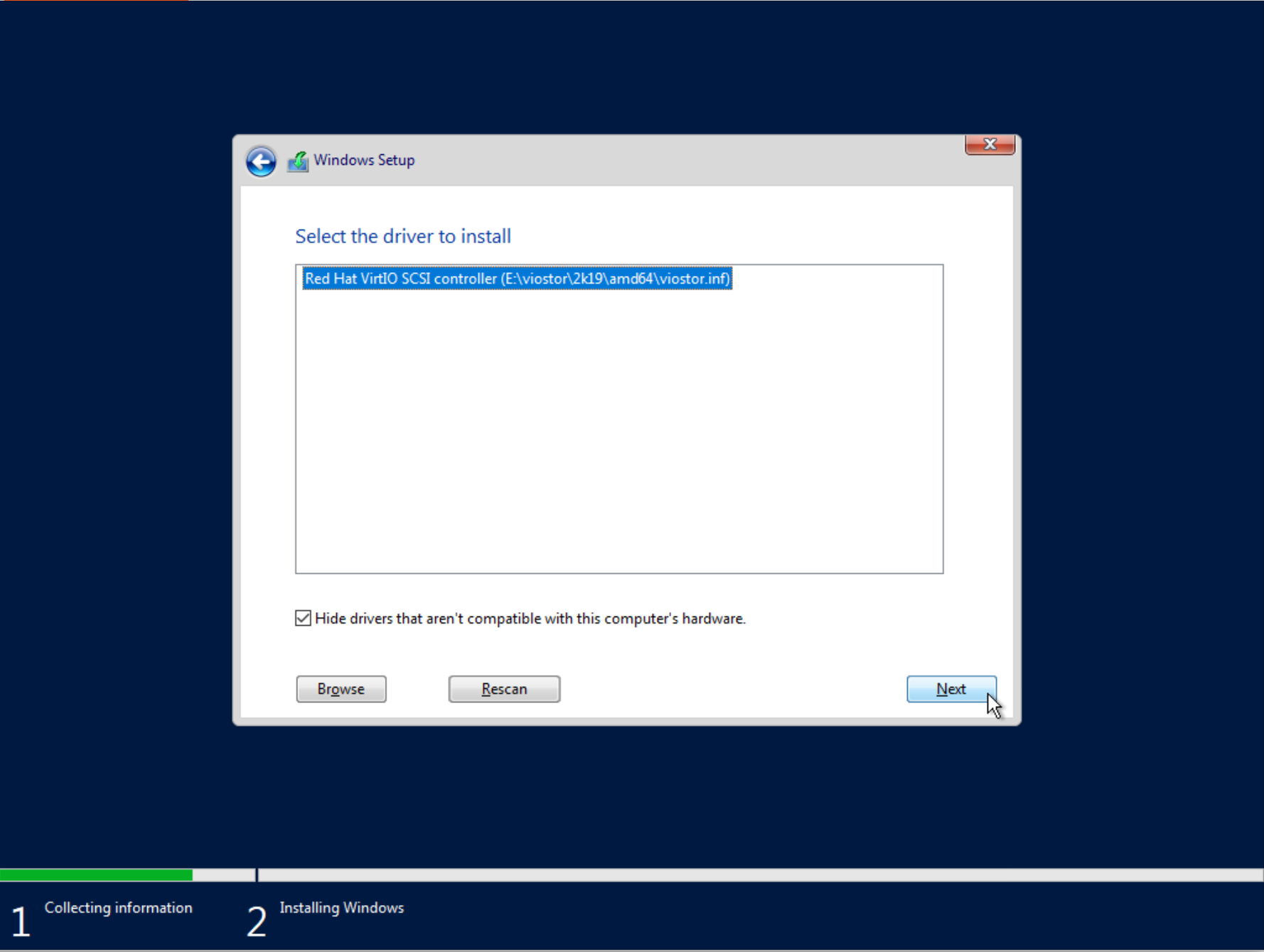
 4. When the driver is loaded, click on the **Next** button:
 ### Open command prompt via Windows setup
1. *When drives are displayed, do not click on the next button! Otherwise, you will start the reinstall process of the system and all the data will be wiped!*
Enter the combination `SHIFT+F10` using a keyboard to open the command terminal, after that, you will see the console window:
### Open command prompt via Windows setup
1. *When drives are displayed, do not click on the next button! Otherwise, you will start the reinstall process of the system and all the data will be wiped!*
Enter the combination `SHIFT+F10` using a keyboard to open the command terminal, after that, you will see the console window:
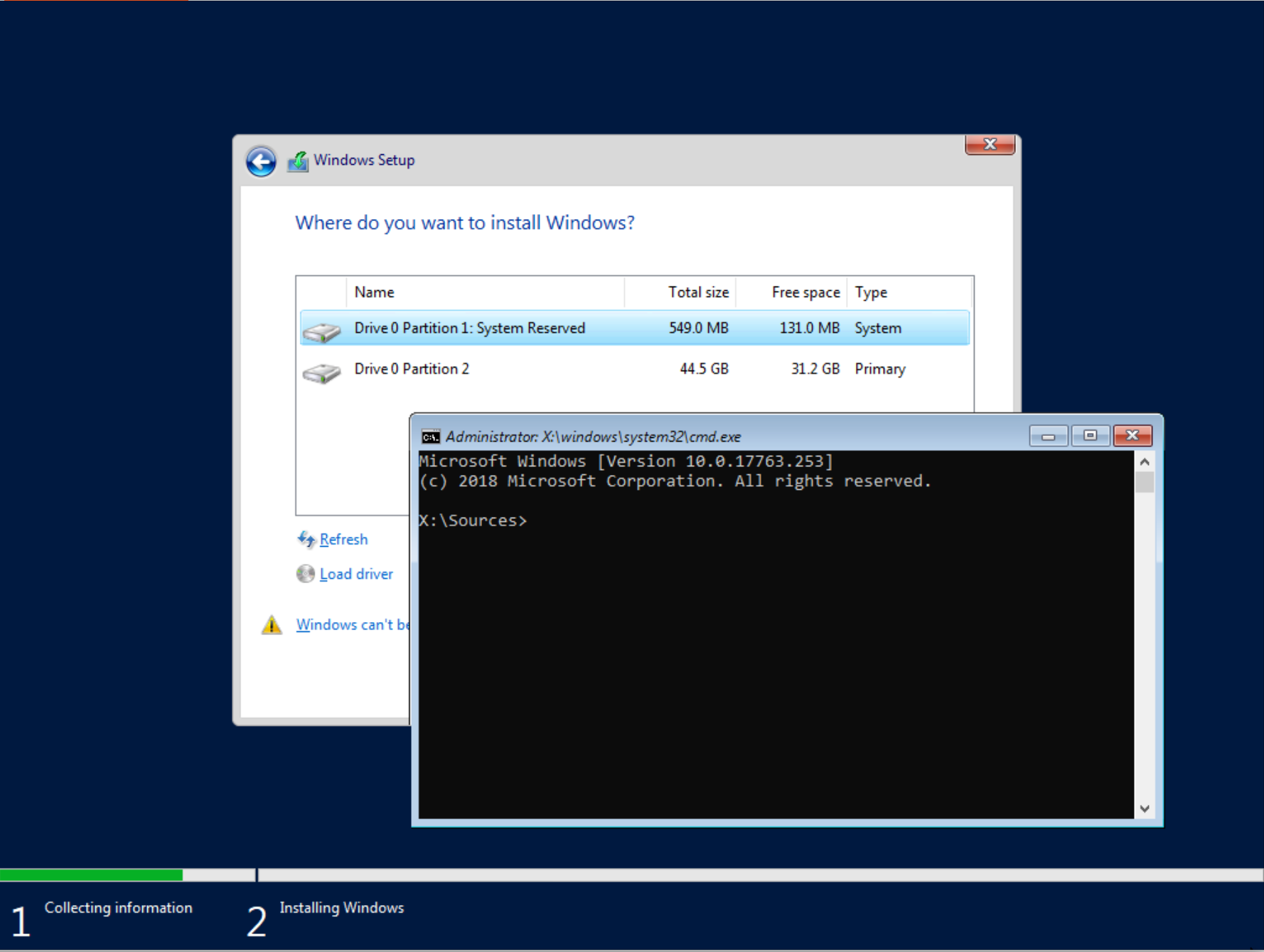 2. Enter `diskpart` command to console:
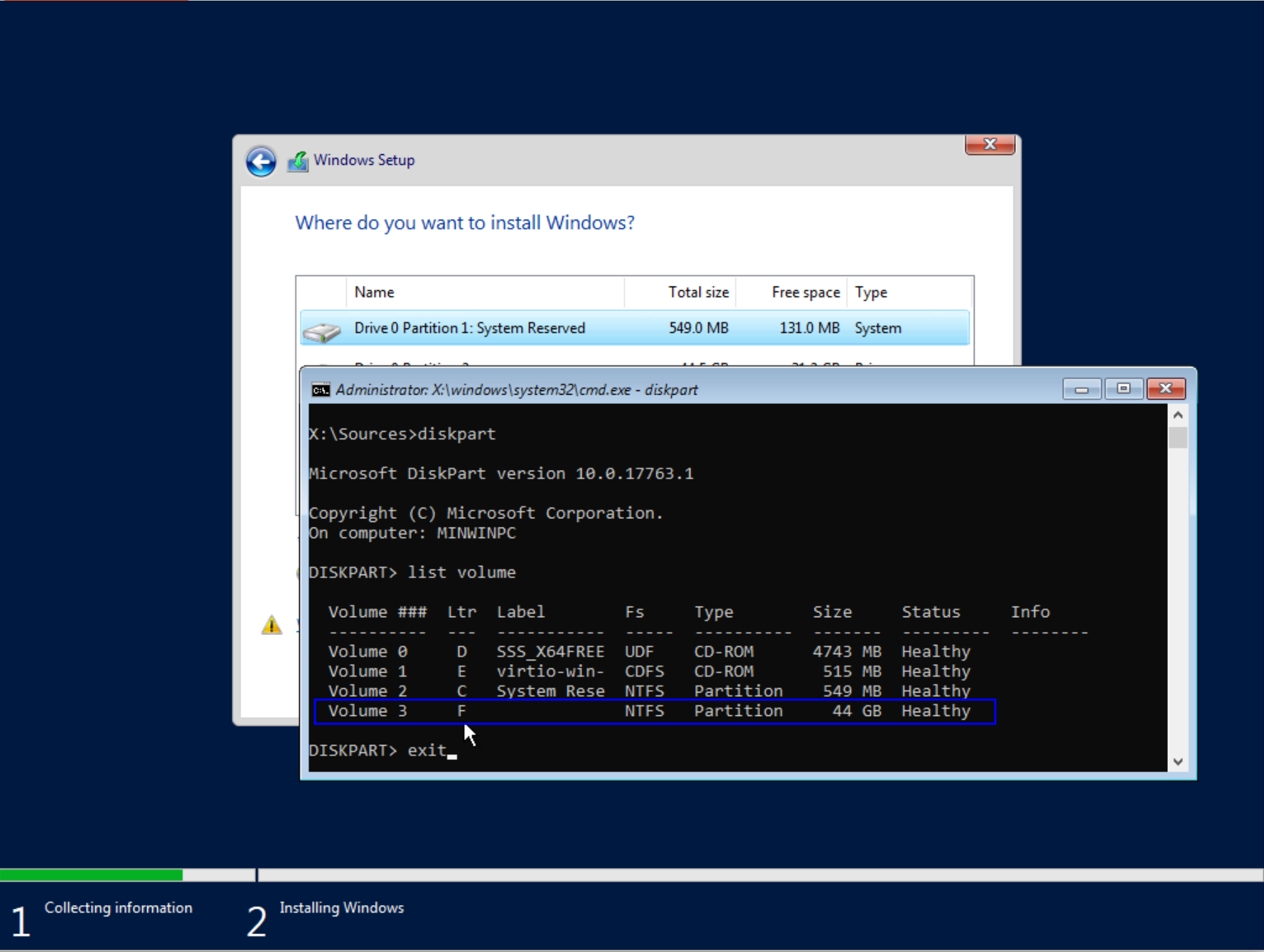
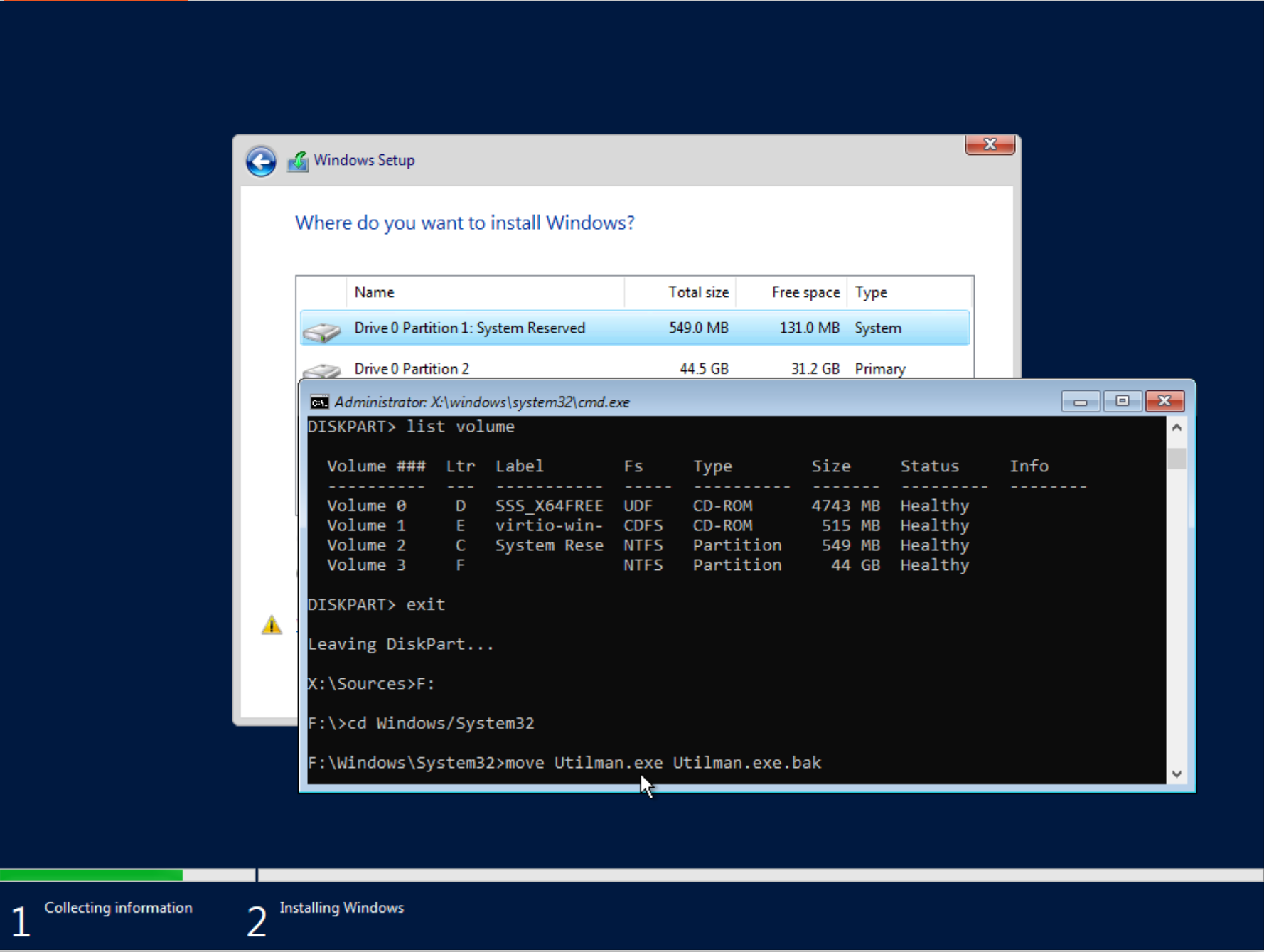
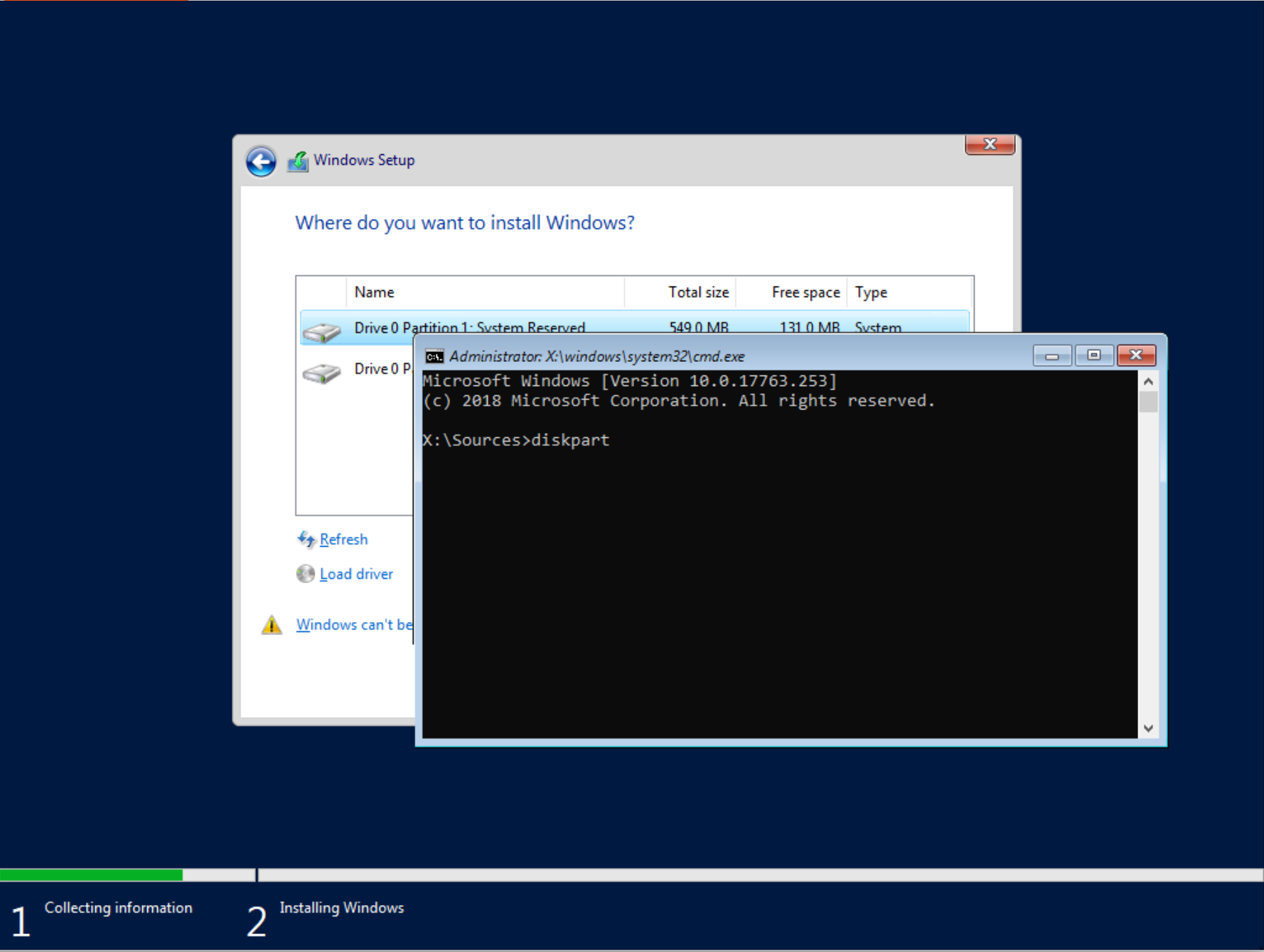 3. Enter the `list volume` command. The Windows operating system is located on the **F drive**, identified by its large allocated space—in this example, 44 GB. Now that we know the Windows drive name, type `exit` to close diskpart.
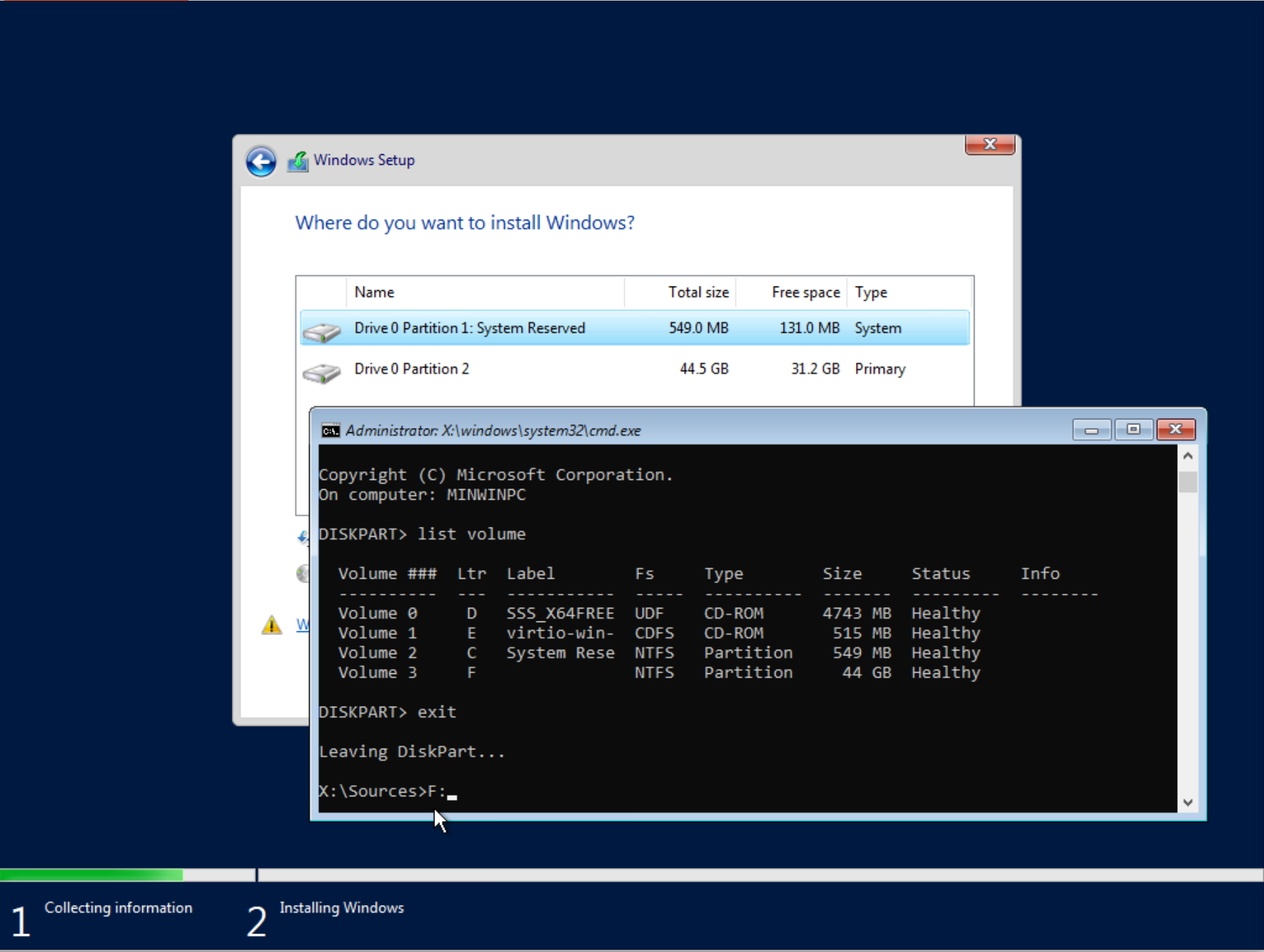
 4. Enter the command `F:` to follow on disk F (where located Windows OS)
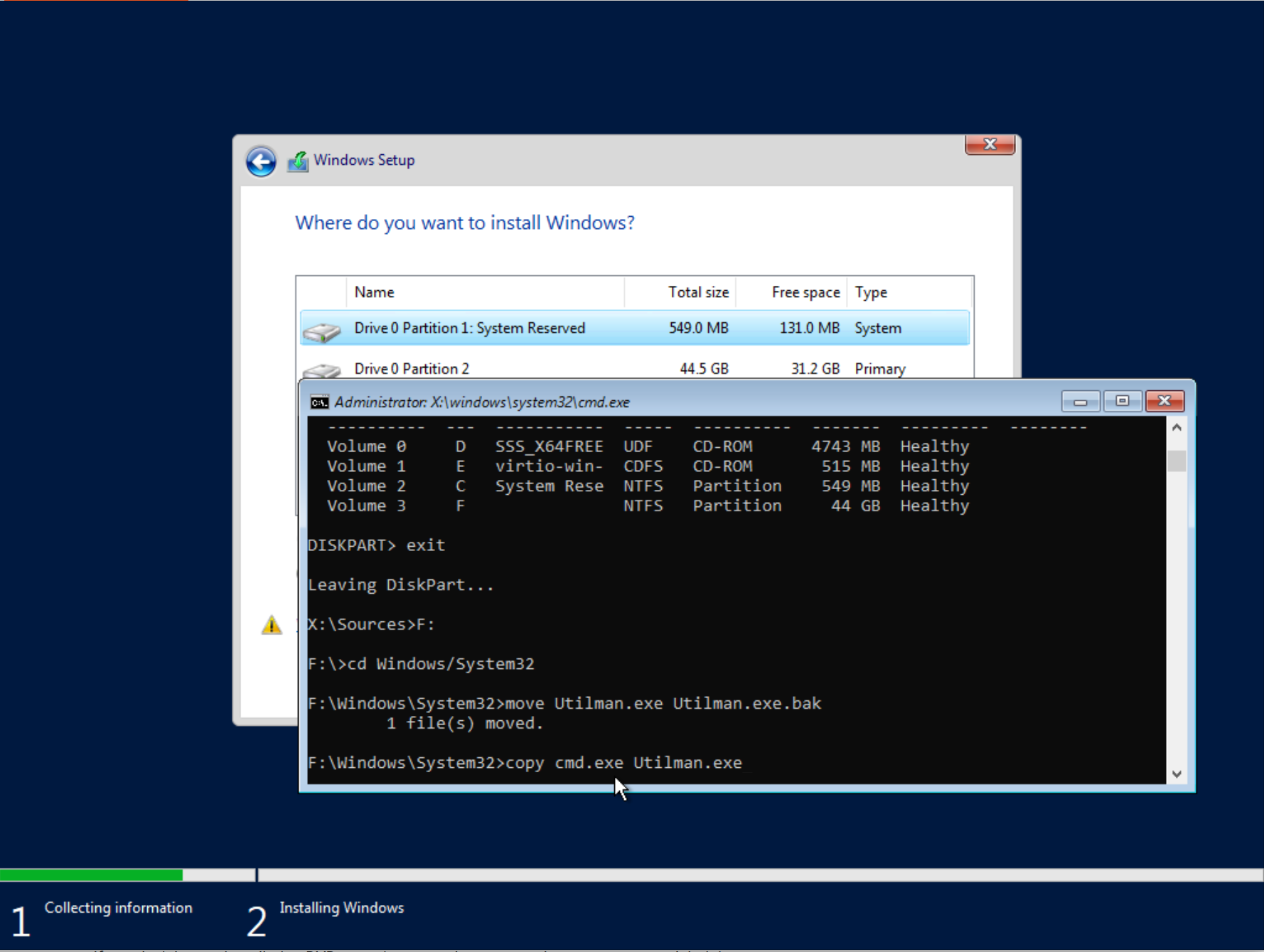
 5. Navigate to the directory by typing `cd Windows/System32`, then make a backup of Utilman.exe by entering `move Utilman.exe Utilman.exe.bak` and press Enter.
 6. Run the command - `copy cmd.exe Utilman.exe`
 ### Reset the administrator password
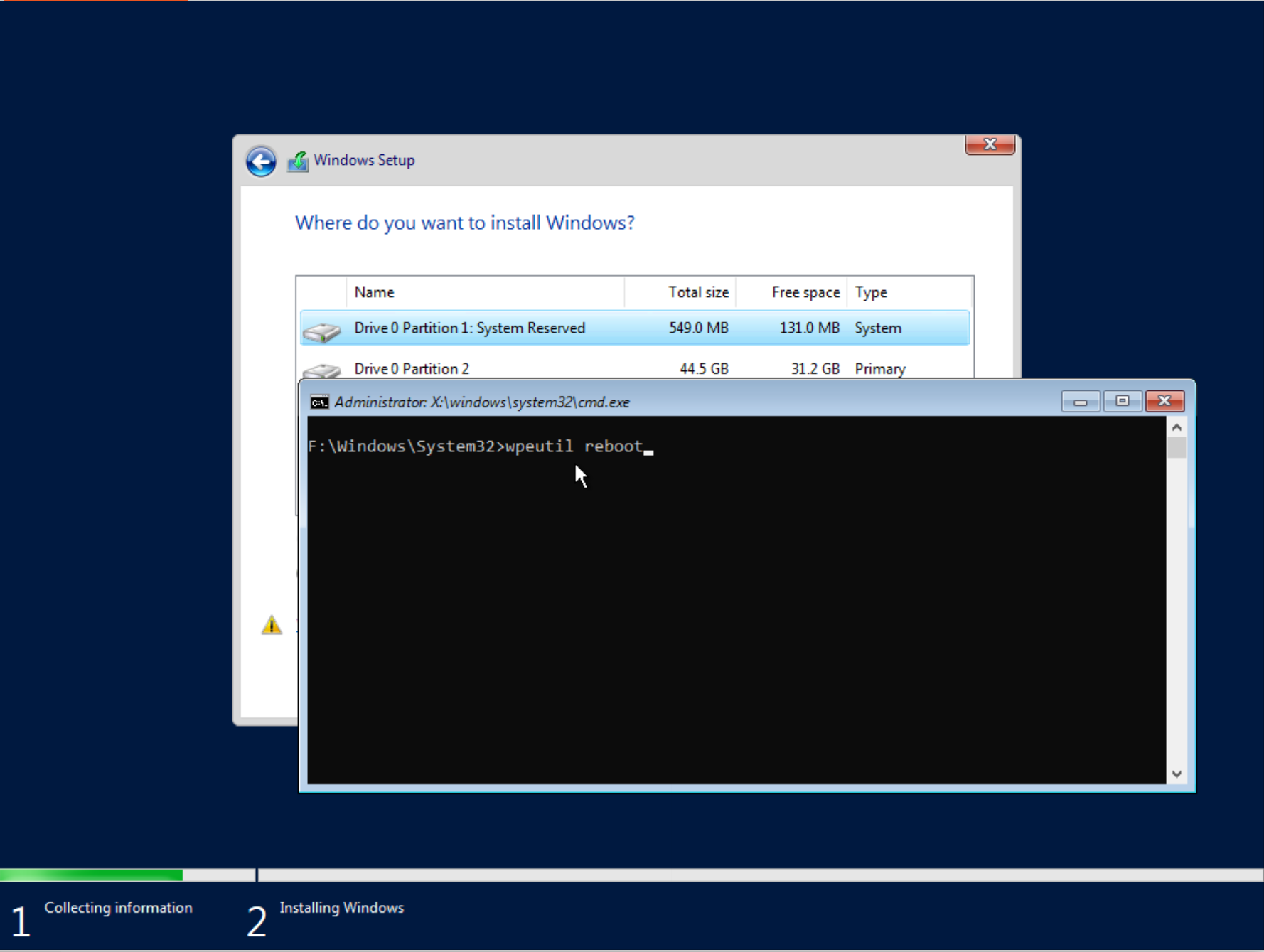
1. Come back to KVM Manager panel and Umount Windows Server drive. Make sure the disk is unmounted and return to VNC. Run the command `wpeutil reboot` to restart VPS.
### Reset the administrator password
1. Come back to KVM Manager panel and Umount Windows Server drive. Make sure the disk is unmounted and return to VNC. Run the command `wpeutil reboot` to restart VPS.
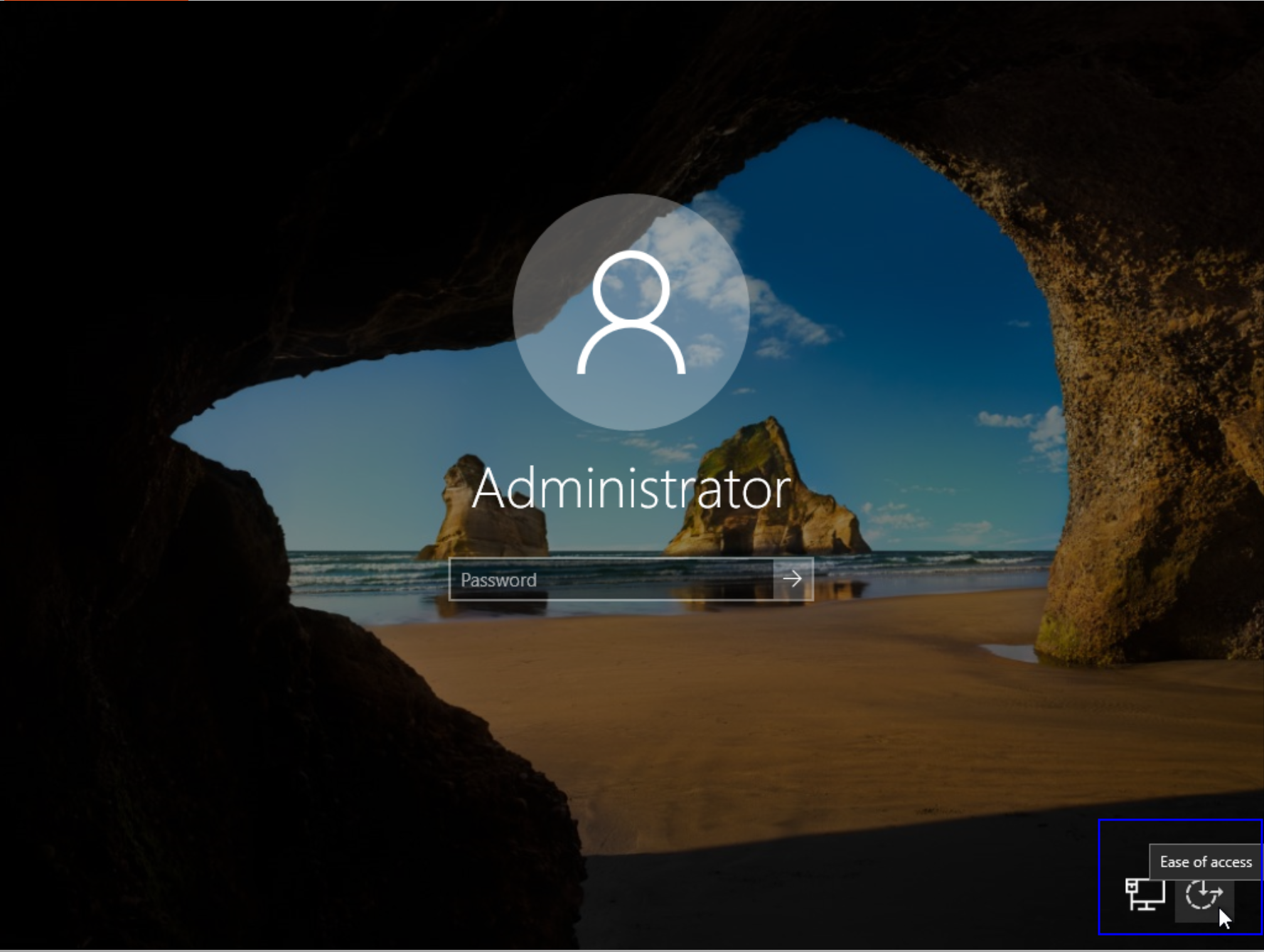
 2. Once Windows loads, press \*\*CTRL+ALT+DELETE \*\*to access the login screen. Click the **Ease of Access** icon at the bottom right, which should open a new terminal window.
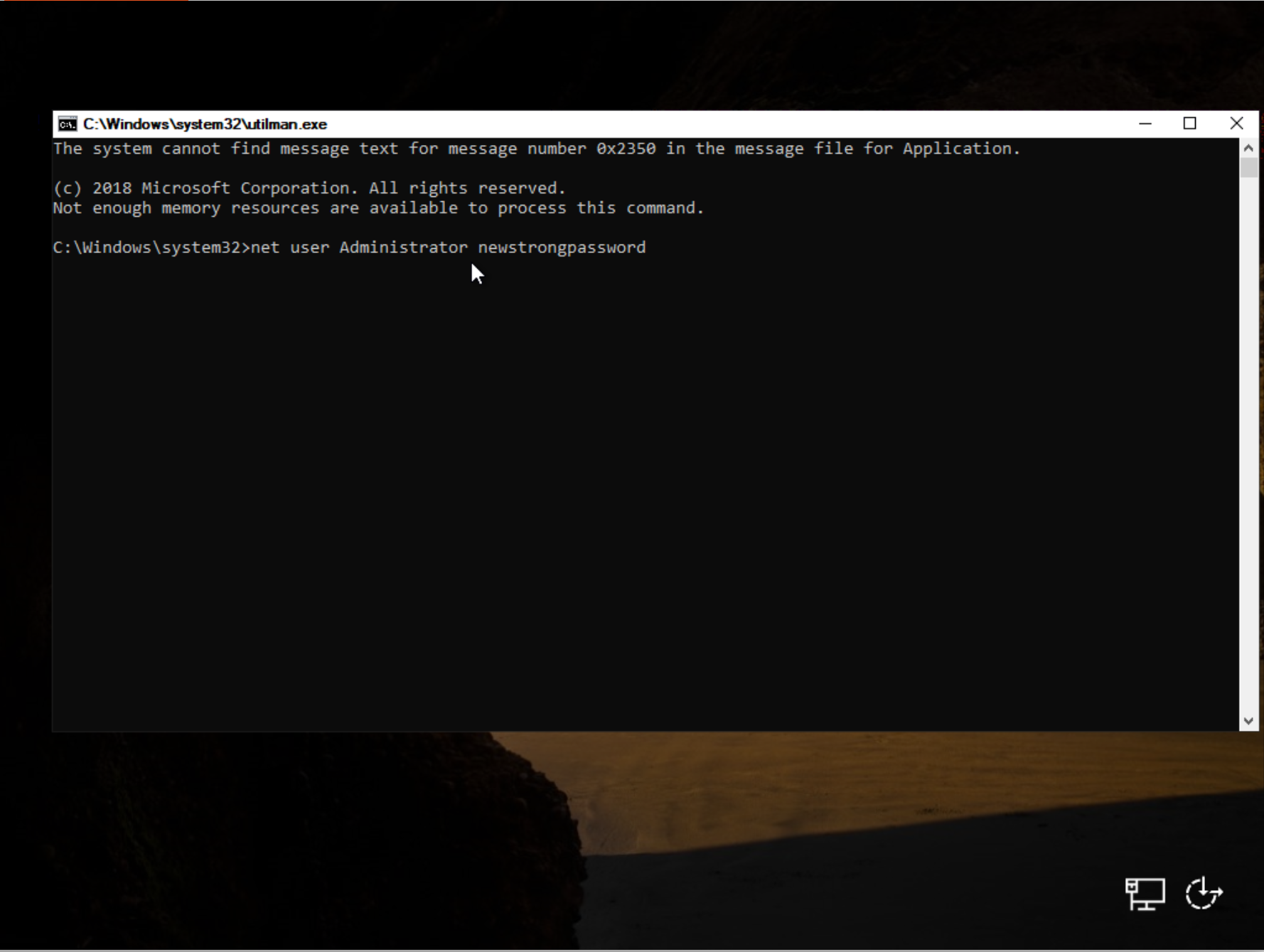
 3. In the terminal window that opens, run the command
`net user Administrator newstrongpassword`
Where:
\- `Administrator` is the Administrator account in Windows that has full system control -`newstrongpassword` is a new password.
3. In the terminal window that opens, run the command
`net user Administrator newstrongpassword`
Where:
\- `Administrator` is the Administrator account in Windows that has full system control -`newstrongpassword` is a new password.
 ### Revert the changes to Ease of Access
1. Close the console window and connect to the server using the new password.
Once connected, reopen **Command Prompt** and follow the steps below to revert your changes, restoring the original functionality of the Ease of Access utility.
* Click the **Start** button or press the **Windows key** on your keyboard.
* Type cmd or Command Prompt in the search bar.
* Right-click **Command Prompt** from the search results and select **Run as administrator**.
* Run as administrator
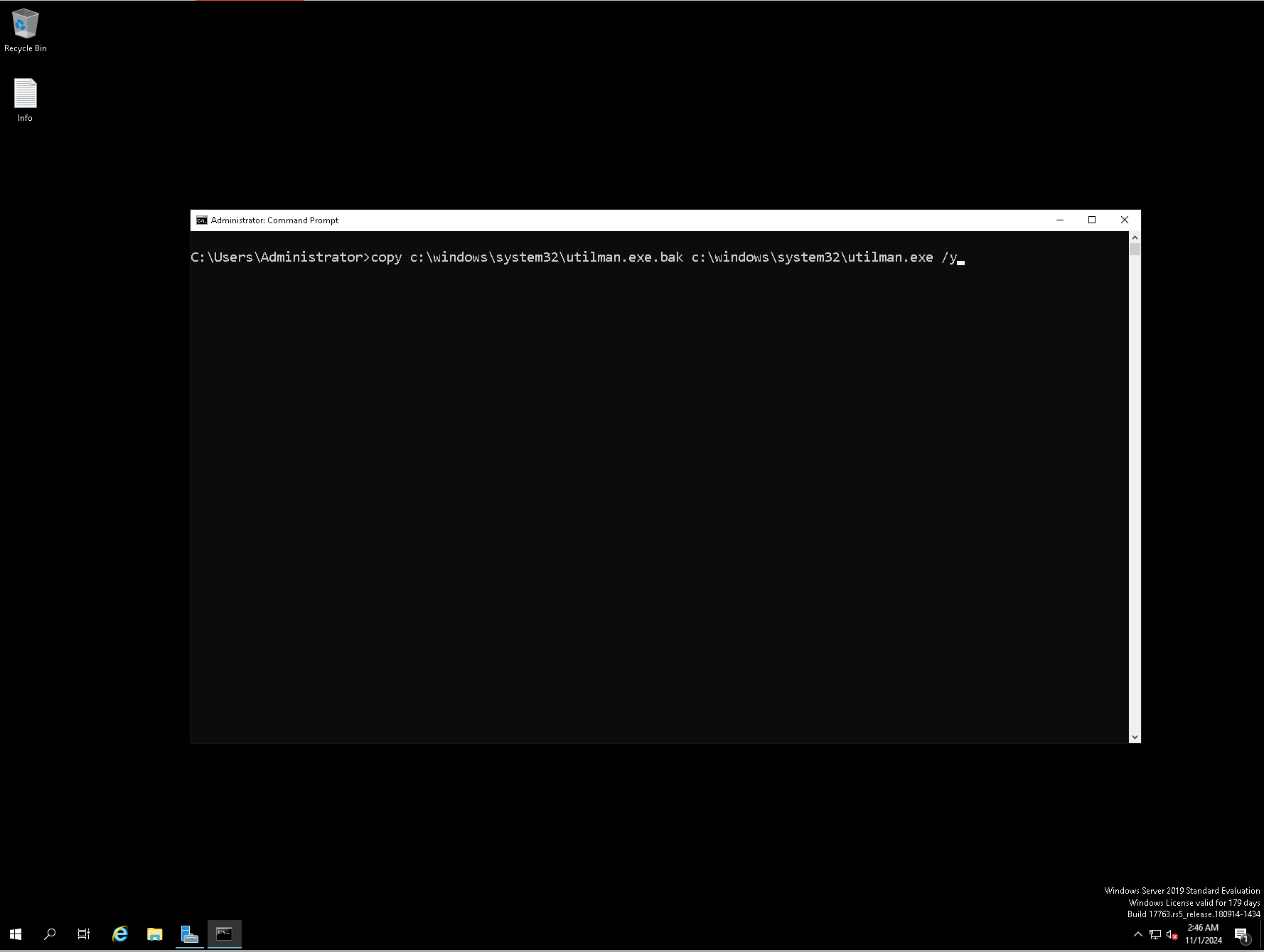
* Run command `copy c:\windows\system32\utilman.exe.bak c:\windows\system32\utilman.exe /y`
### Revert the changes to Ease of Access
1. Close the console window and connect to the server using the new password.
Once connected, reopen **Command Prompt** and follow the steps below to revert your changes, restoring the original functionality of the Ease of Access utility.
* Click the **Start** button or press the **Windows key** on your keyboard.
* Type cmd or Command Prompt in the search bar.
* Right-click **Command Prompt** from the search results and select **Run as administrator**.
* Run as administrator
* Run command `copy c:\windows\system32\utilman.exe.bak c:\windows\system32\utilman.exe /y`
 Congratulations, you have successfully changed the administrator password for Windows Server.