> ## Documentation Index
> Fetch the complete documentation index at: https://docs.edisglobal.com/llms.txt
> Use this file to discover all available pages before exploring further.
# Connect to FTP on Windows Server
> Learn how to set up an FTP server on Windows Server. This step-by-step guide shows you how to easily upload and download files using IIS FTP features.
## Install FTP for easy file uploads and downloads
Setting up an FTP (File Transfer Protocol) server on Windows Server allows you to easily upload and download your files from your server. This guide will walk you through the steps to enable and configure an FTP server using the built-in IIS (Internet Information Services) feature on Windows Server.
## Prerequisites:
* Windows Server version (2019, 2022, 2025, or later) (180-days trial).
* Administrative privileges.
## Installation of FTP server
To begin, you'll need to install the FTP server role and components through the **Server Manager**.
**Open Server Manager** from the Start menu.
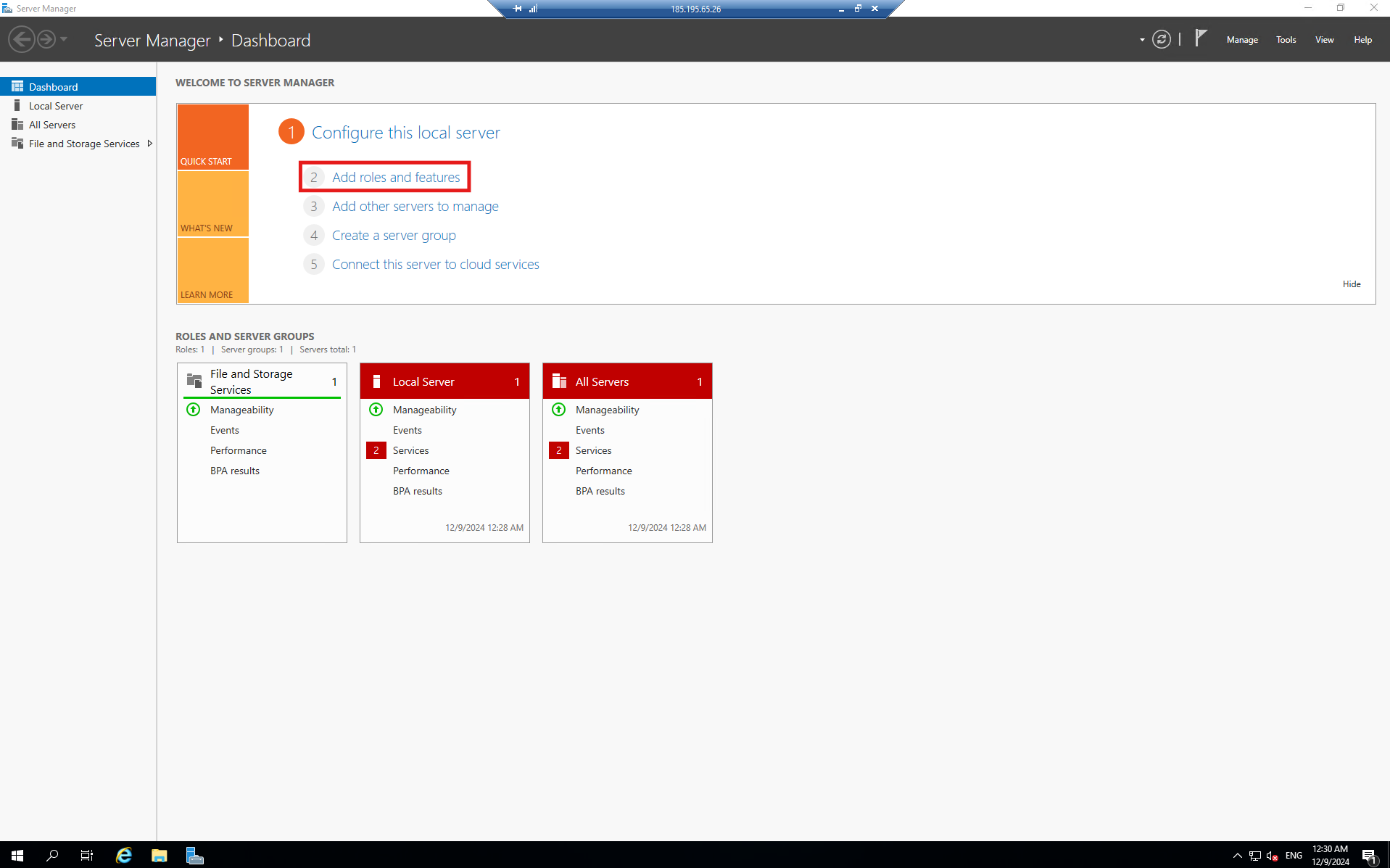
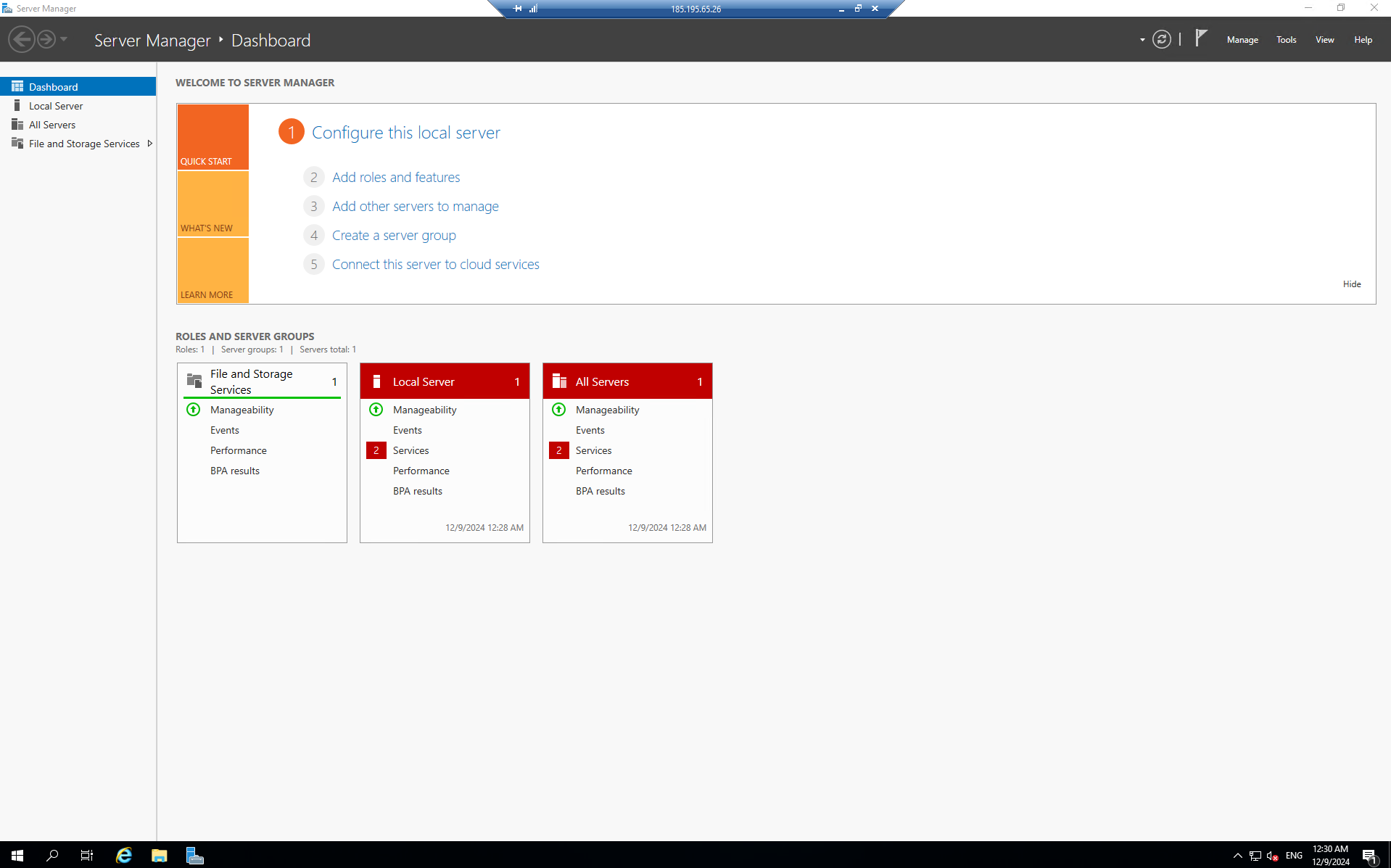 In the **Manage** menu, click **Add Roles and Features**.
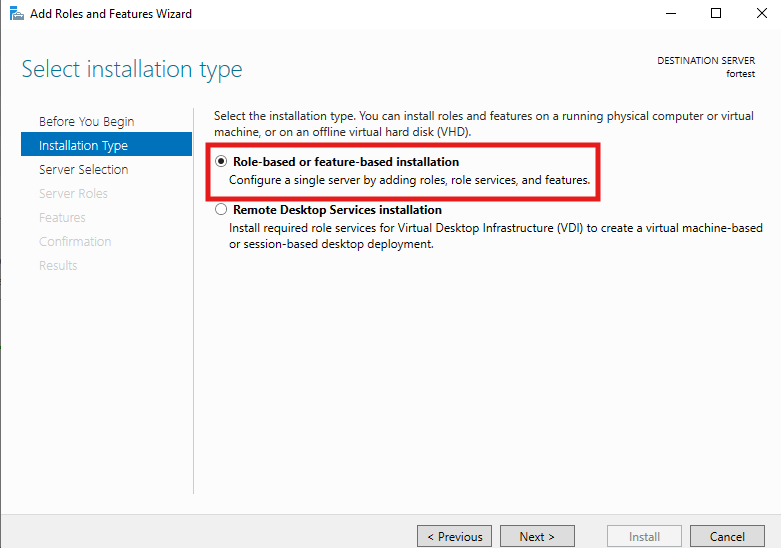
 Navigate to the **Role-based or feature-based installation** and select your server.
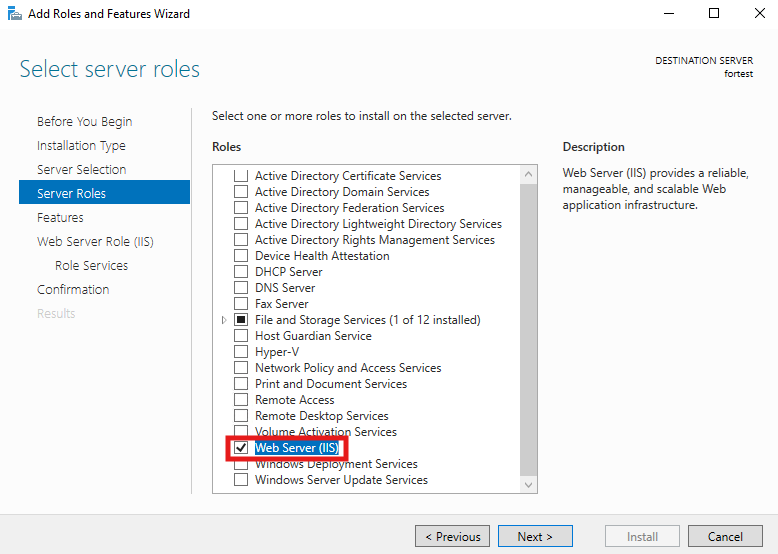
 In the **Roles** section, find and expand **Web Server (IIS)**.
 In the **Web server role (IIS)** section and **Role Services**, ensure **FTP Service** and **FTP Extensibility** are selected.
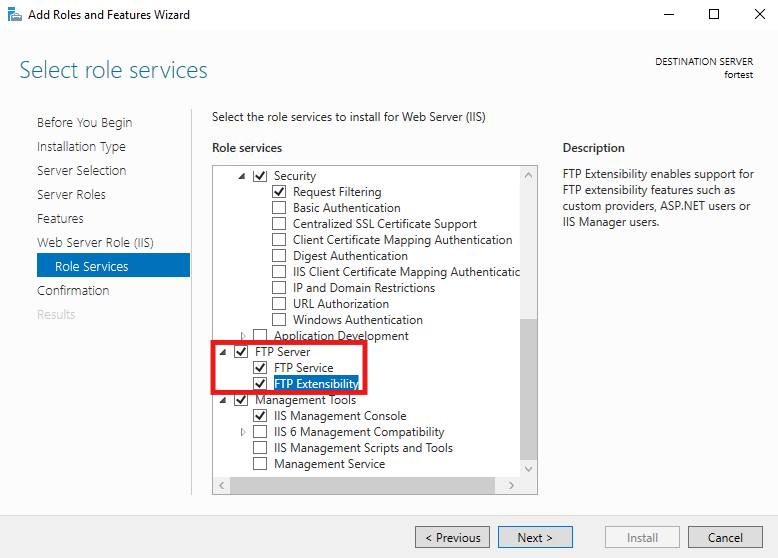 Click **Next** and then **Install**.
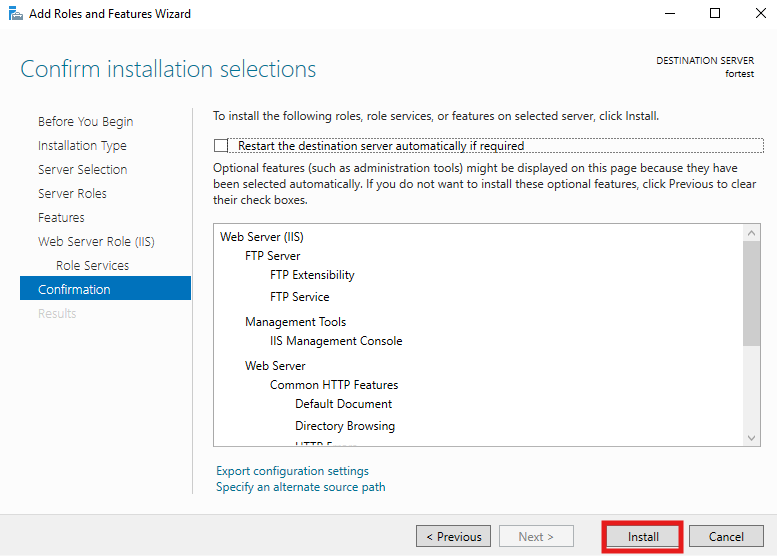 ## Configuration of FTP server
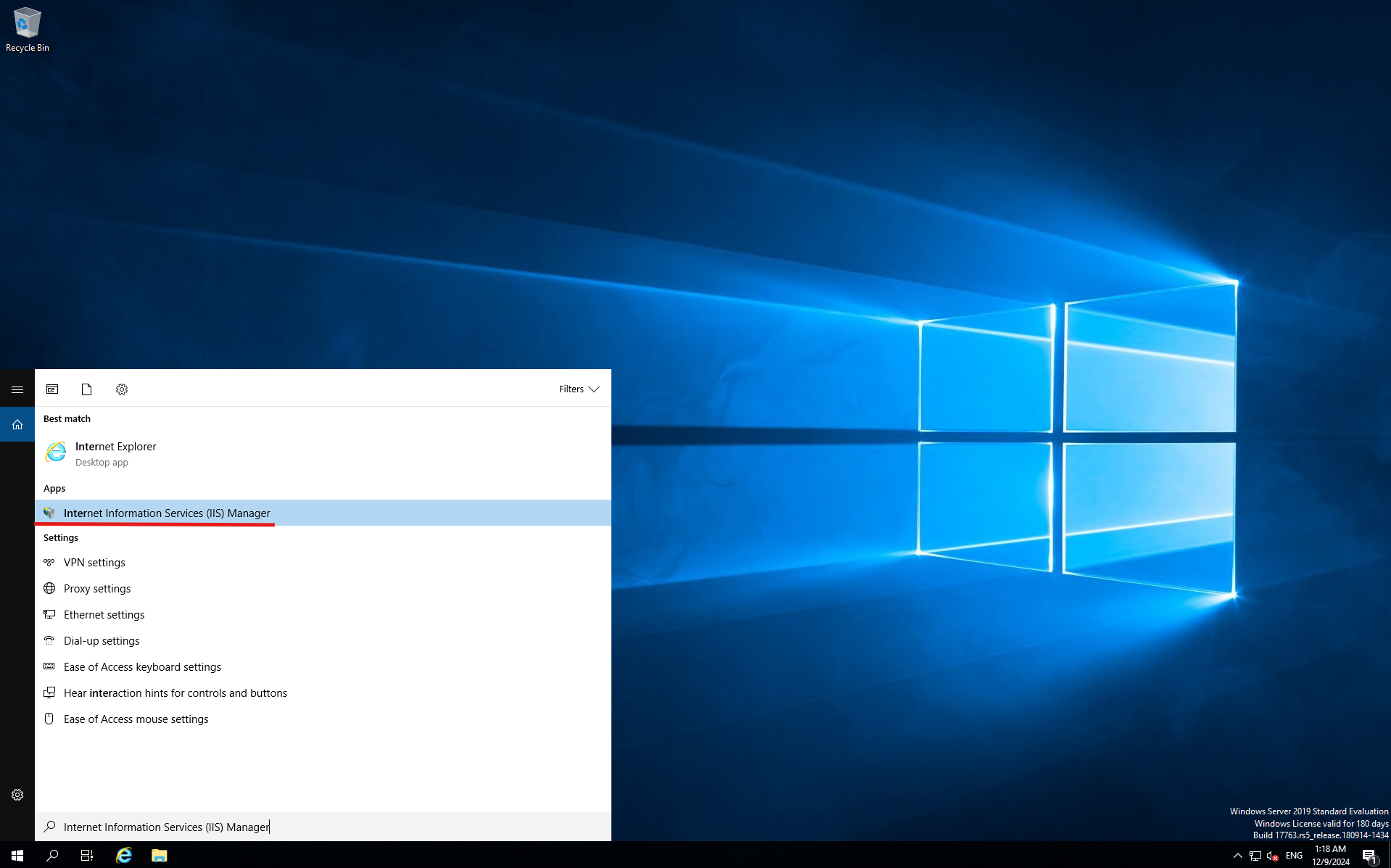
Open **Internet Information Services (IIS) Manager** by typing "IIS" in the Start menu.
## Configuration of FTP server
Open **Internet Information Services (IIS) Manager** by typing "IIS" in the Start menu.
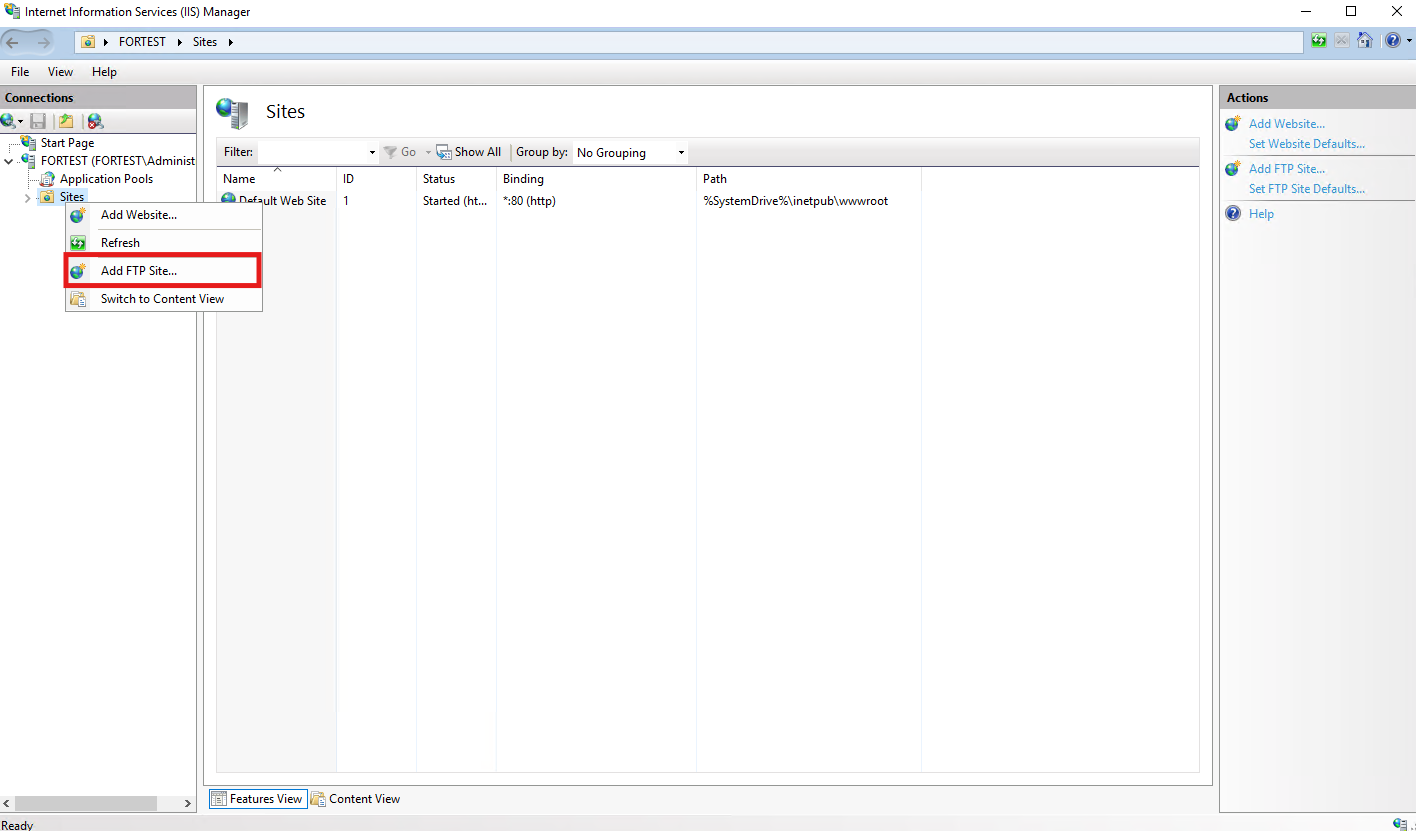
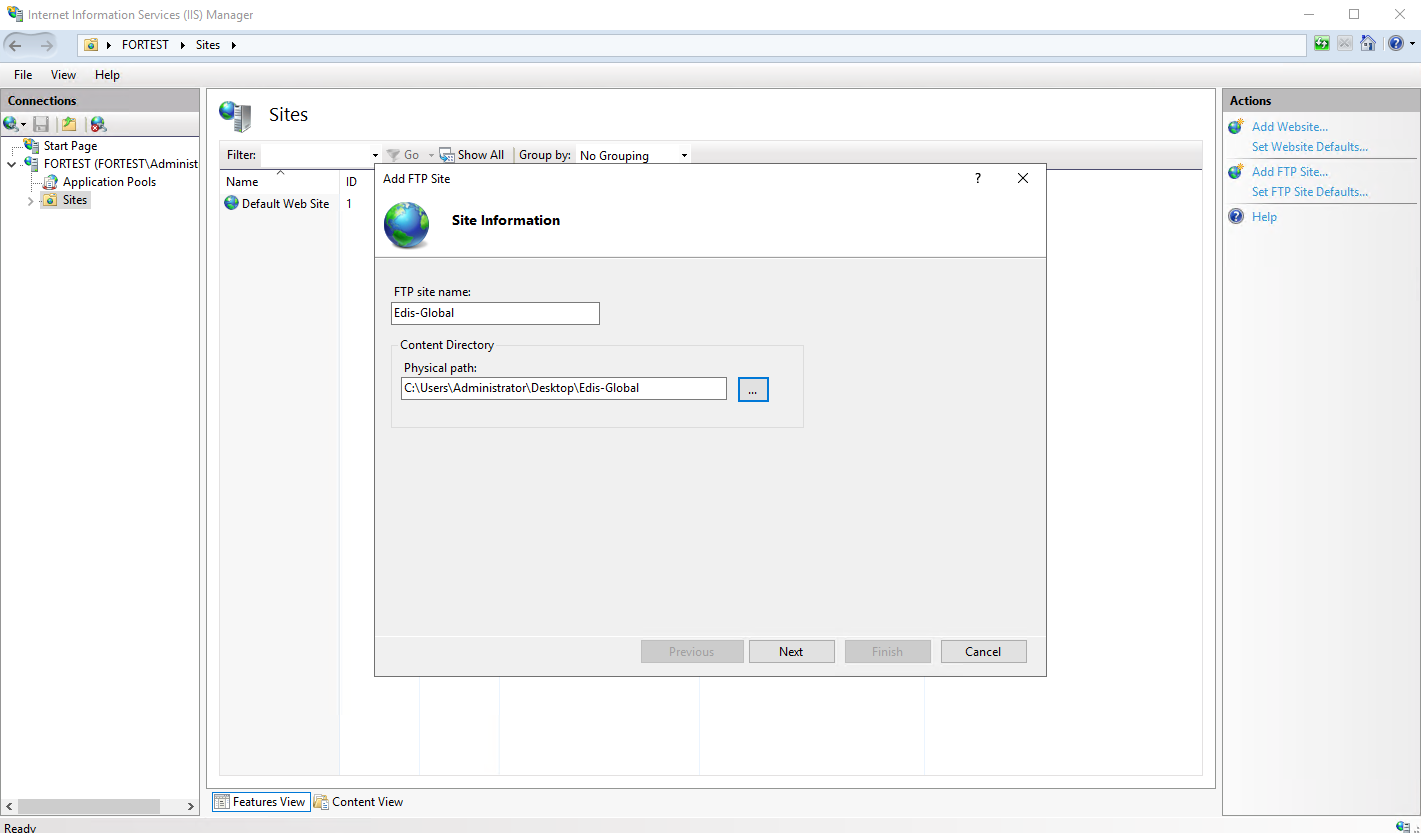
 In the left panel, expand the server node, and right-click on **Sites**. Select **Add FTP Site**.
 In the **FTP site name** field, provide a name for your FTP site.
For the **Physical path**, select the folder where you want to store your files. You may create a dedicated folder for FTP.
Click **Next**.
In the **FTP site name** field, provide a name for your FTP site.
For the **Physical path**, select the folder where you want to store your files. You may create a dedicated folder for FTP.
Click **Next**.
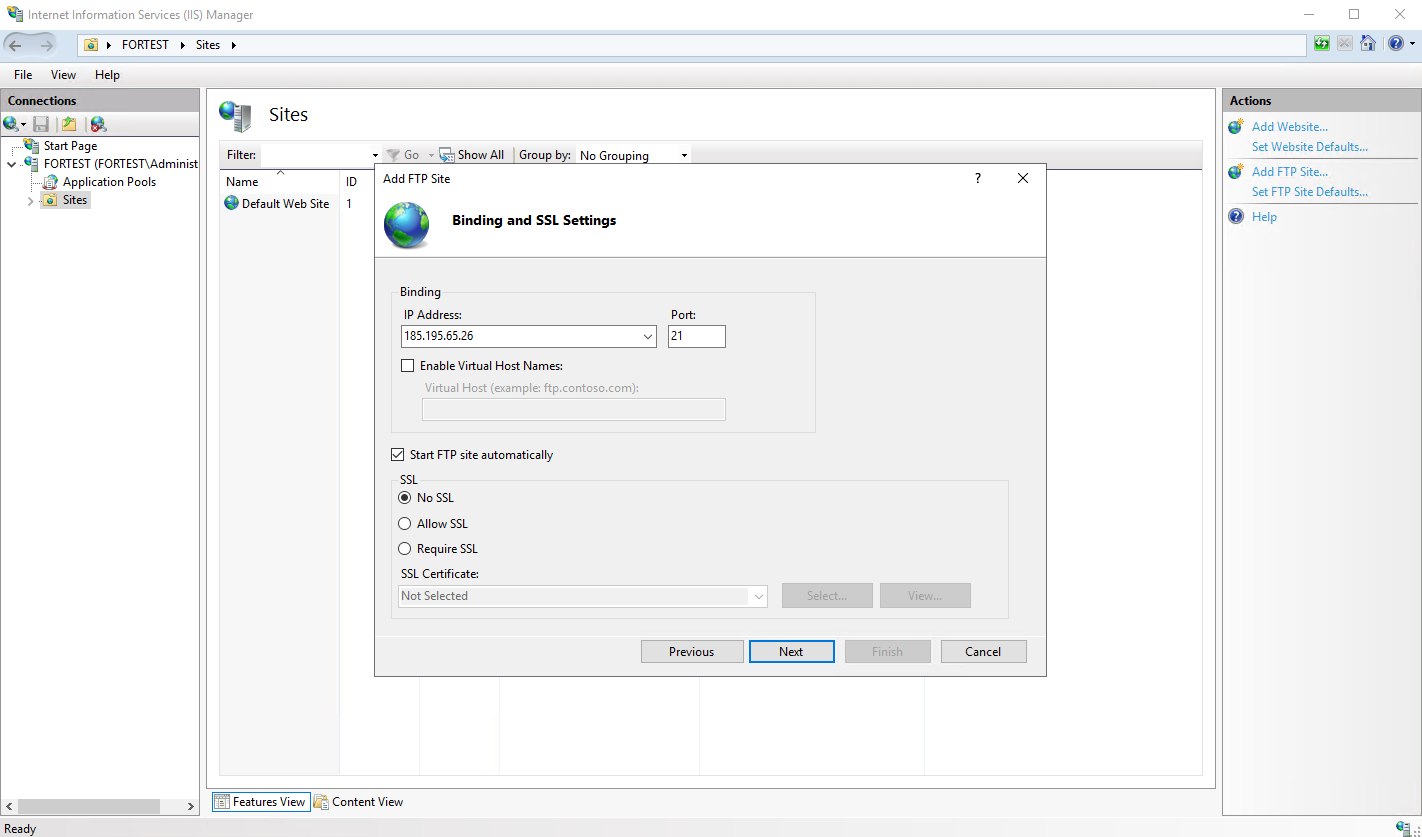
 Next, configure how users will connect to your FTP server.
Under **IP address**, choose the server's IP address or select **All Unassigned**.
For **Port**, use the default FTP port (21). If you want to use a secure connection (FTPS), you can opt for port 990, but you need to configure SSL certificates.
Under **SSL**, you can choose between:
* **No SSL**: Standard FTP (not secure).
* **Allow SSL**: Optionally use SSL if available.
* **Require SSL**: Force all connections to use SSL encryption (recommended for security).
Click **Next**.
Next, configure how users will connect to your FTP server.
Under **IP address**, choose the server's IP address or select **All Unassigned**.
For **Port**, use the default FTP port (21). If you want to use a secure connection (FTPS), you can opt for port 990, but you need to configure SSL certificates.
Under **SSL**, you can choose between:
* **No SSL**: Standard FTP (not secure).
* **Allow SSL**: Optionally use SSL if available.
* **Require SSL**: Force all connections to use SSL encryption (recommended for security).
Click **Next**.
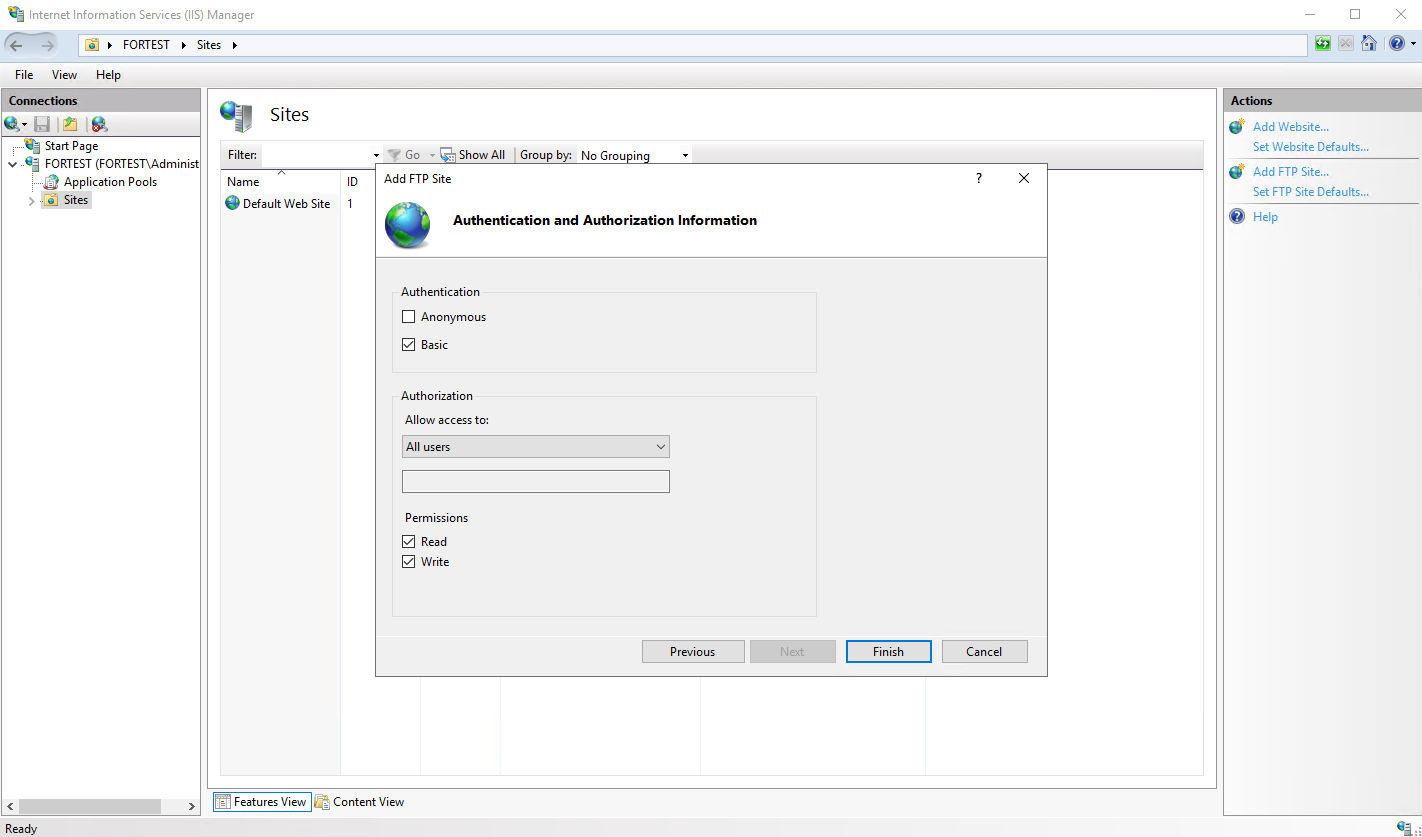
 Now, you’ll configure the authentication and access control for the FTP server.
In the **Authentication** section, select **Basic Authentication**. This requires users to enter a username and password to access the FTP site.
Under **Authorization**, select who can access the FTP server. You can allow access to:
* **All users**: Anyone can connect.
* **Specified users**: Only specific users can access.
* **Anonymous users**: No authentication required, which is not recommended for sensitive data.
Choose **Read** or **Read/Write** permissions, depending on whether you want users to upload files or only download them.
Click **Finish**.
Now, you’ll configure the authentication and access control for the FTP server.
In the **Authentication** section, select **Basic Authentication**. This requires users to enter a username and password to access the FTP site.
Under **Authorization**, select who can access the FTP server. You can allow access to:
* **All users**: Anyone can connect.
* **Specified users**: Only specific users can access.
* **Anonymous users**: No authentication required, which is not recommended for sensitive data.
Choose **Read** or **Read/Write** permissions, depending on whether you want users to upload files or only download them.
Click **Finish**.
 **To ensure the server is set up correctly, test it by accessing the FTP server using an FTP client or File Explorer.**
1. Open File Explorer and enter the FTP address in the format ftp\://\ or ftp\://\.
2. Enter your FTP credentials (if required) and check if you can connect and view files.
**If you are accessing the FTP server remotely, ensure that the necessary firewall ports (21 for FTP and 20 for data transfer) are open.**
1. Go to **Control Panel** > **Windows Defender Firewall** > **Advanced Settings**.
2. Select **Inbound Rules** and click **New Rule**.
3. Choose **Port**, enter port 21 for FTP, and follow the prompts to allow inbound traffic.
4. If using FTPS (SSL), ensure port 990 or the range of passive ports is opened.
**If your FTP server will be accessed over the internet, you may need to enable Passive Mode for better connectivity through firewalls.**
1. In **IIS Manager**, select your FTP site and click on **FTP Firewall Support**.
2. Enable **Passive Mode** and specify the range of ports to use for data transfer (for example, 1025-65535).
3. Ensure these ports are open on your firewall.
**To ensure the server is set up correctly, test it by accessing the FTP server using an FTP client or File Explorer.**
1. Open File Explorer and enter the FTP address in the format ftp\://\ or ftp\://\.
2. Enter your FTP credentials (if required) and check if you can connect and view files.
**If you are accessing the FTP server remotely, ensure that the necessary firewall ports (21 for FTP and 20 for data transfer) are open.**
1. Go to **Control Panel** > **Windows Defender Firewall** > **Advanced Settings**.
2. Select **Inbound Rules** and click **New Rule**.
3. Choose **Port**, enter port 21 for FTP, and follow the prompts to allow inbound traffic.
4. If using FTPS (SSL), ensure port 990 or the range of passive ports is opened.
**If your FTP server will be accessed over the internet, you may need to enable Passive Mode for better connectivity through firewalls.**
1. In **IIS Manager**, select your FTP site and click on **FTP Firewall Support**.
2. Enable **Passive Mode** and specify the range of ports to use for data transfer (for example, 1025-65535).
3. Ensure these ports are open on your firewall.