> ## Documentation Index
> Fetch the complete documentation index at: https://docs.edisglobal.com/llms.txt
> Use this file to discover all available pages before exploring further.
# How to Extend Hard Drive in Windows
> Extend or resize a hard drive in Windows Server using Server Manager, Disk Management, or DiskPart with this step-by-step disk space expansion guide.
## Introduction
Managing disk space effectively is a crucial task on Windows Server. The **File and Storage Services** feature in **Server Manager** provides an intuitive way to resize volumes, whether you need to expand or shrink a drive. This guide walks you through the process.
NOTE: To fully apply your upgrade, first shut down your OS, power off the server from the portal, and then power it back on through the portal. This process ensures the system recognizes the updated drive specifications.
Keep in mind, the additional space will remain unavailable until you resize your disk or partition. Reformatting is only necessary if you intend to create a new partition.
***
## How to Resize a Hard Drive
## Step 1: accessing server manager
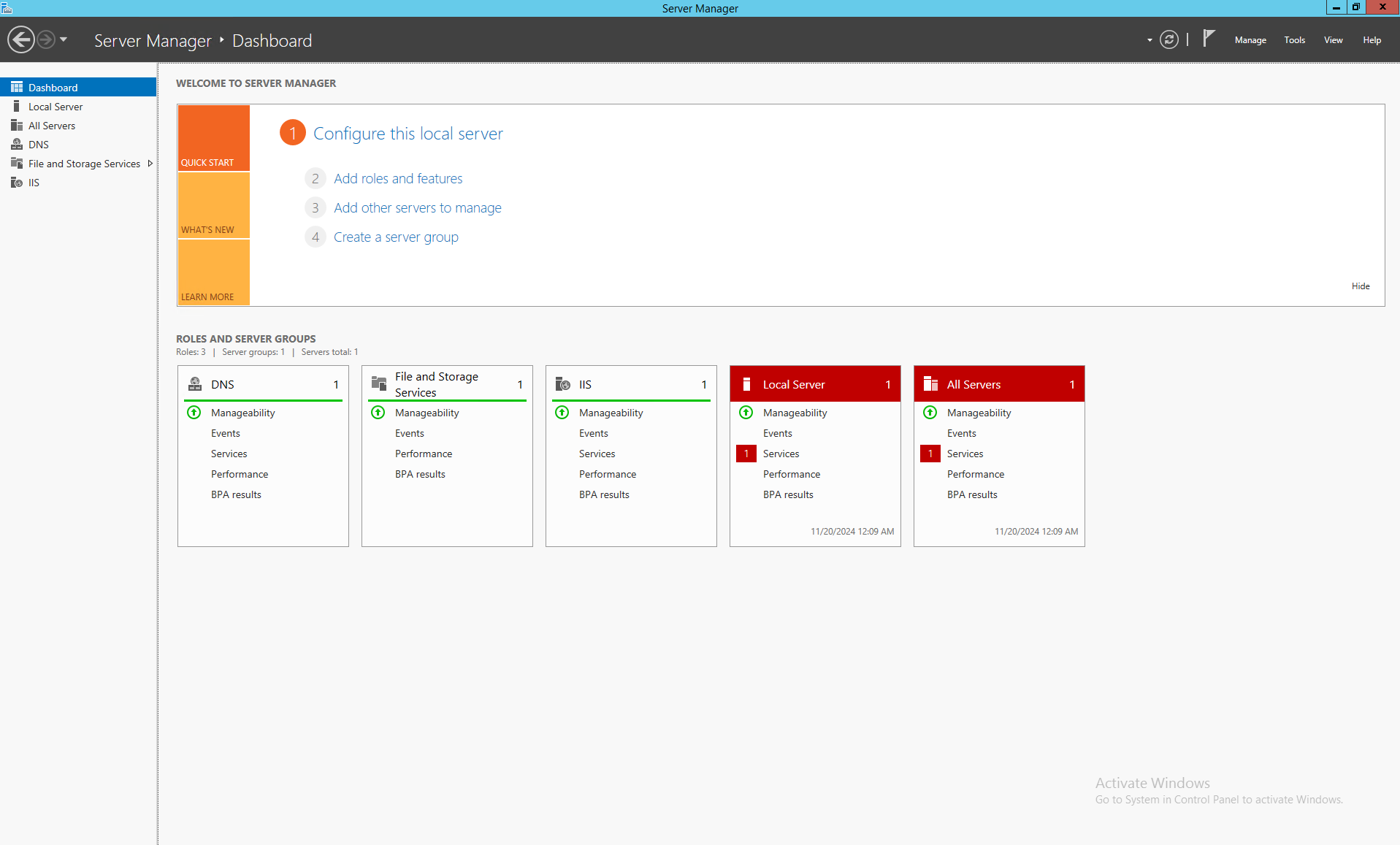
1. **Log in to the Server:**
Access your server via Remote Desktop or the local console.
2. **Open Server Manager:**
* Click on the **Start** button and select **Server Manager.**
* If it doesn’t open automatically, search for `ServerManager.exe` and run it.
 ***
## Step 2: navigate to file and storage services
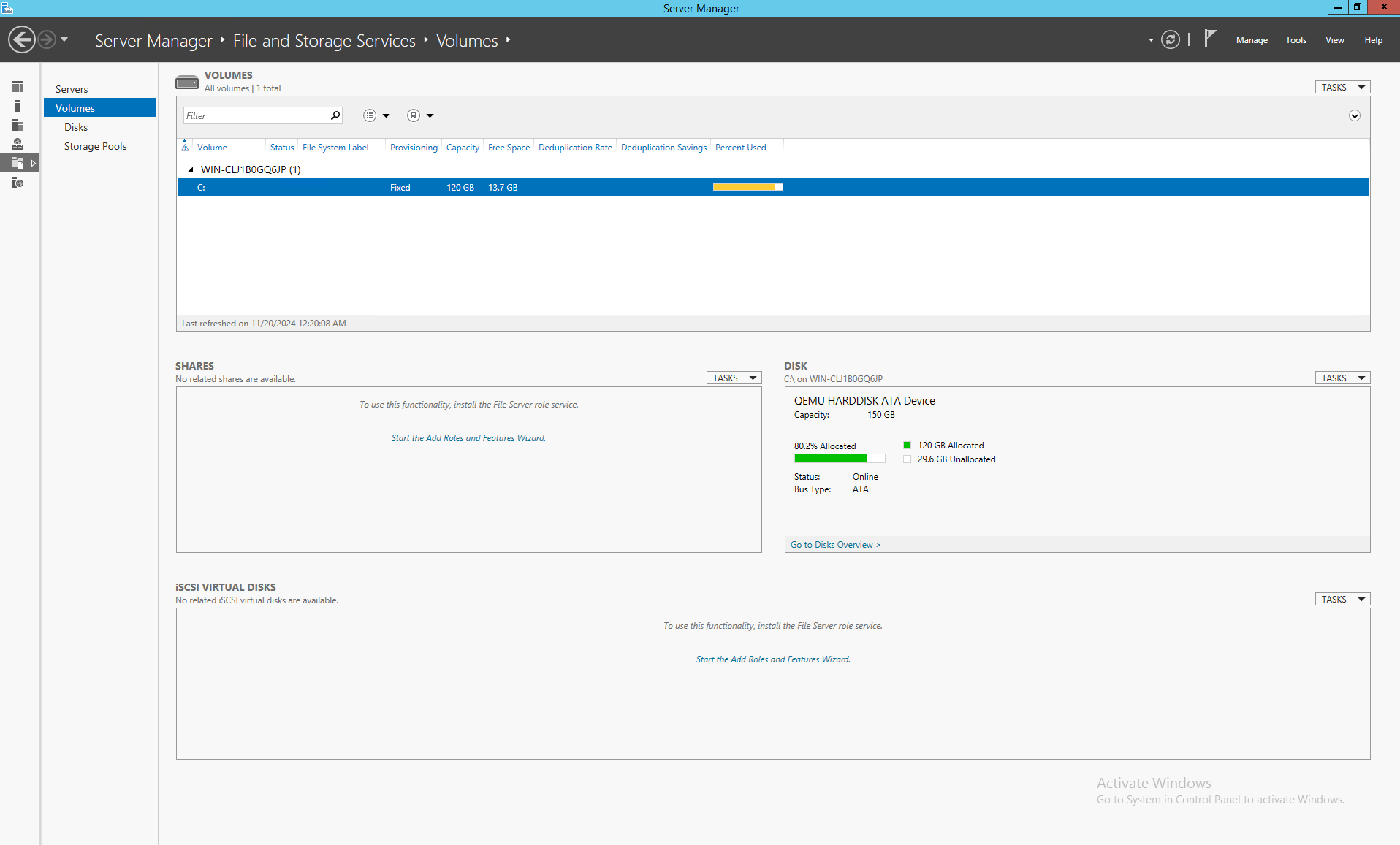
1. In the Server Manager dashboard, select **File and Storage Services** from the left-hand panel.
2. Click on **Volumes** to display all configured drives on your server.
***
## Step 2: navigate to file and storage services
1. In the Server Manager dashboard, select **File and Storage Services** from the left-hand panel.
2. Click on **Volumes** to display all configured drives on your server.
 ***
## Step 3: select the target volume
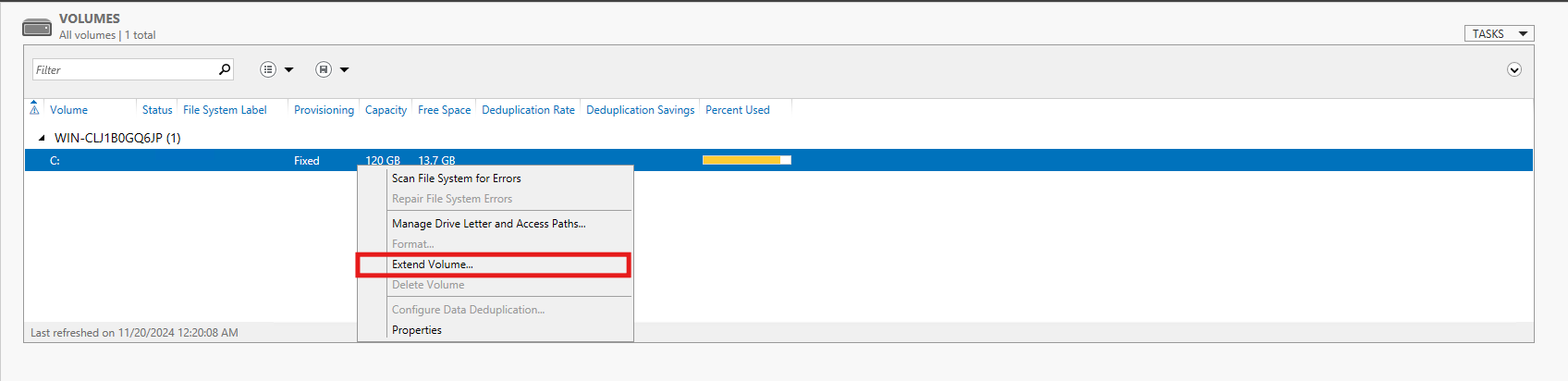
1. In the **Volumes** section, locate the drive you want to resize.
2. Right-click the drive and choose:
* **Extend Volume** to increase its size.
* **Shrink Volume** to reduce its size.
***
## Step 3: select the target volume
1. In the **Volumes** section, locate the drive you want to resize.
2. Right-click the drive and choose:
* **Extend Volume** to increase its size.
* **Shrink Volume** to reduce its size.
 ***
## Step 4: extending a volume
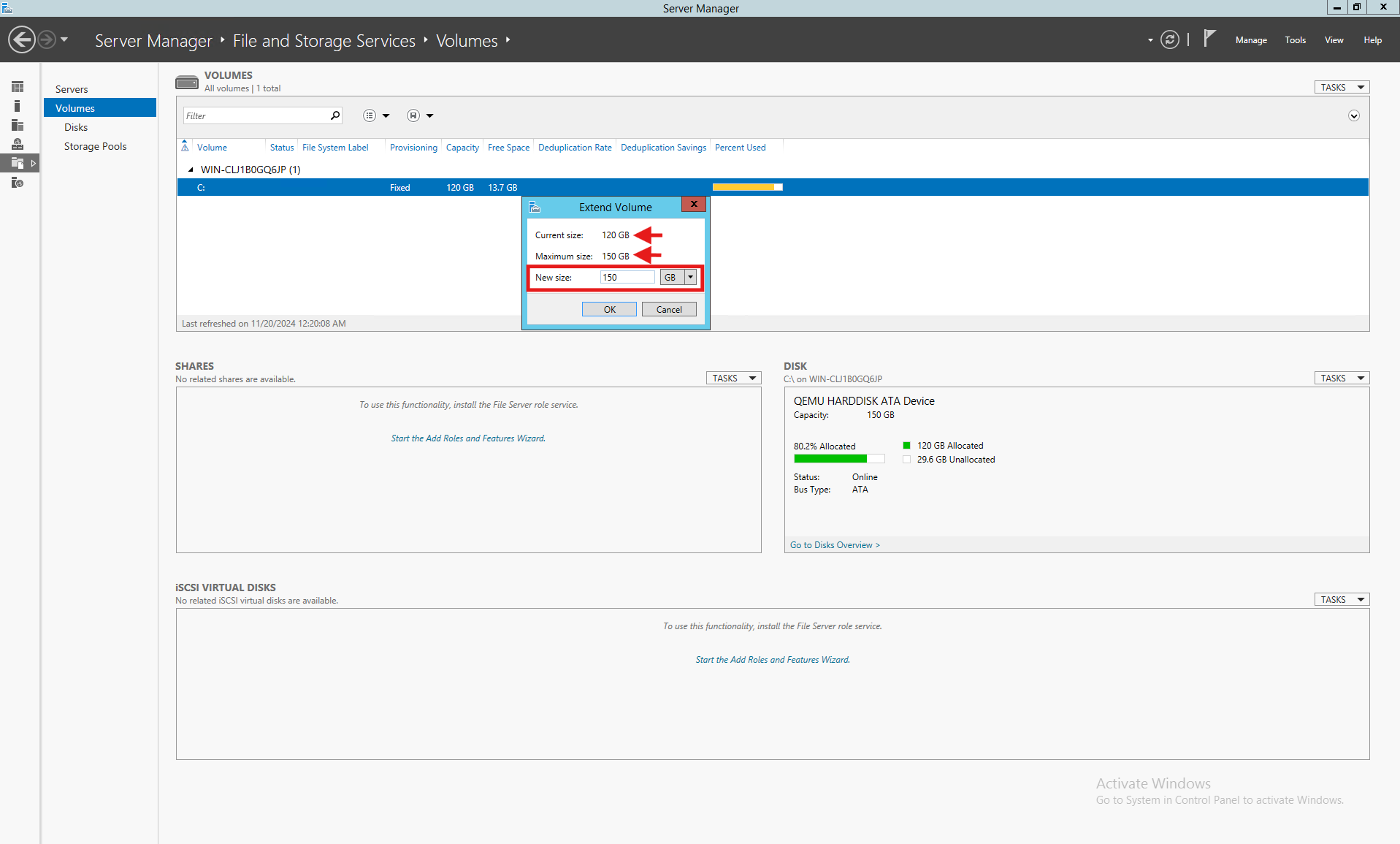
1. If there’s unallocated space available on the disk:
* Selecting **Extend Volume** will launch a wizard that allows you to allocate the unused space to the volume.
2. Specify the amount of space to add to the volume.
3. Click **OK** to apply the changes.
***
## Step 4: extending a volume
1. If there’s unallocated space available on the disk:
* Selecting **Extend Volume** will launch a wizard that allows you to allocate the unused space to the volume.
2. Specify the amount of space to add to the volume.
3. Click **OK** to apply the changes.
 ***
## Step 5: shrinking a volume
1. To shrink a volume, right-click the desired drive and select **Shrink Volume.**
2. Enter the amount of space you want to reduce from the drive.
3. Click **OK.**
4. The freed-up space will appear as **Unallocated Space.**
***
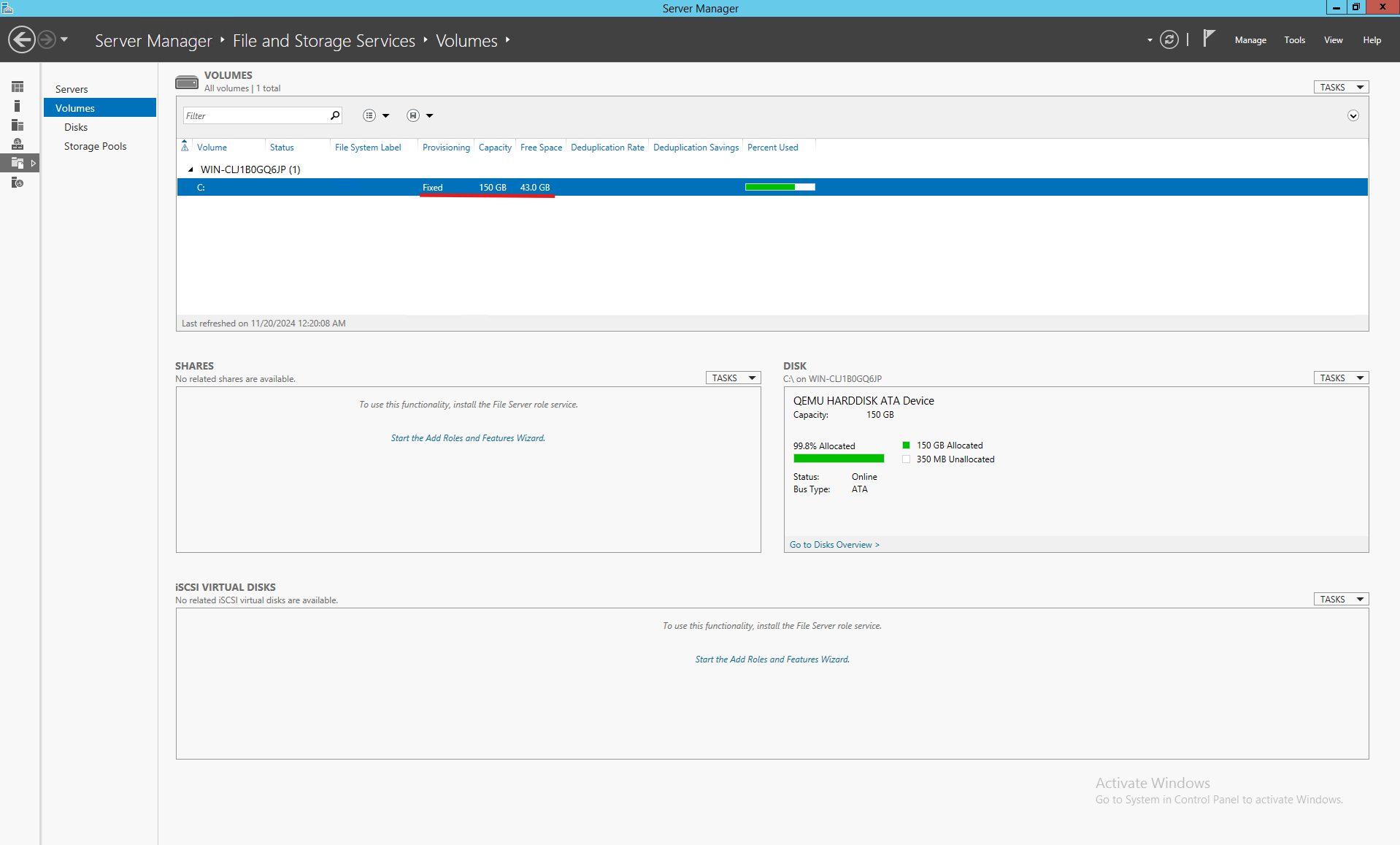
## Step 6: verify changes
1. Return to the **Volumes** section in Server Manager to confirm the updated volume size.
2. For a more detailed view, you can use **Disk Management.**
***
## Step 5: shrinking a volume
1. To shrink a volume, right-click the desired drive and select **Shrink Volume.**
2. Enter the amount of space you want to reduce from the drive.
3. Click **OK.**
4. The freed-up space will appear as **Unallocated Space.**
***
## Step 6: verify changes
1. Return to the **Volumes** section in Server Manager to confirm the updated volume size.
2. For a more detailed view, you can use **Disk Management.**
 ***
## Important Notes
* **Backup Data:** Always back up important data before making any changes to the disk.
* **Unallocated Space Requirement:** To extend a volume, unallocated space must exist on the same disk and be contiguous with the target volume.
* **In-Use Volumes:** If the volume is in use by active services or applications, a restart may be required.
***
## Common issues and solutions
1. **Extend Volume is Grayed Out:**
This occurs when there’s no contiguous unallocated space next to the volume.
* Consider using advanced tools to move or merge partitions.
2. **Limited Shrink Volume:**
* System files or reserved partitions can limit how much space you can shrink.
* Use advanced tools like **Diskpart** for further management.
***
## Alternative Tools
If File and Storage Services cannot meet your requirements:
* Use **Disk Management** for basic disk operations.
* Use **Diskpart** or **PowerShell** for advanced disk management.
* Consider third-party software such as **MiniTool Partition Wizard** or **EaseUS Partition Master.**
***
## Important Notes
* **Backup Data:** Always back up important data before making any changes to the disk.
* **Unallocated Space Requirement:** To extend a volume, unallocated space must exist on the same disk and be contiguous with the target volume.
* **In-Use Volumes:** If the volume is in use by active services or applications, a restart may be required.
***
## Common issues and solutions
1. **Extend Volume is Grayed Out:**
This occurs when there’s no contiguous unallocated space next to the volume.
* Consider using advanced tools to move or merge partitions.
2. **Limited Shrink Volume:**
* System files or reserved partitions can limit how much space you can shrink.
* Use advanced tools like **Diskpart** for further management.
***
## Alternative Tools
If File and Storage Services cannot meet your requirements:
* Use **Disk Management** for basic disk operations.
* Use **Diskpart** or **PowerShell** for advanced disk management.
* Consider third-party software such as **MiniTool Partition Wizard** or **EaseUS Partition Master.**